
MCP server · Developer tools
DroidMind MCP server
by hyperb1iss
Lets your AI control and inspect Android phones and emulators through plain chat.
DroidMind is a helper program that connects your AI assistant to Android devices. It lets the AI look at what is on a phone or emulator, read logs, move files, and tap around the screen when you ask it to. It is handy for developers and testers who work with Android apps and want to do things by describing them instead of typing commands.
What is an MCP server? The 30-second version
On its own, your AI can only chat. An MCP server is a small helper program that gives your AI a new skill or a connection to an app or service. This one connects your AI to Android devices through ADB, the standard tool for talking to Android phones. Once it is set up, you can ask your AI in normal words to check a device, and the helper does the actual work on the device for you.
What this MCP server does
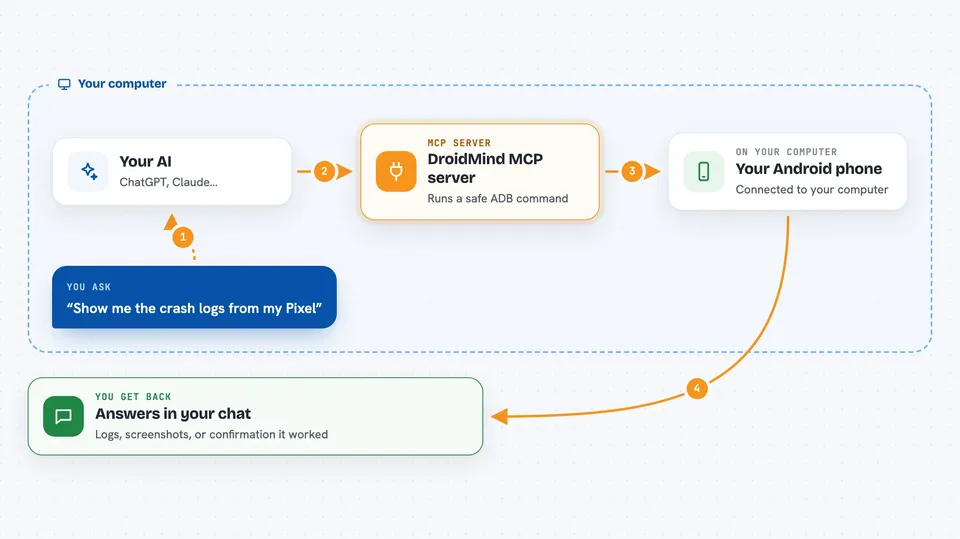
You ask your AI something about your Android device, like listing connected phones or showing recent crash logs. The AI sends that request to DroidMind, which runs the matching ADB command on your computer. DroidMind checks the command against its security rules first, then talks to the device. The result comes back to the AI, and the AI explains it to you in the chat.
 Click to zoom
What you can do with it
- List connected Android devices and their properties
- Read logs like logcat, crash, ANR, and battery reports
- Install, uninstall, start, stop, or clear data for apps
- Browse, read, write, push, pull, and delete files on the device
- Tap, swipe, type text, and press keys on the screen
- Take screenshots and capture bug reports
- Run ADB shell commands with safety checks
Try asking your AI
- “List all connected Android devices and show their properties.”
- “Take a screenshot of my Pixel.”
- “Show me the recent crash logs from emulator-5554.”
- “Tap the Next button on the current screen of emulator-5554.”
What it gives back to you
You get answers in the chat: lists of devices, device properties, log excerpts, file contents, or confirmation that an action was done. Screenshots and bug reports come back as files you can open. For things like taps or installs, the AI tells you whether it worked or what went wrong.
Before you start
What you need
- Python 3.13 (3.14 is not supported yet)
- The uv package manager
- An Android device or emulator with USB debugging turned on
- ADB installed and available on your system PATH
Good to know
It can change or delete files, install or remove apps, and run shell commands on your device, so only point it at a device you are happy to have modified.
Install it with your AI
Add DroidMind MCP server to your AI, no technical skills needed
You don't install anything by hand. You copy one prompt, paste it into an AI that can work on your computer, and it checks, installs and connects the server for you, asking you when it needs something.
Sign in to get the install prompt
Members get a ready-made prompt that lets the Claude desktop app check DroidMind MCP server, install it and connect it for them, step by step. You don't need any technical skills: you copy, paste and answer a few questions. Your connected AI can also find and install any of the 4,609 MCP servers here for you.
Who it's for
Android developers and testers who want to inspect and control devices by chatting with an AI instead of typing ADB commands.



