MCP server · Analytics
ICTPBX MCP server
Lets your AI read your ICTPBX phone system: extensions, phone numbers, providers, tenants and live stats.

This is a small helper that connects your AI assistant to ICTPBX, a phone system (PBX) that runs your office calls. Once it is set up, you can just ask your AI things like how many extensions you have or which phone numbers are active, and it will look them up for you. It is handy for anyone who helps run or support a phone system but does not want to click through menus all day.
What is an MCP server? The 30-second version
On its own, your AI can only chat. It has no way to see inside your phone system. An MCP server is a small helper program that gives your AI one new skill, and here that skill is reading your ICTPBX setup. So when you ask a question about your PBX, the AI passes it to this helper, the helper asks ICTPBX, and the answer comes back into the chat.
What this MCP server does
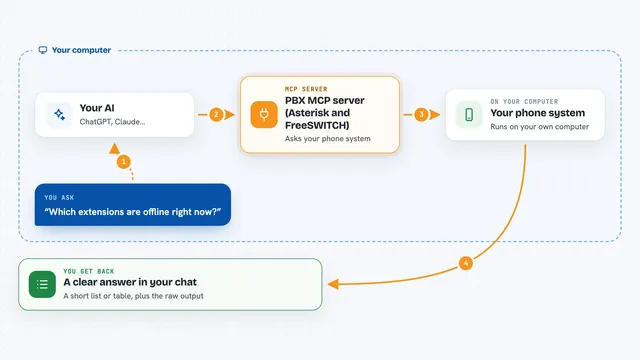
You ask your AI a question about your phone system in normal words. The AI sends that request to this helper program running on your computer. The helper logs in to your ICTPBX using the details you gave it, then asks the ICTPBX system for the information. ICTPBX sends back the list or the numbers, and the helper hands them to your AI. Your AI then explains the result to you in plain language.
 Click to zoom
What you can do with it
- Count your extensions, devices, ring groups, queues, IVRs, voicemails, conferences and gateways
- List your SIP extensions with their username, name and tenant
- List your inbound phone numbers (DIDs) and whether they are active
- List your SIP trunk providers, the carriers your calls go through
- List the tenants, meaning the customer organizations on the PBX
Try asking your AI
- “How many extensions and ring groups do we have right now?”
- “Show me all the inbound numbers that are not active.”
- “Which SIP providers are set up on our PBX?”
- “List the tenants on the system and how many extensions each one has.”
What it gives back to you
You get answers in the chat, usually as a short list or a set of counts. For example, it might say you have 42 extensions, 6 ring groups and 3 queues, or show a table of phone numbers with their status. It only reads information, so nothing in your phone system gets changed.
Before you start
What you need
- Node.js 18 or newer on your computer
- The web address of your ICTPBX system, usually ending in /api
- An ICTPBX account email and password that can log in to the API
Good to know
It is read-only, so it will not change or delete anything, but it does log in with your PBX account, so keep those login details private.
Install it with your AI
Add ICTPBX MCP server to your AI, no technical skills needed
You don't install anything by hand. You copy one prompt, paste it into an AI that can work on your computer, and it checks, installs and connects the server for you, asking you when it needs something.
Sign in to get the install prompt
Members get a ready-made prompt that lets the Claude desktop app check ICTPBX MCP server, install it and connect it for them, step by step. You don't need any technical skills: you copy, paste and answer a few questions. Your connected AI can also find and install any of the 4,609 MCP servers here for you.
Who it's for
Phone system admins, IT support staff and office managers who look after an ICTPBX setup and want quick answers without clicking through the admin screens.