
MCP server · Developer tools
InsForge MCP server
by InsForge
Lets your AI add login, a database, file storage and small server tasks to an app you are building.
This is a helper that connects your AI coding assistant to InsForge, a service that provides the behind-the-scenes parts of an app. It is handy if you are building a website or app and want your AI to set up things like user accounts, a place to store data, or file uploads without you wiring it all up by hand. You do not need to be a developer to read this page, but the tool itself is aimed at people building software.
What is an MCP server? The 30-second version
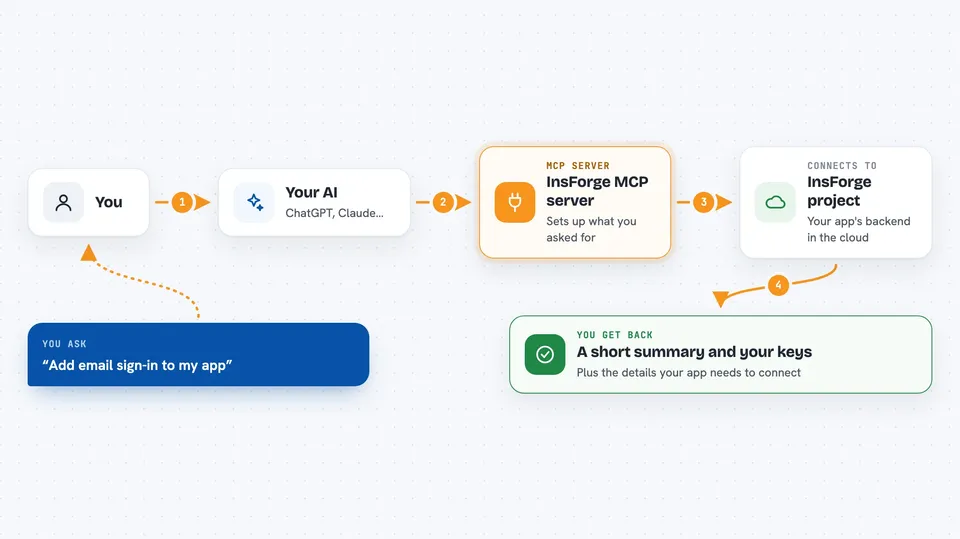
On its own, your AI can only chat with you. An MCP server is a small helper program that gives your AI a new skill or a connection to another service. This one connects your AI to InsForge, so when you ask for something like a login system or a database table, the AI can actually go and set it up there for you. You stay in the chat, and the helper does the running around.
What this MCP server does
You tell your AI what your app needs, for example a way for people to sign up or a place to keep their data. The AI uses this helper to talk to your InsForge project. InsForge then creates or changes the thing you asked for, like adding a database table or turning on sign-in. When it is done, the AI tells you what it set up and gives you the details you need to use it in your app.
 Click to zoom
What you can do with it
- Set up user sign-up and sign-in for your app
- Create and change database tables to store your data
- Add file storage so your app can save and serve uploads
- Add small server tasks that run when something happens
- Connect an AI model to your app for text features
- Check what is already set up in your InsForge project
Try asking your AI
- “Add email and password sign-in to my app and show me how to use it”
- “Create a table called orders with fields for customer, item and price”
- “Set up file storage for profile pictures and give me the upload code”
- “Add a small server task that sends a welcome email when someone signs up”
What it gives back to you
You get back plain answers in the chat, like a short summary of what was created and the settings or keys you need to use it. For database work you may see the table structure or a list of tables. For sign-in and storage you get the details your app needs to connect. If something could not be done, the AI tells you what went wrong.
Before you start
What you need
- An InsForge account and project
- Your InsForge API key (a kind of password the service gives you)
- The web address of your InsForge instance (it defaults to localhost:7130 if you run it on your own machine)
- Node.js installed so the npx command can run
Good to know
It can create and change real things in your InsForge project, like database tables and user accounts, so check what your AI is about to do before you say yes.
Install it with your AI
Add InsForge MCP server to your AI, no technical skills needed
You don't install anything by hand. You copy one prompt, paste it into an AI that can work on your computer, and it checks, installs and connects the server for you, asking you when it needs something.
Sign in to get the install prompt
Members get a ready-made prompt that lets the Claude desktop app check InsForge MCP server, install it and connect it for them, step by step. You don't need any technical skills: you copy, paste and answer a few questions. Your connected AI can also find and install any of the 4,609 MCP servers here for you.
Who it's for
People building apps or websites who want their AI assistant to handle the backend setup for them.



