MCP server · Developer tools
PatchWarden MCP server
Let ChatGPT plan a coding task while a local agent runs it inside limits you set, with proof of what changed.
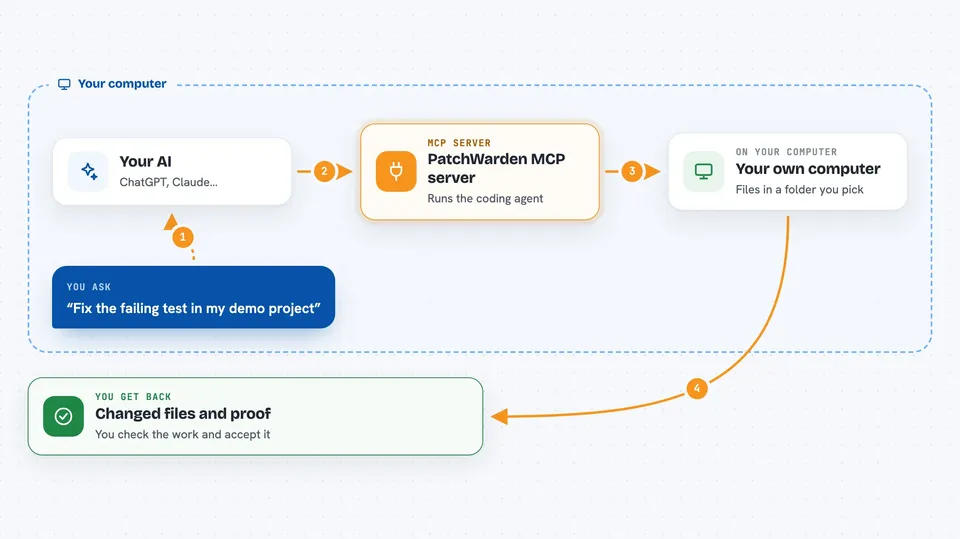
PatchWarden is a safety layer that sits between ChatGPT and a coding agent running on your own computer. You plan the task in ChatGPT, the local agent does the work, and PatchWarden keeps it inside a folder you chose, checks the changes, and leaves a record you can review. It is handy if you want AI help on real code without handing over your whole machine.
What is an MCP server? The 30-second version
On its own, your AI can only chat. An MCP server is a small helper program that gives your AI a new skill or a connection to something else. This one connects your AI to PatchWarden on your computer, so it can start a controlled coding task, check the workspace, and pull back the results. You stay in charge of what it is allowed to touch.
What this MCP server does
You describe a task in ChatGPT, and the AI sends it through PatchWarden to a coding agent you already have installed, like Codex CLI, Claude Code, or OpenCode. PatchWarden only lets that agent work inside the folder you set as the workspace, and only run verification commands you have allowed. When the agent finishes, PatchWarden collects the real file changes, the verification results, and an audit trail. You then look at the evidence and decide whether to accept the work.
 Click to zoom
What you can do with it
- Run a coding task inside a folder you pick, not your whole disk
- Check that the local agent and service are healthy before starting
- See exactly which files changed and whether any change went out of scope
- Run only verification commands you have allowed
- Get a diff, verification result, audit, and lineage for each task
- Accept or reject a task based on real evidence, not the agent's summary
Try asking your AI
- “Use PatchWarden to fix the failing test in my demo project, only inside that folder, and show me the diff and verification result”
- “Ask PatchWarden to run health_check and list_agents and tell me what is available”
- “Have PatchWarden run a small task in my demo repo and return the changed files, out-of-scope changes, and audit status”
- “Use PatchWarden to add a small function to my project, but do not commit, push, or deploy anything”
What it gives back to you
You get back a task id and lineage id, the list of changed files, the verification result, whether anything went out of scope, and the audit status. It also shows the actual diff so you can read the changes yourself. The chat shows this as a summary with the evidence attached, so you can decide whether to accept the work.
Before you start
What you need
- A Windows computer (the current installer is Windows x64)
- At least one local coding agent installed and logged in, such as Codex CLI, Claude Code, or OpenCode
- A dedicated project folder to use as the workspace, not your home or desktop folder
- Node.js 20 or newer if you run it from source or npm, and Git is recommended for reliable diffs
Good to know
PatchWarden can edit files inside your chosen workspace, including creating, moving, and deleting files if you enable the Direct tool, so keep a backup and leave human confirmation on.
Install it with your AI
Add PatchWarden MCP server to your AI, no technical skills needed
You don't install anything by hand. You copy one prompt, paste it into an AI that can work on your computer, and it checks, installs and connects the server for you, asking you when it needs something.
Sign in to get the install prompt
Members get a ready-made prompt that lets the Claude desktop app check PatchWarden MCP server, install it and connect it for them, step by step. You don't need any technical skills: you copy, paste and answer a few questions. Your connected AI can also find and install any of the 4,609 MCP servers here for you.
Who it's for
Developers and technical teams who want to plan work in ChatGPT but keep execution on their own machine with clear limits and reviewable evidence.