MCP server · Developer tools
LGH MCP server
by JoeGlenn1213
Let your AI save, back up and push your project folder to a small Git server running on your own computer.
LGH (short for LocalGitHub) is a small program that turns a folder on your computer into a private Git server, a bit like having your own tiny GitHub that only you can reach. The MCP part connects that program to your AI assistant, so you can ask your AI to save your work, push it, or check what is going on, instead of typing Git commands yourself. It is handy if you work with code or text files and want an easy way to back them up without setting up an account anywhere.
What is an MCP server? The 30-second version
On its own, your AI can only chat with you. An MCP server is a small helper program that gives your AI a new skill or a connection to something outside the chat. Here, that helper is LGH, which runs a little Git server on your own machine. Once it is connected, your AI can talk to that server for you, so it can save your files, push them, and report back what happened.
What this MCP server does
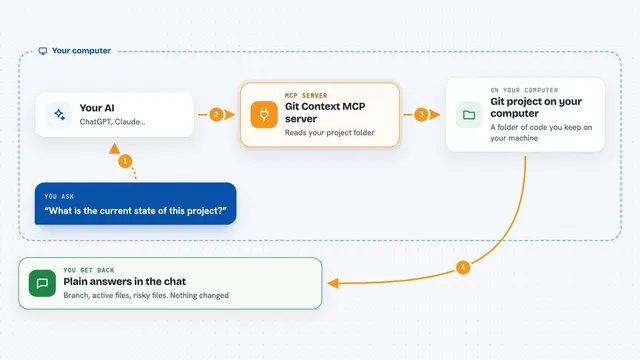
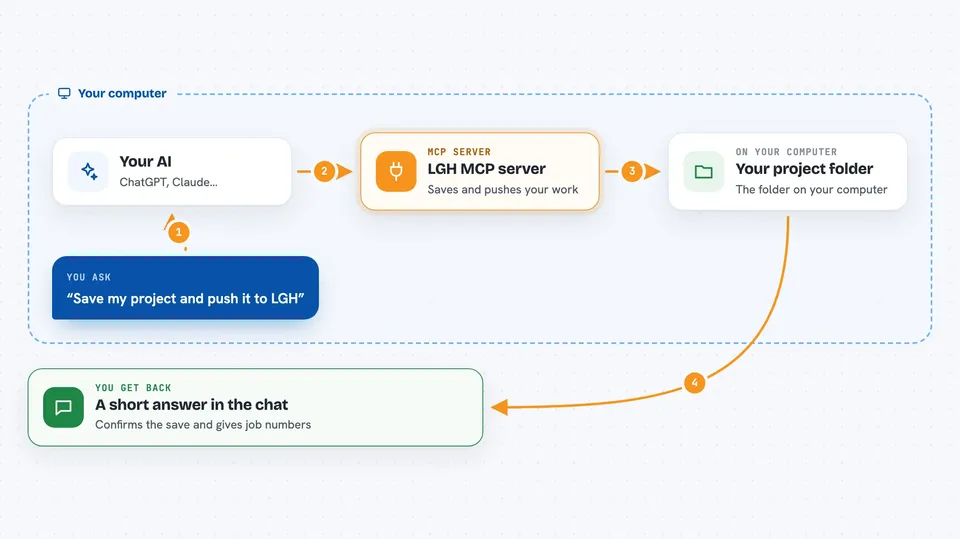
You ask your AI something like "save my project and push it". Your AI passes that request to the LGH helper running on your computer. The helper looks at your folder, writes a list of files to ignore, saves a snapshot, and pushes it to the small Git server it runs locally. Then it tells your AI what it did, including the job numbers for the push, so the AI can report back to you in the chat.
 Click to zoom
What you can do with it
- Save a snapshot of your project folder with a short message
- Push your saved work to your local Git server in one step
- Check whether the LGH server is running and which folders it is hosting
- List the repositories you have added to LGH
- Add a new folder as a repository so it can be saved and pushed
- See recent events, like pushes and new repositories
- Switch which remote your folder pushes to, for example LGH or GitHub
Try asking your AI
- “Check LGH status”
- “Save my project with the message finished the report draft”
- “Push my current folder to LGH and tell me the job numbers”
- “List all repositories I have added to LGH”
What it gives back to you
You get short, plain answers in the chat. For example, a list of your repositories, a confirmation that a save or push happened, or the job numbers for a push so you can follow it. If something went wrong, like a large file being blocked, the AI tells you that too. It does not show you a web page or a file, just text back in the conversation.
Before you start
What you need
- The LGH program installed on your computer (a single file you download or install with one command)
- Git installed on your computer
- The Claude desktop app or Cursor, with the LGH entry added to its settings file
Good to know
This helper can save and push your files and can change which remote your folder points to, so check what it is about to do before saying yes, and keep in mind it is meant for your own computer, not the open internet.
Install it with your AI
Add LGH MCP server to your AI, no technical skills needed
You don't install anything by hand. You copy one prompt, paste it into an AI that can work on your computer, and it checks, installs and connects the server for you, asking you when it needs something.
Sign in to get the install prompt
Members get a ready-made prompt that lets the Claude desktop app check LGH MCP server, install it and connect it for them, step by step. You don't need any technical skills: you copy, paste and answer a few questions. Your connected AI can also find and install any of the 4,609 MCP servers here for you.
Who it's for
People who work with code or text files on their own computer and want an easy, private way to save and back them up, without learning Git commands or signing up for an online service.