
MCP server · Developer tools
Xcode Studio MCP server
by kevinswint
Lets your AI build your iPhone app, run it in the Simulator, take screenshots, and tap or type on the screen.
This is a small helper program that connects your AI assistant to Xcode and the iOS Simulator on your Mac. It lets the AI build your app, launch it, look at the screen, and even tap buttons and type text for you. It is handy for iPhone and iPad app developers who want to move faster without switching between many windows.
What is an MCP server? The 30-second version
On its own, your AI can only chat. An MCP server is a small helper program that gives your AI a new skill or a connection to an app or service. This one connects your AI to Xcode and the iOS Simulator, so it can build your project, run your app, and interact with the screen when you ask. You install it once on your Mac, and then your AI can use it during your normal conversations.
What this MCP server does
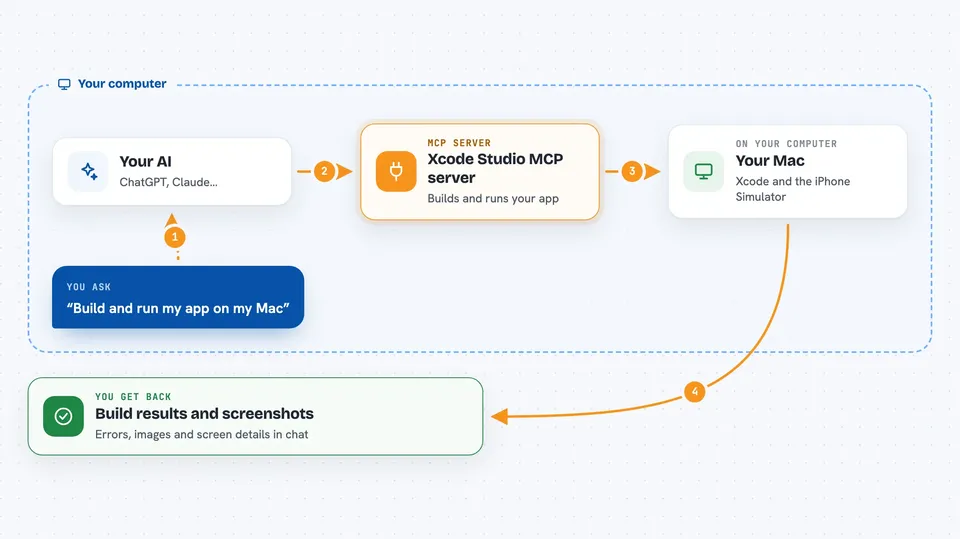
You ask your AI to build or run your app. The AI uses this helper, which calls the normal Xcode build tools on your Mac. For running and interacting, it also talks to the iOS Simulator. You get back build results, screenshots, and details about what is on the screen, all shown right in the chat.
 Click to zoom
What you can do with it
- Build an Xcode project and see any errors with file and line numbers
- Launch your app in the iOS Simulator
- Take a screenshot of the Simulator screen
- Tap at specific coordinates on the Simulator screen
- Type text into the focused field in your app
- Read the accessibility tree to see buttons and fields on screen
Try asking your AI
- “Build and run my app at ~/Projects/MyApp”
- “Take a screenshot of the Simulator”
- “Tap the email field and type test@example.com”
- “What buttons and fields are on the current screen?”
What it gives back to you
You get build results with any errors listed by file and line. You get screenshots as images right in the chat. You get a description of the screen showing buttons, fields, and other elements. When it taps or types, you see confirmation and can take another screenshot to check.
Before you start
What you need
- A Mac with Xcode installed
- For tap, type, and describe: idb-companion and fb-idb (installed with Homebrew and pip)
- The Swift build tools (comes with Xcode)
Good to know
It can tap and type in your Simulator, which changes what is on screen, so make sure you are working in a test app or a safe copy.
Install it with your AI
Add Xcode Studio MCP server to your AI, no technical skills needed
You don't install anything by hand. You copy one prompt, paste it into an AI that can work on your computer, and it checks, installs and connects the server for you, asking you when it needs something.
Sign in to get the install prompt
Members get a ready-made prompt that lets the Claude desktop app check Xcode Studio MCP server, install it and connect it for them, step by step. You don't need any technical skills: you copy, paste and answer a few questions. Your connected AI can also find and install any of the 4,361 MCP servers here for you.
Who it's for
iPhone and iPad app developers who use an AI assistant and want it to help with building, running, and testing apps in the Simulator.


