
MCP server · Developer tools
Xcode MCP server
by r-huijts
Lets your AI work with your Xcode projects: build, test, manage files and simulators for you.
This is a helper that connects your AI assistant to Xcode, Apple's app-building program. Once it is set up, you can ask your AI in plain words to build your app, run its tests, or manage your iPhone simulator, and it will do the clicking for you. It is handy for anyone who builds apps on a Mac and wants less fiddling with menus and commands.
What is an MCP server? The 30-second version
On its own, your AI can only chat. An MCP server is a small helper program that gives your AI a new skill or a link to another app. This one links your AI to Xcode on your Mac, so it can look at your projects and carry out tasks there. You just ask in normal words, and the helper does the technical part behind the scenes.
What this MCP server does
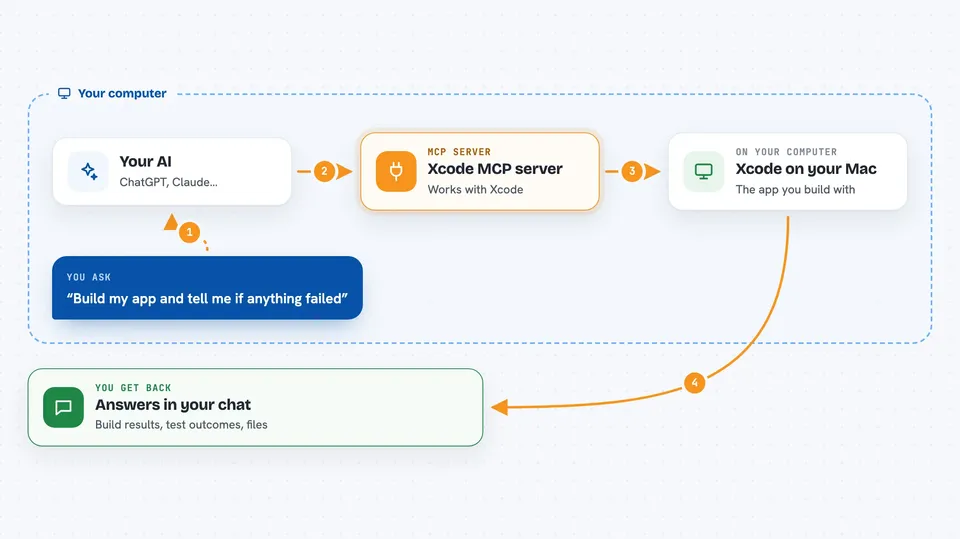
You ask your AI something like build my app or run the tests. Your AI sends that request to this helper program running on your Mac. The helper then talks to Xcode and the tools that come with it, doing the actual work. When it is done, it sends the result back, and your AI shows it to you in the chat. So you get the outcome without typing commands yourself.
 Click to zoom
What you can do with it
- Create a new Xcode project from a template
- Build your app and see any errors
- Run your tests and read the failures
- Read, write and search files in your project
- Add or remove Swift package and CocoaPods dependencies
- List, start and stop iPhone simulators
- Take screenshots or record video from a simulator
Try asking your AI
- “Build my app in Debug and tell me if anything failed”
- “Run the tests for my project and summarize the failures”
- “Create a new iOS app project called MyAwesomeApp with tests”
- “List my available simulators and boot the newest iPhone one”
- “Search my project for every file that mentions class”
What it gives back to you
You get answers in the chat: build results with any errors, test outcomes with details on what failed, lists of simulators or files, and the content of files you asked it to read. If it makes a change, like adding a file or a dependency, it tells you what it did. Screenshots and recordings come back as files you can open.
Before you start
What you need
- A Mac with Xcode 14.0 or newer installed
- Node.js version 16 or higher
- The project folder path you want it to work in
- CocoaPods if you want the pod features (optional)
Good to know
This helper can change, build and delete things in your project folders, so only point it at folders you are happy for it to work in and keep backups.
Install it with your AI
Add Xcode MCP server to your AI, no technical skills needed
You don't install anything by hand. You copy one prompt, paste it into an AI that can work on your computer, and it checks, installs and connects the server for you, asking you when it needs something.
Sign in to get the install prompt
Members get a ready-made prompt that lets the Claude desktop app check Xcode MCP server, install it and connect it for them, step by step. You don't need any technical skills: you copy, paste and answer a few questions. Your connected AI can also find and install any of the 4,361 MCP servers here for you.
Who it's for
App developers and anyone building iOS, macOS, watchOS or tvOS apps on a Mac who wants their AI to handle Xcode chores.


