MCP server · Developer tools
Neovim MCP server
by linw1995
Lets your AI assistant read and work with the files open in your Neovim editor.
This is a small helper that connects your AI assistant to Neovim, the text editor many developers use. Once it is set up, your AI can look at the files you have open, check for problems in your code, and help you fix them. It is handy if you already edit code in Neovim and want your AI to see the same thing you see.
What is an MCP server? The 30-second version
On its own, your AI can only chat with you. An MCP server is a small helper program that gives your AI a new skill or a connection to another app. This one connects your AI to Neovim, the editor running on your computer. So when you ask your AI something about your open files, it can actually look inside Neovim instead of guessing.
What this MCP server does
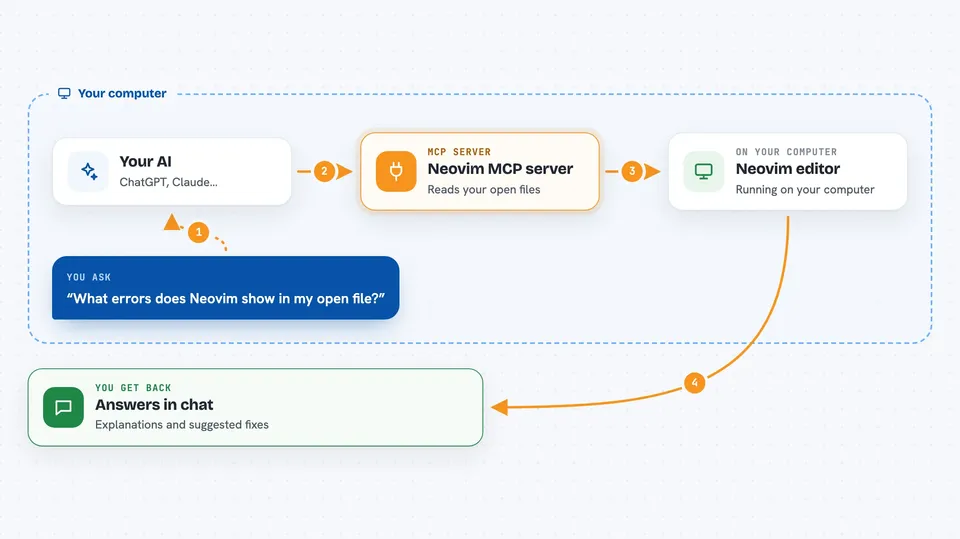
You ask your AI a question about your code, like what is wrong in this file. The AI passes that request to this helper program. The helper talks to your running Neovim editor and asks it for the file contents, the warnings, or the error messages. Neovim sends that information back, and the helper hands it to your AI. Your AI then explains what it found or suggests a fix, right in the chat.
 Click to zoom
What you can do with it
- Look at the file you currently have open in Neovim
- List the warnings and errors Neovim is showing for your code
- Explain what a piece of code does using the editor's own language tools
- Suggest fixes for problems Neovim has flagged
- Work with several Neovim windows or projects at the same time
- Find a file by its name or its path
Try asking your AI
- “What errors does Neovim show in the file I have open right now?”
- “Explain what this function does and where it is used.”
- “Help me fix the warnings in my current file.”
- “Show me the diagnostics for this project and suggest what to do first.”
What it gives back to you
You get answers in plain chat text: explanations, lists of warnings and errors, and suggested fixes. If your AI changes something, it tells you what it changed. The information comes from your real editor, so it matches what you see on screen.
Before you start
What you need
- Neovim installed on your computer
- The nvim-mcp plugin added to your Neovim setup
- The nvim-mcp helper program installed (the README shows a cargo install command)
- An AI app that supports MCP servers, like Claude Code
Good to know
This helper can read the files you have open in Neovim, so only connect it to projects you are comfortable sharing with your AI.
Install it with your AI
Add Neovim MCP server to your AI, no technical skills needed
You don't install anything by hand. You copy one prompt, paste it into an AI that can work on your computer, and it checks, installs and connects the server for you, asking you when it needs something.
Sign in to get the install prompt
Members get a ready-made prompt that lets the Claude desktop app check Neovim MCP server, install it and connect it for them, step by step. You don't need any technical skills: you copy, paste and answer a few questions. Your connected AI can also find and install any of the 4,609 MCP servers here for you.
Who it's for
Developers and anyone who writes code in Neovim and wants their AI assistant to see the same files and warnings they do.