MCP server · Research
Giphy MCP server
by magarcia
Lets your AI search Giphy and bring back GIFs you can drop into chats and slides.
This is a small helper that connects your AI assistant to Giphy, the big library of animated GIFs. Once it is set up, you can just ask for a GIF in plain words and your AI goes and finds one for you. It is handy for anyone who adds a bit of fun to messages, docs, or presentations.
What is an MCP server? The 30-second version
On its own, your AI can only chat with you. An MCP server is a small helper program that gives your AI one new skill. This helper gives your AI a connection to Giphy, so it can look up GIFs there when you ask. You do not need to understand how it works inside; you just set it up once and then talk to your AI as usual.
What this MCP server does
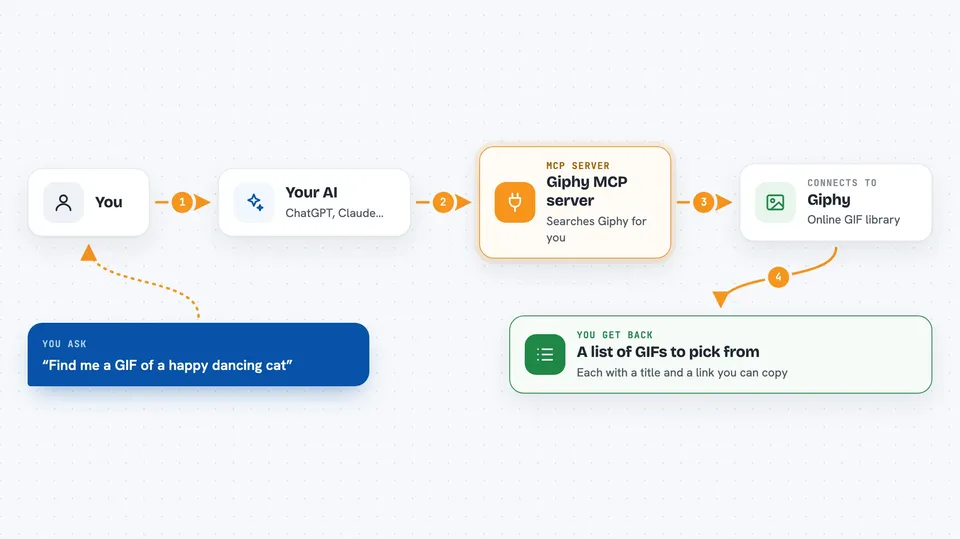
You ask your AI for a GIF, for example a happy dancing cat. Your AI passes that request to this helper program. The helper talks to Giphy and asks for matching GIFs. Giphy sends back a list with titles, links, and image details. Your AI shows you the results in the chat, and you pick the one you like.
 Click to zoom
What you can do with it
- Search Giphy for GIFs using any phrase you type
- Get a random GIF, optionally tied to a tag like birthday or cat
- See what is trending on Giphy right now
- Limit results by content rating such as G or PG
- Ask for a specific number of results, up to 50
- Get details for each GIF like title, link, and image size
Try asking your AI
- “Find me a GIF of a cat typing on a keyboard”
- “Show me five trending GIFs right now”
- “Give me a random GIF tagged congratulations”
- “Search Giphy for happy dance GIFs, only G rated, and show me the links”
What it gives back to you
You get a list of GIFs, each with a title, a link to its Giphy page, and direct image links with width and height. Your AI usually shows this as a short list or a set of links in the chat. You can then copy the link you want and paste it wherever you need it.
Before you start
What you need
- A Giphy developer account (free to create)
- A Giphy API key from your Giphy developer dashboard (a kind of password for apps)
- The Claude desktop app or another AI tool that supports MCP servers
- Node.js installed on your computer if you use the npx setup
Good to know
Giphy results can include content you would not want at work, so use the rating option (G or PG) when searching.
Install it with your AI
Add Giphy MCP server to your AI, no technical skills needed
You don't install anything by hand. You copy one prompt, paste it into an AI that can work on your computer, and it checks, installs and connects the server for you, asking you when it needs something.
Sign in to get the install prompt
Members get a ready-made prompt that lets the Claude desktop app check Giphy MCP server, install it and connect it for them, step by step. You don't need any technical skills: you copy, paste and answer a few questions. Your connected AI can also find and install any of the 4,609 MCP servers here for you.
Who it's for
Anyone who wants to add GIFs to chats, documents, or slides without hunting through Giphy by hand, especially marketing, social media, and support teams.