MCP server · Productivity
ScreenPilot MCP server
by Mtehabsim
Let your AI take screenshots, move the mouse, and type on your computer when you ask it to.
ScreenPilot is a small helper that gives your AI hands on your computer. It can look at your screen, move the mouse, click, type, and press keys. It is handy if you want to automate boring clicks, show someone how something works, or just play around with what an AI can do on your desktop.
What is an MCP server? The 30-second version
On its own, your AI can only chat with you. An MCP server is a small helper program that gives your AI a new skill or a connection to something else. ScreenPilot is that helper, and its skill is controlling your screen, mouse, and keyboard. Once it is connected, your AI can actually do things on your computer instead of just talking about them.
What this MCP server does
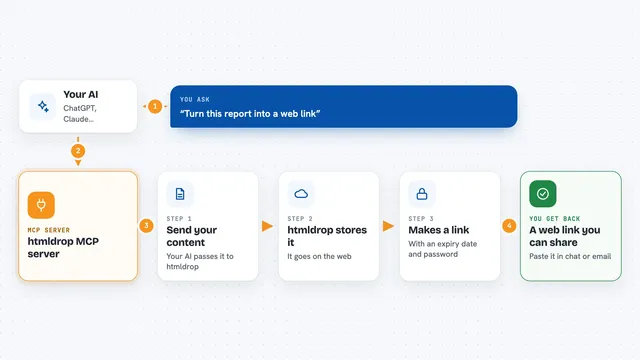
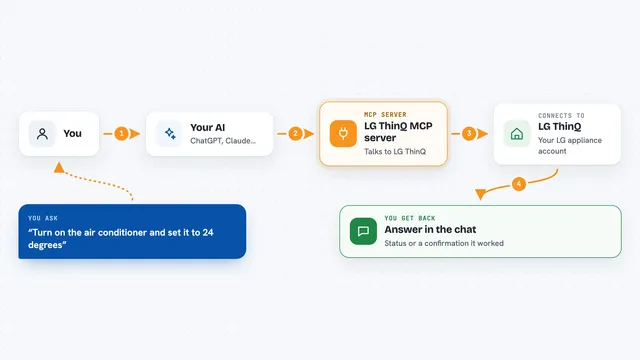
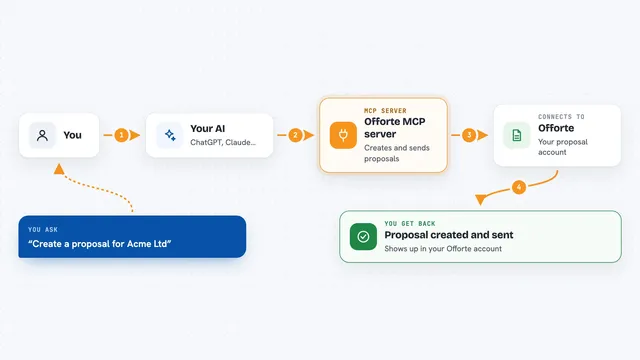
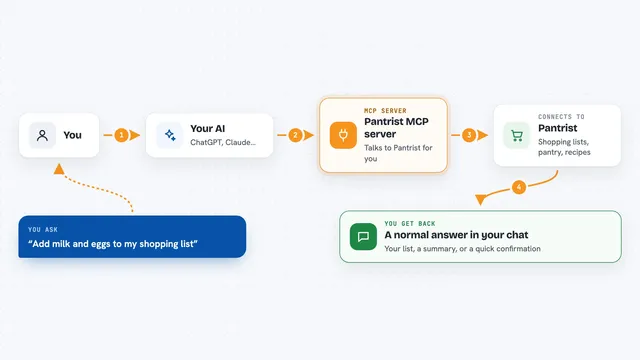
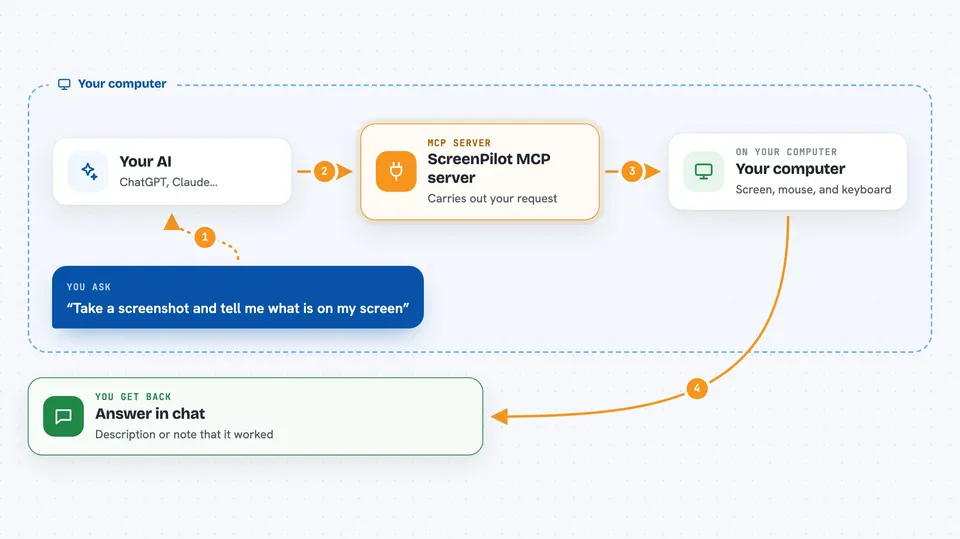
You ask your AI to do something on your screen, like take a look or click a button. The AI uses ScreenPilot to take a screenshot or send a mouse or keyboard action. ScreenPilot carries out that action on your computer and reports back what happened. Then the AI tells you what it saw or what it did, right in the chat. You stay in control the whole time because you are the one asking.
 Click to zoom
What you can do with it
- Take a screenshot of your screen and describe what is on it
- Move the mouse to a spot and click there
- Type text into whatever window is open
- Press single keys or key combinations like Ctrl+C
- Scroll up, down, or to a certain position
- Check whether a button or element is visible on screen
- Run a short sequence of clicks and key presses in order
Try asking your AI
- “Take a screenshot and tell me what is on my screen right now”
- “Click the button in the top right corner of the window”
- “Type hello world into the text box that is open”
- “Scroll down a bit and then take another screenshot”
What it gives back to you
You get answers in the chat, like a description of what is on your screen or a note that an action was done. Screenshots come back as images you can look at. If you ask it to click or type, it tells you whether that worked. You can also ask it to wait for something to appear and it will report back when it shows up.
Before you start
What you need
- Python 3.12 installed on your computer
- The ScreenPilot project files downloaded from GitHub
- A few Python packages installed with pip
- The Claude desktop app with developer settings turned on
Good to know
This lets your AI move your mouse and type on your computer, so it can click or change things by accident, and you should watch what it does.
Install it with your AI
Add ScreenPilot MCP server to your AI, no technical skills needed
You don't install anything by hand. You copy one prompt, paste it into an AI that can work on your computer, and it checks, installs and connects the server for you, asking you when it needs something.
Sign in to get the install prompt
Members get a ready-made prompt that lets the Claude desktop app check ScreenPilot MCP server, install it and connect it for them, step by step. You don't need any technical skills: you copy, paste and answer a few questions. Your connected AI can also find and install any of the 4,066 MCP servers here for you.
Who it's for
People who want to automate simple clicks and typing on their own computer, teachers showing how software works, and anyone curious about letting an AI drive their desktop.