MCP server · Productivity · official
LG ThinQ MCP server
by thinq-connect · official
Ask your AI to check and control your LG ThinQ appliances, like turning the air conditioner on or reading the vacuum's status.

This is the official helper that connects your AI assistant to your LG ThinQ smart home devices. Once it is set up, you can just ask in plain words and your AI will look up or change things on your appliances. It is handy if you already use LG ThinQ and want to control your home from the same chat where you do everything else.
What is an MCP server? The 30-second version
On its own, your AI can only chat with you. An MCP server is a small helper program that gives your AI a new skill or a connection to an app or service. This one connects your AI to LG ThinQ, so it can look up your devices and send them commands when you ask. You do not need to understand how it works inside; you just add it once and then talk to your AI like usual.
What this MCP server does
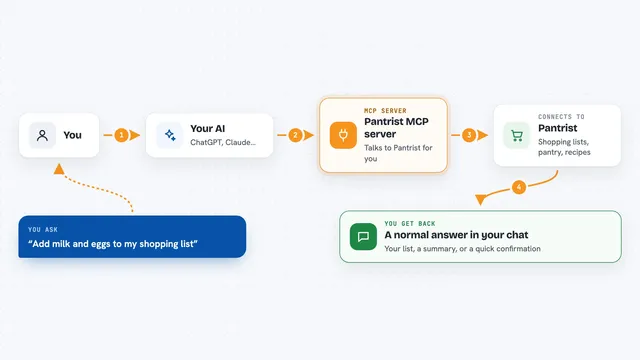
You ask your AI something about your LG appliances, like checking the air conditioner or turning the vacuum on. Your AI passes that request to this helper, which talks to the LG ThinQ service using your account. The helper sends back the answer or makes the change on the device. Then your AI shows you the result in the chat, in normal words.
 Click to zoom
What you can do with it
- List all LG ThinQ devices linked to your account
- Check the current status of a specific appliance, like a robot vacuum
- See which controls a device supports and what settings they take
- Turn an air conditioner on or off
- Set the temperature on an air conditioner
- Send other control commands that a device's profile allows
Try asking your AI
- “Please provide a list of all devices”
- “Please check the status of the robot vacuum device”
- “Please set the temperature of the air conditioner device to 24 degrees”
- “What controls does my air conditioner support?”
What it gives back to you
You get answers in the chat, in plain words. For a device list, your AI shows the appliances connected to your account. For a status check, it tells you things like whether the vacuum is running or what the air conditioner is set to. For a control command, it confirms whether the change went through.
Before you start
What you need
- A Personal Access Token for the LG ThinQ Open API (a kind of password for apps; the ThinQ Connect project page explains how to get one)
- Your ThinQ account's country code, which you can find in the ThinQ Connect country codes list
- Python 3.11 or higher
- uv, a Python package installer, and an MCP client like the Claude desktop app
Good to know
This server can actually change your appliances, so check with your AI before letting it send commands like turning things on, off, or changing temperatures.
Install it with your AI
Add LG ThinQ MCP server to your AI, no technical skills needed
You don't install anything by hand. You copy one prompt, paste it into an AI that can work on your computer, and it checks, installs and connects the server for you, asking you when it needs something.
Sign in to get the install prompt
Members get a ready-made prompt that lets the Claude desktop app check LG ThinQ MCP server, install it and connect it for them, step by step. You don't need any technical skills: you copy, paste and answer a few questions. Your connected AI can also find and install any of the 4,361 MCP servers here for you.
Who it's for
People who already use LG ThinQ appliances at home and want to check or control them from their AI chat without opening a separate app.