MCP server · Gaming
Unreal AI Connection MCP server
by NAJEMWEHBE
Lets your AI build and inspect Unreal Engine scenes and assets by talking to the open editor.
This is a helper that connects your AI assistant to Unreal Engine, the program used to build games and 3D scenes. Once it is set up, you can ask your AI in plain words to place objects, look at Blueprints, or take screenshots, and it does that inside the editor for you. It is handy for game developers and 3D artists who already work in Unreal Engine and want to skip a lot of clicking.
What is an MCP server? The 30-second version
On its own, your AI can only chat and write text. An MCP server is a small helper program that gives your AI a new skill or a connection to another program. This one connects your AI to Unreal Engine, so the AI can look things up and make changes there when you ask. You keep working in your normal AI app, and the helper quietly passes your requests to the editor.
What this MCP server does
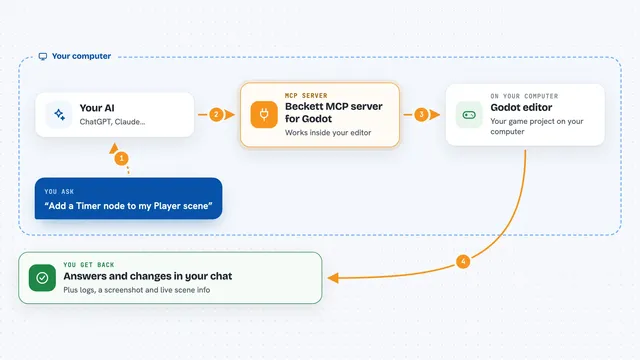
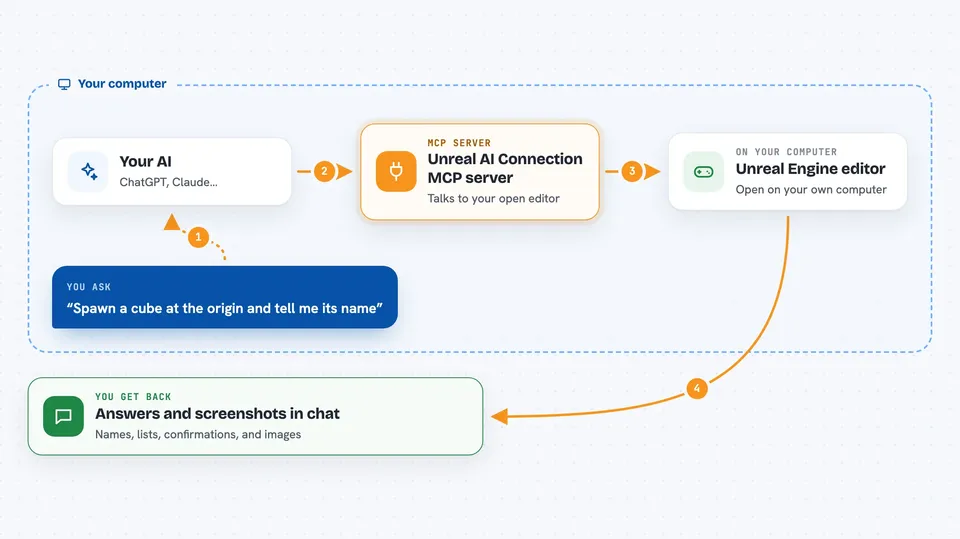
You type a request in your AI app, like placing a cube or reading a Blueprint. The AI turns that into a specific action and sends it to a small bridge program on your computer. The bridge passes the request over a local connection to a plugin running inside your open Unreal Engine editor. The editor does the work, like spawning an actor or capturing the screen, and sends the result back. You then see the answer or the image right in your chat.
 Click to zoom
What you can do with it
- Place actors and objects in your level
- Inspect Blueprints, widgets, and animation setups
- Create data tables, data assets, and Blueprint nodes
- Take screenshots of your viewport or specific actors
- Load levels and focus the camera on things
- Run your own Unreal Python scripts
- Render cinematics and Movie Render Queue jobs
Try asking your AI
- “Spawn a cube at the origin and tell me its name”
- “Take a screenshot of my level and describe what is in it”
- “List all the actors in the current level”
- “Inspect the widget tree of my editor utility widget”
What it gives back to you
You get plain answers, lists, and confirmations in your chat. For example, it can tell you the names of actors, the variables inside a Blueprint, or whether a compile succeeded. It can also send back screenshots that your AI shows inline. When it makes a change, like placing an object, it usually confirms that the change was made.
Before you start
What you need
- Unreal Engine 5.7 (or 5.6 with the older release) installed
- The Unreal AI Connection plugin installed in your project's Plugins folder
- Python 3 on your computer to run the bridge program
- An MCP-compliant AI client, like Claude Code or Cursor
Good to know
This tool can change, move, or delete things in your Unreal project, so it is best to use it on a copy or with version control, and the project itself is no longer maintained by its author.
Install it with your AI
Add Unreal AI Connection MCP server to your AI, no technical skills needed
You don't install anything by hand. You copy one prompt, paste it into an AI that can work on your computer, and it checks, installs and connects the server for you, asking you when it needs something.
Sign in to get the install prompt
Members get a ready-made prompt that lets the Claude desktop app check Unreal AI Connection MCP server, install it and connect it for them, step by step. You don't need any technical skills: you copy, paste and answer a few questions. Your connected AI can also find and install any of the 4,361 MCP servers here for you.
Who it's for
Game developers, level designers, and 3D artists who already use Unreal Engine and want their AI assistant to help inside the editor.