MCP server · Customer communication
GLPI MCP server
Let your AI read and update your GLPI help desk tickets, assets and knowledge base for you.
This is a small helper that connects your AI assistant to GLPI, the system many IT teams use to track support tickets, problems, changes and equipment. Once it is connected, you can just ask your AI in plain words to look up a ticket, list open problems or add a note, and it will do it in GLPI for you. It is handy for help desk agents, IT managers and anyone who spends their day inside GLPI.
What is an MCP server? The 30-second version
On its own, your AI can only chat. It cannot see your GLPI tickets or change anything there. An MCP server is a small helper program that gives your AI a new skill, in this case a connection to your GLPI service desk. You add this helper once, and from then on your AI can look things up in GLPI and make changes there when you ask.
What this MCP server does
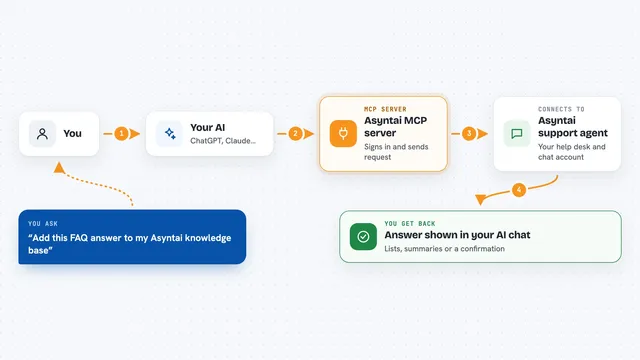
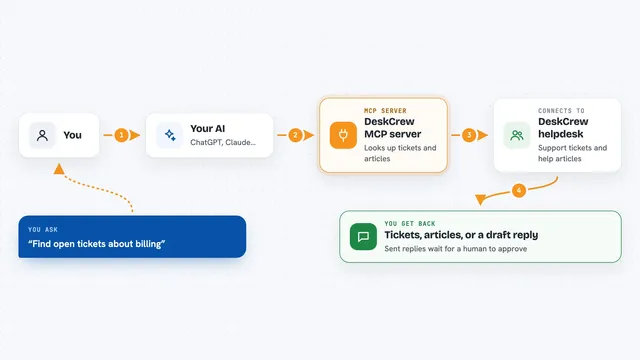
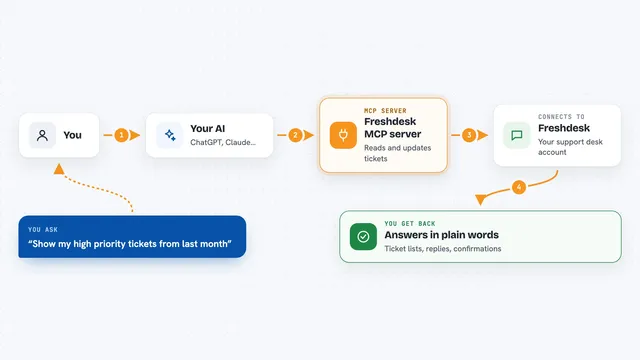
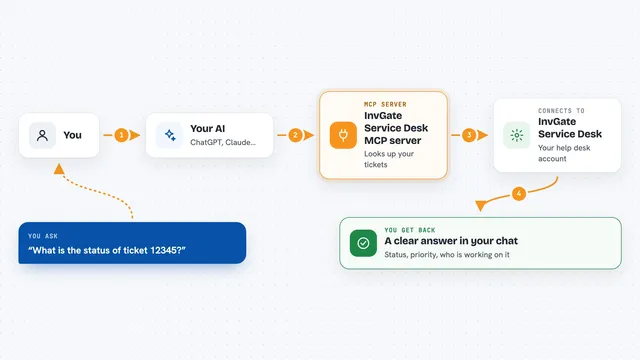
You type a request in your AI chat, like asking for the open tickets assigned to you. Your AI sends that request to this helper. The helper talks to your GLPI using your own GLPI account and the tokens you set up. GLPI sends back the answer, and the helper hands it to your AI, which shows it to you in the chat. If you ask it to change something, like adding a comment to a ticket, the helper makes that change in GLPI and tells you it is done.
What you can do with it
- List and search GLPI tickets, problems and changes
- Read a ticket's details, comments and history
- Create new tickets or add follow-ups to existing ones
- Look up assets, users and knowledge base articles
- Update ticket fields like status, priority or assignee
- Check GLPI rules and webhooks (for admins)
- Run in read-only mode so nothing can be changed
Try asking your AI
- “Show me the open tickets assigned to me in GLPI”
- “Find the ticket about the printer on the third floor and summarize it”
- “Add a follow-up to ticket 4521 saying the part has been ordered”
- “List all laptops in GLPI that are more than four years old”
What it gives back to you
You get answers in your chat: lists of tickets with their numbers and titles, short summaries, details of a single ticket, or a confirmation that a change was made. It can also return lists of assets, users or knowledge base articles. Everything shows up as normal text in the conversation, so you can keep asking follow-up questions.
Before you start
What you need
- A GLPI account with the REST API turned on
- A user API token from GLPI (a kind of password for the API, found under the user's remote access keys)
- An App-Token from an API client in GLPI (optional but recommended)
- Node.js 18 or newer if you install it on your own computer
Good to know
This helper can change and, if you turn deletes on, remove things in your GLPI, so it acts with the rights of the GLPI user you give it. Use a dedicated user with only the rights the assistant needs, and keep read-only mode on until you are comfortable.
Install it with your AI
Add GLPI MCP server to your AI, no technical skills needed
You don't install anything by hand. You copy one prompt, paste it into an AI that can work on your computer, and it checks, installs and connects the server for you, asking you when it needs something.
Sign in to get the install prompt
Members get a ready-made prompt that lets the Claude desktop app check GLPI MCP server, install it and connect it for them, step by step. You don't need any technical skills: you copy, paste and answer a few questions. Your connected AI can also find and install any of the 4,960 MCP servers here for you.
Who it's for
Help desk agents, IT support staff and IT managers who work in GLPI every day and want to ask questions or make updates without clicking through the web interface.