MCP server · Customer communication
InvGate Service Desk MCP server
by tracegazer
Lets your AI look up InvGate tickets, users, knowledge base articles and assets, and optionally update them.
This is a small helper that connects your AI assistant to your InvGate Service Desk account. Once it is set up, you can just ask your AI things like "show me open incidents" or "find the user with this email", and it will fetch the answer from InvGate for you. It is handy for support agents, helpdesk staff, and anyone who lives in InvGate tickets all day.
What is an MCP server? The 30-second version
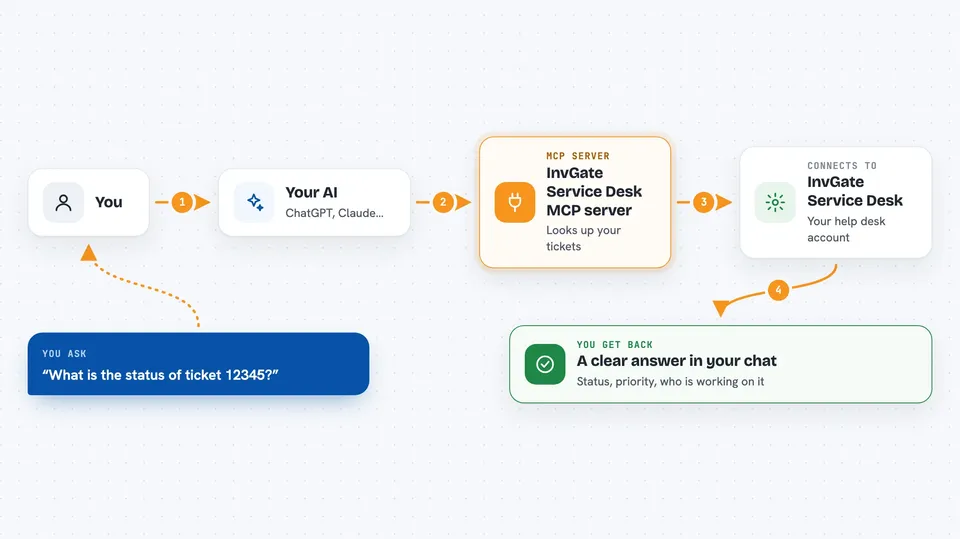
On its own, your AI can only chat with you. It cannot see your InvGate tickets or your company's knowledge base. An MCP server is a small helper program that gives your AI a new skill, in this case a connection to InvGate Service Desk. So when you ask about a ticket, your AI passes the question to this helper, the helper talks to InvGate, and the answer comes back to you in the chat.
What this MCP server does
You ask your AI a question about your InvGate Service Desk, like "what is the status of ticket 12345" or "list incidents assigned to me". Your AI sends that request to this helper program. The helper logs into your InvGate account using a token you provide, asks InvGate for the information, and sends it back. Your AI then shows you the answer in plain language. By default it only reads things, so nothing in InvGate gets changed unless you turn writes on.
 Click to zoom
What you can do with it
- Look up a ticket by its number and see the details
- List incidents by status, agent, or customer
- Find a user by email or phone number
- Search the knowledge base for articles
- Check which assets are linked to an incident
- See hours logged against a ticket
- Create, update, or comment on tickets if you turn on write mode
Try asking your AI
- “Show me all open incidents assigned to me”
- “What is the status of ticket 12345 and who is working on it?”
- “Find the user with the email jane.doe@example.com”
- “Search the knowledge base for articles about password resets”
What it gives back to you
You get answers in the chat, usually as a short summary plus a list of items like tickets, users, or articles. For a single ticket it can show the status, priority, assignee, and recent comments. If you have write mode on and ask it to update something, it will tell you what it changed. Numbers like logged hours or counts come back as plain figures you can read at a glance.
Before you start
What you need
- An InvGate Service Desk account with access to the API
- An API token from your InvGate instance (Settings > Integrations > API, or ask your admin)
- The URL of your InvGate instance, like https://acme.sd.cloud.invgate.net
- The Claude desktop app or another app that supports MCP servers
Good to know
By default it only reads, but if you turn on write mode the AI can create, change, or cancel real tickets and knowledge base articles in your InvGate account, and tickets cannot be deleted once created.
Install it with your AI
Add InvGate Service Desk MCP server to your AI, no technical skills needed
You don't install anything by hand. You copy one prompt, paste it into an AI that can work on your computer, and it checks, installs and connects the server for you, asking you when it needs something.
Sign in to get the install prompt
Members get a ready-made prompt that lets the Claude desktop app check InvGate Service Desk MCP server, install it and connect it for them, step by step. You don't need any technical skills: you copy, paste and answer a few questions. Your connected AI can also find and install any of the 4,361 MCP servers here for you.
Who it's for
Support agents, helpdesk staff, and IT teams who work with InvGate Service Desk tickets every day.