MCP server · Browser automation
OmniParser AutoGUI MCP server
by NON906
Lets your AI look at your screen and click, type, and scroll through apps for you.
This is a helper that lets your AI see what is on your screen and then actually use it: clicking buttons, typing text, and scrolling around. It is handy if you often repeat the same clicks in a program that has no other way to be automated. It was confirmed to work on Windows.
What is an MCP server? The 30-second version
On its own, your AI can only chat. An MCP server is a small helper program that gives your AI a new skill or a connection to an app. This one connects your AI to your own computer screen, so it can look at what is open and operate the mouse and keyboard for you. You ask in plain words, and the helper does the clicking.
What this MCP server does
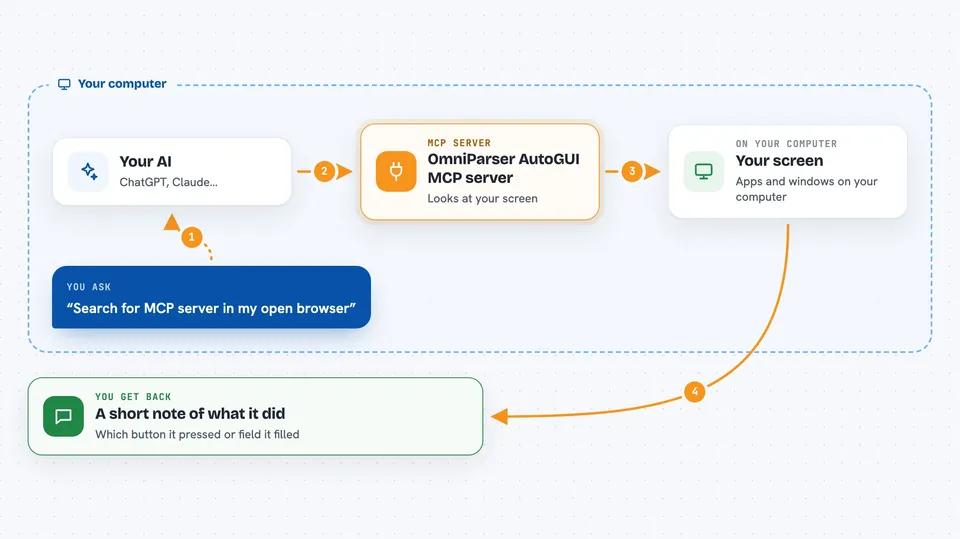
You ask your AI to do something on screen, like find a word in your open browser. The AI takes a picture of your screen and sends it to this helper. The helper uses a tool called OmniParser to spot the buttons, text boxes, and links in that picture. Then it moves the mouse and types for you, and tells you what it did. If you want, you can limit it to one window instead of the whole screen.
 Click to zoom
What you can do with it
- Click buttons and links in an app that is already open
- Type text into fields on your screen
- Scroll through a page or a list
- Search for something in your open browser
- Work inside one chosen window instead of the whole screen
- Run a small series of clicks and typing for you
Try asking your AI
- “Search for MCP server in the browser that is open on my screen”
- “Click the Save button in the window called Notes”
- “Type my name into the first text box on the screen”
- “Scroll down on this page and tell me what you see”
What it gives back to you
It tells you in the chat what it found on screen and what it clicked or typed. You get short answers like which button it pressed or which field it filled. If something is not clear on screen, it will say so instead of guessing. You do not get a file or a big report, just a plain description of the actions.
Before you start
What you need
- A Windows computer (confirmed on Windows)
- Python and the uv tool installed
- The Claude desktop app or another MCP client
- About a few gigabytes of free disk space for the OmniParser models
Good to know
It can move your mouse and type on your real screen, so keep an eye on what it is doing and avoid leaving important windows open while it runs.
Install it with your AI
Add OmniParser AutoGUI MCP server to your AI, no technical skills needed
You don't install anything by hand. You copy one prompt, paste it into an AI that can work on your computer, and it checks, installs and connects the server for you, asking you when it needs something.
Sign in to get the install prompt
Members get a ready-made prompt that lets the Claude desktop app check OmniParser AutoGUI MCP server, install it and connect it for them, step by step. You don't need any technical skills: you copy, paste and answer a few questions. Your connected AI can also find and install any of the 4,361 MCP servers here for you.
Who it's for
People who repeat the same clicks in desktop programs and want their AI to handle those clicks for them.