MCP server · Design tools
Isaac Sim MCP server
by omni-mcp
Control NVIDIA Isaac Sim robot simulations with plain English commands through your AI assistant.
This is a helper that lets your AI assistant control NVIDIA Isaac Sim, a program used to build and run robot simulations. Instead of clicking through menus or writing code, you just describe what you want in plain English. It is handy for people who work with robots, simulations, or 3D scenes and want a faster, more conversational way to set things up.
What is an MCP server? The 30-second version
On its own, your AI can only chat. An MCP server is a small helper program that gives your AI a new skill or a connection to another app. This one connects your AI to NVIDIA Isaac Sim, so when you ask for a robot or a light, the AI can actually make it appear in your simulation. Think of it as a bridge between your words and the simulation software.
What this MCP server does
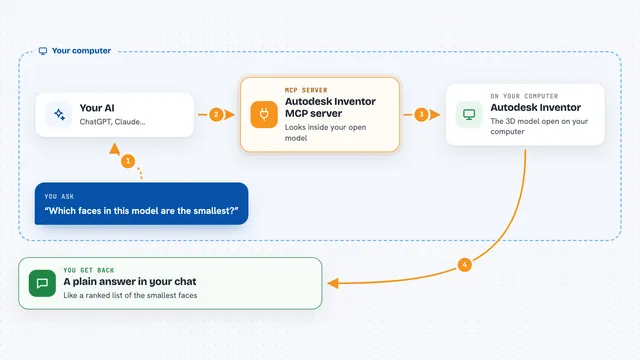
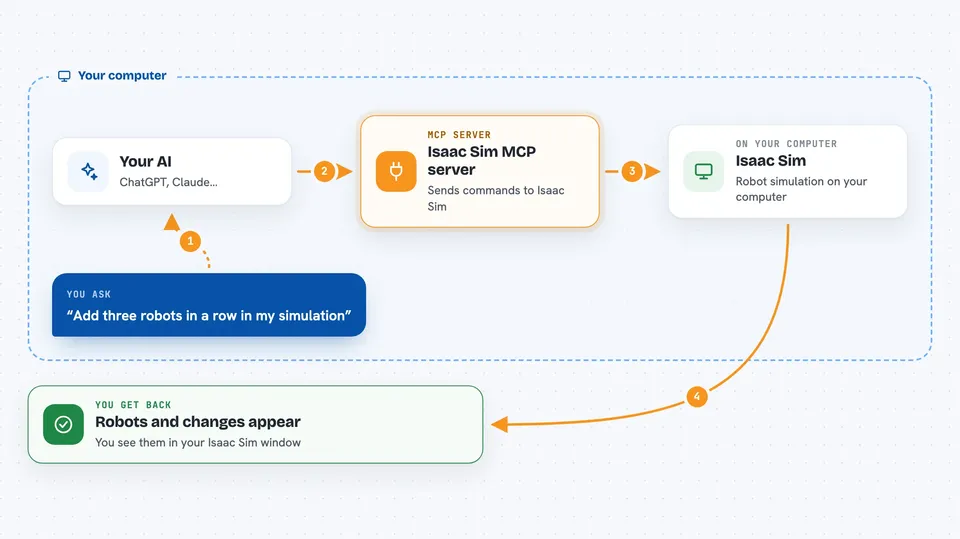
You type a request in plain English, like asking for three robots in a row or more light in the scene. Your AI reads that and uses this helper to send the right commands to Isaac Sim. The helper talks to the Isaac Sim extension running on your computer, which then creates the robots, moves them, or changes the lighting. You see the result appear in your simulation window, and the AI tells you what it did.
 Click to zoom
What you can do with it
- Create robots like Franka, Jetbot, Carter, G1, or Go1 at specific positions
- Move robots around the scene by describing where they should go
- Add or adjust lighting in your simulation
- Build a physics scene with a floor and gravity
- Run custom Python code inside Isaac Sim through a simple request
- Search for 3D objects like a rusty desk and place them in the scene
- Generate 3D objects from images using Beaver3D and place them in a grid
Try asking your AI
- “Create 3x3 franka robots in the current stage across location [3, 0, 0] and [6, 3, 0]”
- “Add more light in the stage”
- “Create a g1 robot at [3, 9, 0] and move it to [1, 1, 0]”
- “Search a rusty desk and place it at [0, 5, 0] with scale [3, 3, 3]”
What it gives back to you
You get a confirmation in the chat that the action was done, like robots created or lighting updated. The AI may also show you a preview of the code it is about to run before it runs it. The actual visual change happens in your Isaac Sim window, not in the chat. If something goes wrong, the AI will tell you it could not connect or the command failed.
Before you start
What you need
- NVIDIA Isaac Sim 4.2.0 or higher installed
- Python 3.9 or newer
- Cursor AI editor for MCP integration
- uv/uvx installed and mcp[cli] package
- API keys for Beaver3D and NVIDIA (for some features)
Good to know
This tool can run custom Python code and change your simulation, so make sure you only use it with scenes you are okay modifying, and always check the connection first.
Install it with your AI
Add Isaac Sim MCP server to your AI, no technical skills needed
You don't install anything by hand. You copy one prompt, paste it into an AI that can work on your computer, and it checks, installs and connects the server for you, asking you when it needs something.
Sign in to get the install prompt
Members get a ready-made prompt that lets the Claude desktop app check Isaac Sim MCP server, install it and connect it for them, step by step. You don't need any technical skills: you copy, paste and answer a few questions. Your connected AI can also find and install any of the 4,361 MCP servers here for you.
Who it's for
Robotics engineers, simulation developers, and anyone who uses NVIDIA Isaac Sim and wants to control it with natural language instead of manual scripting.