MCP server · Productivity
Paigy MCP server
by paigy-ai
Lets your AI call, text, or notify your phone when it needs an answer, and you reply by voice.
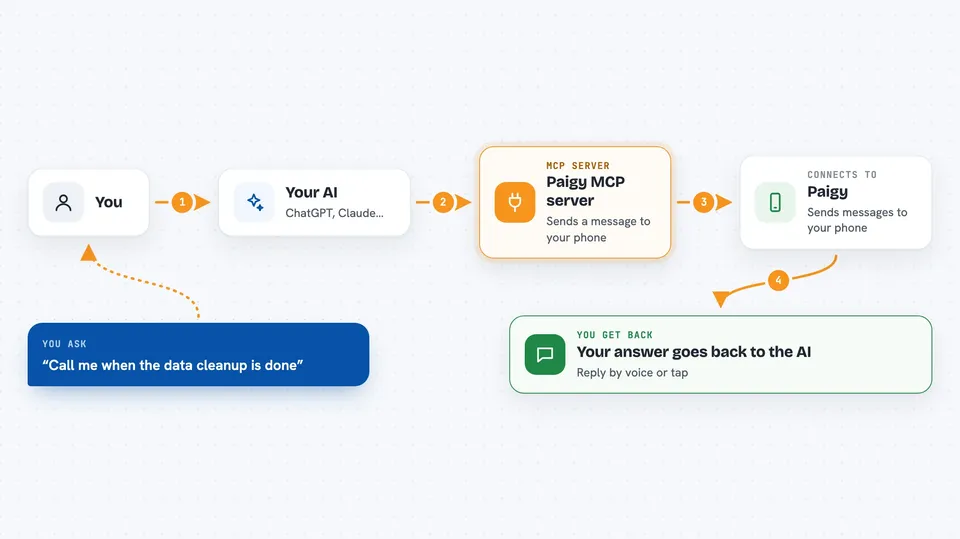
Paigy is a helper that lets your AI reach you on your phone when it gets stuck or finishes a long job. Instead of watching the terminal for an hour, you get a call, a text, or a quiet notification, and you answer by talking or tapping. It is handy for anyone who runs long AI tasks and does not want to babysit them.
What is an MCP server? The 30-second version
On its own, your AI can only chat with you in the window you have open. An MCP server is a small helper program that gives your AI a new skill or a connection to another service. This one connects your AI to Paigy, which is a voice inbox for your phone. So when the AI needs your input, it can reach you through Paigy instead of waiting silently.
What this MCP server does
You ask your AI to do something, like run a long task or check a big file. When it hits a point where it needs your decision, it uses this helper to send a message to your phone through Paigy. Depending on how urgent it is, that message can be a silent card in your inbox, a quiet push, a banner on your lock screen, or a real ringing phone call. You answer by voice or by tapping a button, and your reply goes straight back to the AI so it can keep going. You do not have to copy anything or reopen your terminal.
 Click to zoom
What you can do with it
- Get a phone call when your AI needs a yes or no answer
- Receive a text or push notification when a long task finishes
- Reply by voice and have your answer go back to the AI
- Pick from a list of options the AI sends you
- Approve or deny something straight from the lock screen banner
- Ask the AI to remind you later if you are busy
- See stalled tasks listed when an agent goes quiet
Try asking your AI
- “Call me when the data cleanup is done.”
- “Text me if you need me to approve the next step.”
- “Send me a banner asking which of these three files to use.”
- “If you get stuck, ring my phone and read me the question.”
What it gives back to you
You get a message on your phone in the shape the AI chose: a yes or no question, a list of options, a ranking, or an open text box. When you answer, that answer goes back into your chat with the AI as a normal reply. In the chat itself you see the AI continue with your decision already applied. If a task has been stalled for days, you also get a short list of what is waiting.
Before you start
What you need
- A Paigy account (sign in at paigy.ai)
- The Paigy app on your phone to approve the pairing
- Node.js installed if you are not using the one-line installer or Claude Desktop bundle
Good to know
Paigy can ring your phone and read questions aloud, so only connect it to agents you trust with your attention and your phone number.
Install it with your AI
Add Paigy MCP server to your AI, no technical skills needed
You don't install anything by hand. You copy one prompt, paste it into an AI that can work on your computer, and it checks, installs and connects the server for you, asking you when it needs something.
Sign in to get the install prompt
Members get a ready-made prompt that lets the Claude desktop app check Paigy MCP server, install it and connect it for them, step by step. You don't need any technical skills: you copy, paste and answer a few questions. Your connected AI can also find and install any of the 4,609 MCP servers here for you.
Who it's for
People who run long AI tasks and want to step away from the screen without missing the moment their AI needs them.