MCP server · Browser automation
Chrome MCP server (secure)
Lets your AI drive a Chrome browser and log in to sites with encrypted, auto-wiped credentials.
This is a helper that lets your AI control a Chrome browser for you: open pages, click, type, take screenshots, and log in to websites. It is a security-focused version of a Chrome helper, made for people who care about where their passwords go. It is handy if you want your AI to do web tasks for you without handing your logins around loosely.
What is an MCP server? The 30-second version
On its own, your AI can only chat. An MCP server is a small helper program that gives your AI a new skill or a connection to an app. This one connects your AI to Chrome, so it can open pages and click around for you. It also adds a locked box for your logins, so the AI can sign in to sites without you typing the password into the chat each time.
What this MCP server does
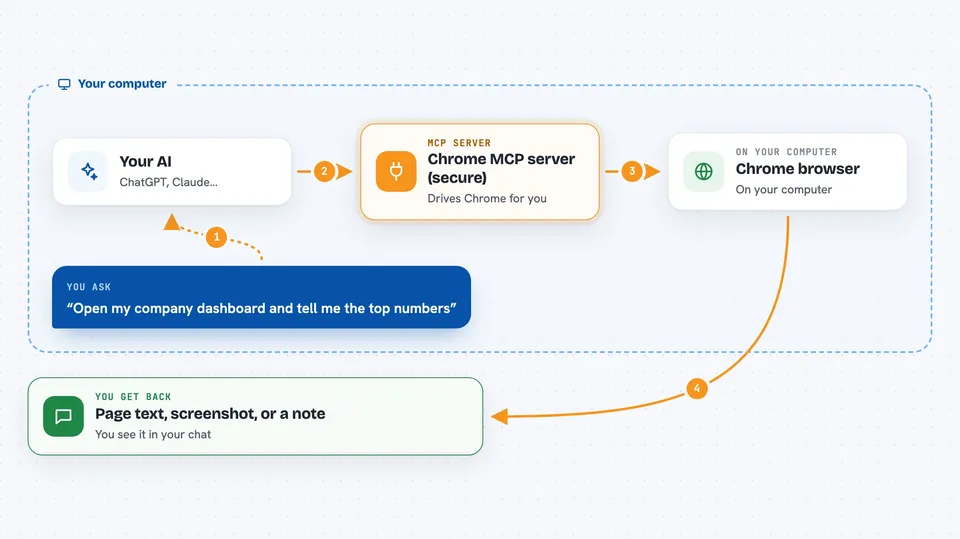
You ask your AI to do something in the browser, like open a page or fill a form. The AI passes that request to this helper program. The helper talks to Chrome on your computer and performs the action. If a login is needed, it can pull the password from an encrypted vault, fill it in, and then wipe it from memory. You see the result in your chat: the page text, a screenshot, or a note that the action succeeded.
 Click to zoom
What you can do with it
- Open a web page in Chrome and read its text back to you
- Click buttons and links by name or position
- Type into form fields and fill in forms
- Take screenshots of pages
- Store website logins in an encrypted vault
- Log in to a site automatically using a stored login
- List or delete saved logins without showing the passwords
Try asking your AI
- “Open my company dashboard and tell me what the top numbers say”
- “Log in to my GitHub account using the saved credential and check my notifications”
- “Take a screenshot of this page and save it”
- “Fill in the contact form on this site with my details”
What it gives back to you
You get answers in plain chat: the text from a page, a list of open tabs, a screenshot image, or a short note that a click or login worked. It can also show you a list of the logins you have saved, without ever showing the passwords. If something fails, you get a message explaining what went wrong.
Before you start
What you need
- Google Chrome installed on your computer
- Node.js installed (the setup script uses it to build the helper)
- An encryption key for the vault, which the setup can generate for you
Good to know
This helper can click, type, and log in on real websites for you, so only point it at sites and accounts you trust, and keep your encryption key safe.
Install it with your AI
Add Chrome MCP server (secure) to your AI, no technical skills needed
You don't install anything by hand. You copy one prompt, paste it into an AI that can work on your computer, and it checks, installs and connects the server for you, asking you when it needs something.
Sign in to get the install prompt
Members get a ready-made prompt that lets the Claude desktop app check Chrome MCP server (secure), install it and connect it for them, step by step. You don't need any technical skills: you copy, paste and answer a few questions. Your connected AI can also find and install any of the 4,361 MCP servers here for you.
Who it's for
Office workers and teams who want their AI to handle repetitive browser tasks and logins, especially in companies that care about security and record-keeping.