MCP server · Browser automation
OpenScreenShot MCP server
by PGHQdev
Let your AI take website screenshots with private details blacked out, using the Chrome on your computer.
OpenScreenShot is a small helper you add to your AI so it can take pictures of web pages for you. You ask in plain words, and it opens Chrome quietly in the background, loads the page, and saves a screenshot. It is handy if you write docs, check how a page looks, or need to share a screenshot without showing emails or account menus.
What is an MCP server? The 30-second version
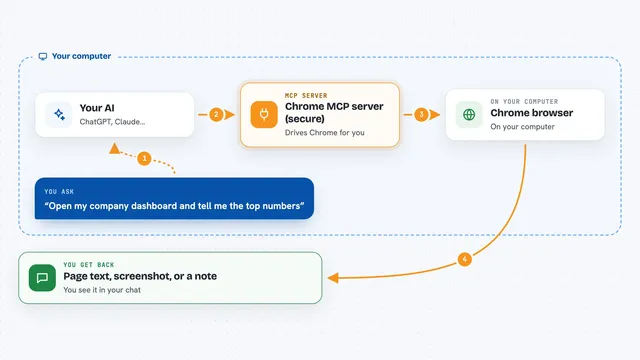
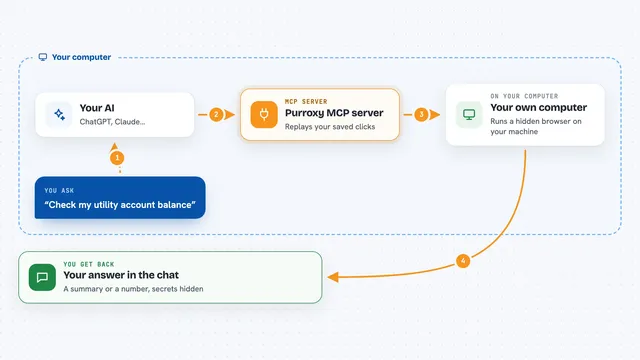
On its own, your AI can only chat. It cannot open a browser or take a picture of a web page. An MCP server is a small helper program that gives your AI a new skill. This one connects your AI to a local Chrome browser, so when you ask for a screenshot, the AI can actually go and get one for you.
What this MCP server does
You ask your AI for a screenshot of a web page. The AI passes your request to this helper. The helper starts a fresh Chrome window on your computer, loads the page, and takes the picture. If you asked to hide certain things, it draws black boxes over them before the picture is taken. Then it hands the image back to your AI, and your AI shows it to you in the chat.
What you can do with it
- Take a screenshot of any public web page
- Capture the whole page, not just the part you see first
- Set the width and height to check how a page looks on different screen sizes
- Black out emails, phone numbers, or secret-looking text before the picture is taken
- Black out specific parts of the page by naming them or by giving a rectangle
- Use it without any account or API key
What it gives back to you
You get back an image right in the chat. It is a PNG file showing the page as it looked when the helper loaded it. If you asked for redaction, the black boxes are already drawn on the image. The helper does not save a file on your computer unless you use the command-line version instead.
Before you start
What you need
- Node.js 22.12 or newer
- Google Chrome, Chromium, or Microsoft Edge installed on your computer
Good to know
The helper can only see pages that a signed-out visitor can see, so it cannot capture pages behind a login. Redaction can miss some private text, so always look at the image before sharing it.
Install it with your AI
Add OpenScreenShot MCP server to your AI, no technical skills needed
You don't install anything by hand. You copy one prompt, paste it into an AI that can work on your computer, and it checks, installs and connects the server for you, asking you when it needs something.
Sign in to get the install prompt
Members get a ready-made prompt that lets the Claude desktop app check OpenScreenShot MCP server, install it and connect it for them, step by step. You don't need any technical skills: you copy, paste and answer a few questions. Your connected AI can also find and install any of the 4,609 MCP servers here for you.
Who it's for
Anyone who needs quick screenshots of web pages, like people writing documentation, checking designs, or preparing reports.