MCP server · Developer tools
Neovim MCP server
Lets your AI see and edit the file you have open in Neovim, run commands, and check for errors.
This is a small helper that connects your AI assistant to Neovim, the text editor. Once it is set up, your AI can look at the file you are editing, make changes, run editor commands, and point out mistakes. It is handy if you already write or edit code in Neovim and want the AI to work right inside your editor instead of in a separate chat window.
What is an MCP server? The 30-second version
On its own, your AI can only chat. An MCP server is a small helper program that gives your AI a new skill or a connection to another app. This one connects your AI to your running Neovim session, so it can see what you see and do things there when you ask. You install it once, and after that your AI can reach into Neovim for you.
What this MCP server does
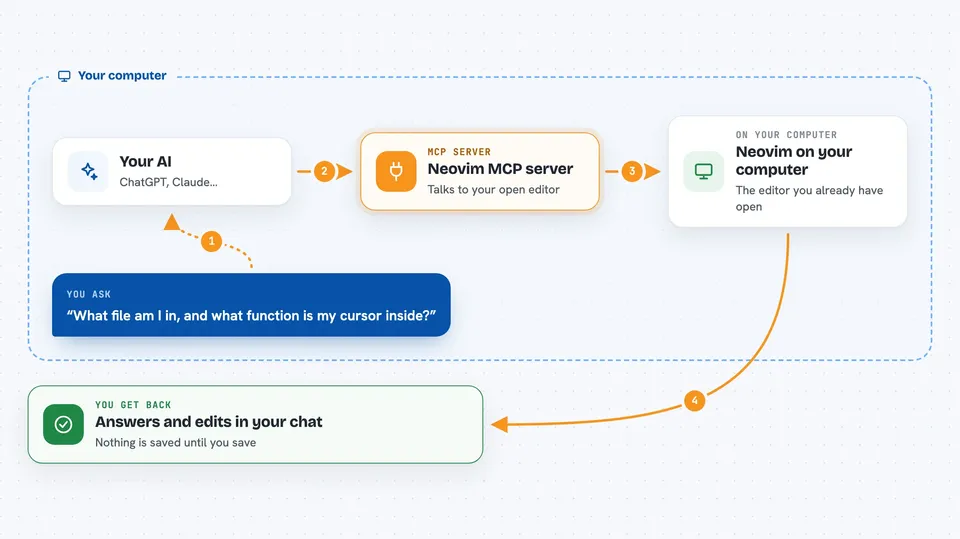
You ask your AI something about the file you have open, like to explain a function or fix a typo. The AI sends that request to this helper. The helper talks to your running Neovim through a built-in connection that Neovim already provides, so no extra plugins are needed. Neovim does the work, and the result comes back to your AI, which then tells you what happened or shows you the change. Nothing is written to your file on disk until you save.
 Click to zoom
What you can do with it
- See which file you are in, your cursor position, and what is selected
- Find and replace text, or rewrite a whole section, with undo support
- Run any Vim command, like saving, opening a split, or running a macro
- Send keystrokes to navigate or enter insert mode
- List errors, warnings, and hints from your language tools
- Add colored highlights and inline notes to code without changing the file
- Work with more than one Neovim window at a time
Try asking your AI
- “What file am I in, and what function is my cursor inside?”
- “Are there any errors or warnings in this file? Highlight the lines with problems.”
- “Add a short comment above this function, then show me what changed.”
- “Open a vertical split and write a small test for the function I am looking at.”
What it gives back to you
You get answers in the chat: what file you are in, a list of errors and warnings, or a summary of the change the AI made. If it edits something, it can show you the difference so you can check before saving. Highlights and notes appear in your editor as colors or small text, without touching the real content of the file.
Before you start
What you need
- A Linux computer
- Python 3.10 or newer
- Neovim 0.11 or newer
- The uv tool installed (the README shows a one-line install command)
Good to know
The AI has full access to your editor and can make mistakes, so work in a folder that is under version control.
Install it with your AI
Add Neovim MCP server to your AI, no technical skills needed
You don't install anything by hand. You copy one prompt, paste it into an AI that can work on your computer, and it checks, installs and connects the server for you, asking you when it needs something.
Sign in to get the install prompt
Members get a ready-made prompt that lets the Claude desktop app check Neovim MCP server, install it and connect it for them, step by step. You don't need any technical skills: you copy, paste and answer a few questions. Your connected AI can also find and install any of the 4,609 MCP servers here for you.
Who it's for
People who already edit code in Neovim and want their AI assistant to work directly inside the editor.