
MCP server · Browser automation
Selenium MCP server
by PhungXuanAnh
Let your AI open a Chrome browser, click buttons, fill forms, and take screenshots for you.
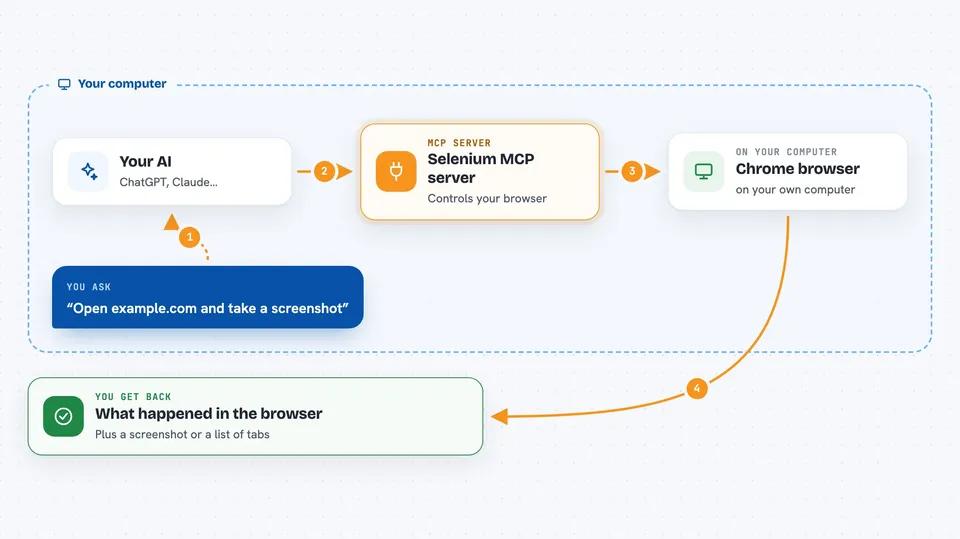
This is a helper that lets your AI assistant actually drive a Chrome browser on your computer. Instead of just telling you what to click, it can open pages, type into fields, and take screenshots. It is handy for anyone who repeats the same clicks on websites every day, like checking a dashboard or filling in a form.
What is an MCP server? The 30-second version
On its own, your AI can only chat with you. An MCP server is a small helper program that gives your AI a new skill. This one connects your AI to a real Chrome browser on your machine, through a tool called Selenium. So when you ask your AI to open a page or click something, it can actually do it in the browser for you.
What this MCP server does
You ask your AI something like "open this website and log in for me". Your AI sends that request to this helper program. The helper then controls a Chrome browser on your computer, opening tabs, finding buttons and fields, and clicking or typing where needed. When it is done, it tells your AI what happened, and your AI shows you the result in the chat, often with a screenshot.
 Click to zoom
What you can do with it
- Open a web page in Chrome and wait for it to load
- Click buttons and links by their text, ID, or class
- Type text into input boxes and forms
- Take screenshots of the current tab
- List, open, switch, and close browser tabs
- Read browser console logs and network activity
- Save and read values in the browser's local storage
Try asking your AI
- “Open example.com and take a screenshot of the home page”
- “Go to our login page, type my email into the email field, and click the Sign in button”
- “List all the open tabs and tell me which one is active”
- “Fill in the search box on this site with the word invoice and press enter”
What it gives back to you
You get answers in the chat: what the browser did, what it found on the page, or a screenshot saved as a PNG file. It can also hand back lists of tabs, console messages, network requests, or values stored in the browser. If something fails, it tells you what went wrong so you can adjust your request.
Before you start
What you need
- Python installed on your computer
- Google Chrome installed
- ChromeDriver (a small program that lets tools control Chrome)
- The mcp-server-selenium package installed with pip
Good to know
This helper can click and type on real websites for you, so be careful when it is logged into accounts or when a click could submit a form, send a message, or spend money.
Install it with your AI
Add Selenium MCP server to your AI, no technical skills needed
You don't install anything by hand. You copy one prompt, paste it into an AI that can work on your computer, and it checks, installs and connects the server for you, asking you when it needs something.
Sign in to get the install prompt
Members get a ready-made prompt that lets the Claude desktop app check Selenium MCP server, install it and connect it for them, step by step. You don't need any technical skills: you copy, paste and answer a few questions. Your connected AI can also find and install any of the 4,361 MCP servers here for you.
Who it's for
Office workers who repeat the same web tasks every day, like checking dashboards, filling forms, or testing a page.


