MCP server · Social media
PostEverywhere MCP server
Let your AI schedule and publish social media posts to Instagram, TikTok, LinkedIn, X, YouTube and more.

This is a helper that connects your AI assistant to PostEverywhere, a service that schedules and publishes social media posts. Once it is set up, you can just tell your AI what you want to post and when, and it takes care of the rest. It is handy for anyone who runs social media accounts and would rather type a sentence than click through a dashboard.
What is an MCP server? The 30-second version
On its own, your AI can only chat with you. An MCP server is a small helper program that gives your AI a new skill or a connection to another service. This one connects your AI to PostEverywhere, so it can look at your connected social accounts, create and schedule posts, and check how things went. You stay in the chat, and the helper does the work behind the scenes.
What this MCP server does
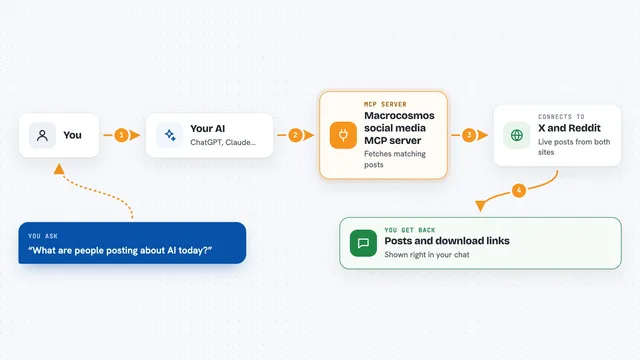
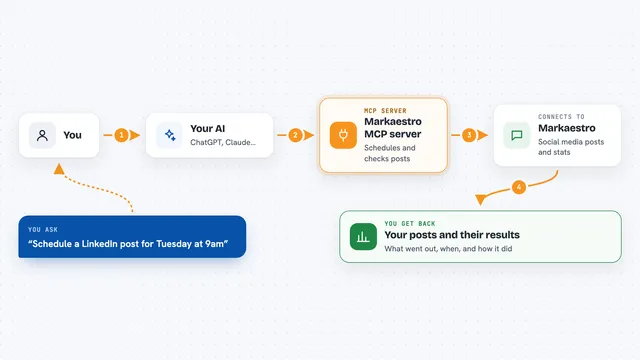
You ask your AI something like schedule a post for tomorrow at 2pm. Your AI passes that request to this helper, and the helper talks to PostEverywhere. PostEverywhere then sends your post to the social accounts you have connected, at the time you asked for. When it is done, the helper brings the result back to your chat, so you can see what was scheduled, what published, and what failed.
 Click to zoom
What you can do with it
- List your connected social accounts and check their health
- Schedule a post to one account or all of them at a set time
- Save a post as a draft so you can review it before it goes live
- Edit or delete a scheduled post
- See per-platform results, errors and live links for a post
- Retry the destinations that failed on a post
- Generate an AI image and attach it to a post
Try asking your AI
- “List my connected social accounts”
- “Schedule a post to all my accounts for tomorrow at 2pm: Just shipped a new feature”
- “Show me my recent posts and their publishing status”
- “Generate an image of a sunset over mountains and post it to Instagram and X”
- “Retry the failed destinations on my latest post”
What it gives back to you
You get answers in plain chat: lists of accounts or posts, status updates, and short summaries of what happened. For a post, you can see each platform's result, any error message, and the live link once it is published. If you asked for an image, you get the generated image attached to the post.
Before you start
What you need
- A PostEverywhere account (there is a 7-day free trial)
- Your social accounts connected inside PostEverywhere
- An API key from PostEverywhere (a kind of password for apps; you create it in Settings, then Developers)
- Node.js installed on your computer if you run it locally
Good to know
This can publish real posts to your social accounts and delete scheduled or draft posts, so check what your AI is about to do before you say yes.
Install it with your AI
Add PostEverywhere MCP server to your AI, no technical skills needed
You don't install anything by hand. You copy one prompt, paste it into an AI that can work on your computer, and it checks, installs and connects the server for you, asking you when it needs something.
Sign in to get the install prompt
Members get a ready-made prompt that lets the Claude desktop app check PostEverywhere MCP server, install it and connect it for them, step by step. You don't need any technical skills: you copy, paste and answer a few questions. Your connected AI can also find and install any of the 4,609 MCP servers here for you.
Who it's for
Social media managers, small business owners, and marketing folks who want to schedule posts by typing a sentence instead of clicking around.