MCP server · Developer tools
PythonAnywhere MCP server
Lets your AI manage files, web apps, and scheduled tasks on your PythonAnywhere account.
This is a small helper that connects your AI assistant to your PythonAnywhere account. PythonAnywhere is a service where you can run Python code and host websites in the cloud. If you use it and want your AI to help you manage files, web apps, or scheduled jobs, this is for you.
What is an MCP server? The 30-second version
On its own, your AI can only chat. An MCP server is a small helper program that gives your AI a new skill or a connection to an app or service. This one connects your AI to PythonAnywhere, so it can look things up and do things there for you when you ask. You stay in control because you set it up and can watch what it does.
What this MCP server does
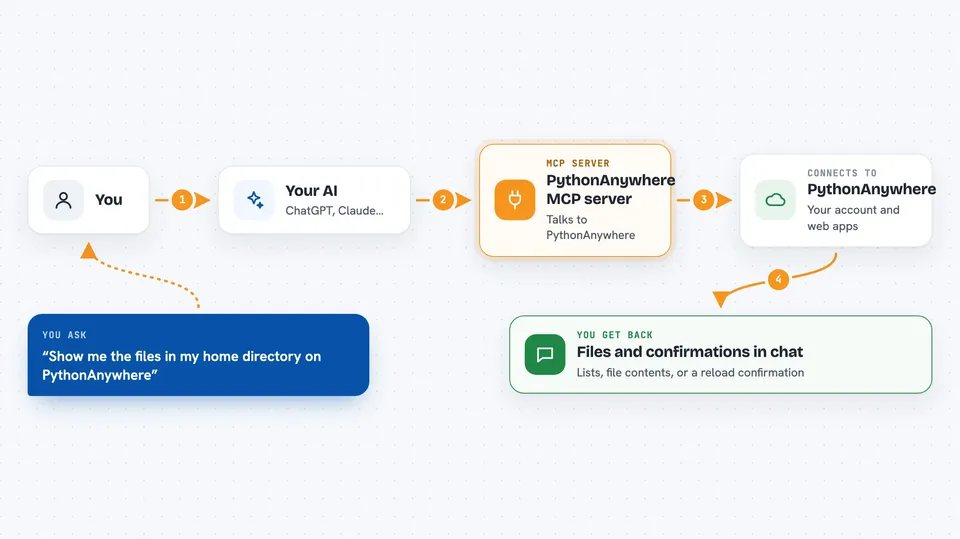
You ask your AI something like 'list my files on PythonAnywhere' or 'reload my web app'. The AI sends that request to this helper. The helper talks to PythonAnywhere using your account details. Then you get the answer back in the chat, like a list of files or a confirmation that the app was reloaded. It can also create, delete, or change things if you ask it to.
 Click to zoom
What you can do with it
- List files and folders in your PythonAnywhere account
- Read the contents of a file, including log files
- Upload a new file or delete an existing one
- Create, delete, or reload a web app
- List your scheduled tasks
- Create, update, or delete a scheduled task
Try asking your AI
- “Show me the files in my home directory on PythonAnywhere”
- “Read the last 100 lines of my error log”
- “Reload my web app called mysite”
- “List my scheduled tasks and tell me when they run”
What it gives back to you
You get answers right in the chat. That could be a list of files, the text inside a file, a confirmation that a web app was reloaded, or details about your scheduled tasks. If something goes wrong, you will see an error message.
Before you start
What you need
- A PythonAnywhere account
- Your PythonAnywhere API token (a kind of password for apps; you can find it in your account settings)
- Your PythonAnywhere username
- The uv tool installed on your computer (the README explains how)
Good to know
This helper can change or delete files and web apps on your PythonAnywhere account, so keep an eye on what your AI is doing, especially with sensitive actions.
Install it with your AI
Add PythonAnywhere MCP server to your AI, no technical skills needed
You don't install anything by hand. You copy one prompt, paste it into an AI that can work on your computer, and it checks, installs and connects the server for you, asking you when it needs something.
Sign in to get the install prompt
Members get a ready-made prompt that lets the Claude desktop app check PythonAnywhere MCP server, install it and connect it for them, step by step. You don't need any technical skills: you copy, paste and answer a few questions. Your connected AI can also find and install any of the 4,609 MCP servers here for you.
Who it's for
PythonAnywhere users who want their AI to help manage their files, web apps, and scheduled tasks without clicking around the dashboard.