MCP server · Developer tools
Qiniu Cloud MCP server
by qiniu
Let your AI list, upload, read and manage files in Qiniu Cloud storage, plus handle live streaming.

This is a small helper that connects your AI assistant to Qiniu Cloud, a service for storing files and running live video streams. Once it is set up, you can just chat with your AI and ask it to look at your Qiniu files or set up a live stream for you. It is handy if your team already keeps files or video on Qiniu and you would rather not click around the website.
What is an MCP server? The 30-second version
On its own, your AI can only chat with you. It cannot see your files or touch any outside service. An MCP server is a little helper program that gives your AI one new skill. This one gives your AI a connection to Qiniu Cloud, so when you ask about your Qiniu files or streams, the AI can actually go and check or make changes for you.
What this MCP server does
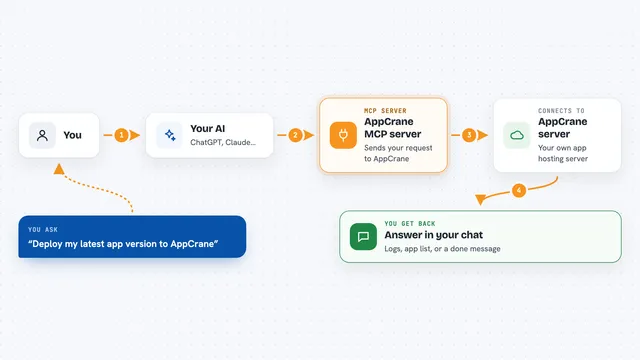
You type a request in your AI chat, like asking what is in a certain Qiniu folder. The AI passes that request to this helper program. The helper talks to Qiniu Cloud using your account details. Then it brings the answer back and the AI shows it to you in plain words, as a list or a short summary. For some tasks, like uploading a file or creating a live stream, it also makes the change for you.
 Click to zoom
What you can do with it
- List all your Qiniu storage buckets
- List the files inside a bucket
- Upload a local file or some text to a bucket
- Read the contents of a file in a bucket
- Get a download link for a file
- Resize an image or round its corners
- Refresh or prefetch a CDN link
- Create a live streaming space and stream, and get the stream addresses
Try asking your AI
- “List all my Qiniu buckets”
- “Show me the files in my photos bucket”
- “Read the file notes.txt in my work bucket”
- “Create a new live streaming space called demo123 and a stream called stream1”
- “Get the push and play addresses for stream1 in demo123”
What it gives back to you
You get back plain answers in the chat: lists of buckets or files, the text inside a file, a download link, or a short confirmation that something was created or refreshed. For live streaming, it gives you the stream names and the push and play addresses. It can also show usage numbers for your live streams.
Before you start
What you need
- A Qiniu Cloud account
- Your Qiniu access key and secret key (these are like a username and password for apps; you find them in your Qiniu account settings)
- The uv package manager installed on your computer
- For live streaming only, you can instead use a live API key from the Qiniu live console
Good to know
This helper can change things in your Qiniu account, like uploading files and creating live streams, so double check before you say yes to a request that makes changes.
Install it with your AI
Add Qiniu Cloud MCP server to your AI, no technical skills needed
You don't install anything by hand. You copy one prompt, paste it into an AI that can work on your computer, and it checks, installs and connects the server for you, asking you when it needs something.
Sign in to get the install prompt
Members get a ready-made prompt that lets the Claude desktop app check Qiniu Cloud MCP server, install it and connect it for them, step by step. You don't need any technical skills: you copy, paste and answer a few questions. Your connected AI can also find and install any of the 4,609 MCP servers here for you.
Who it's for
People who already store files or run live video on Qiniu Cloud and want to manage it by chatting with their AI instead of clicking through the Qiniu website.