MCP server · Developer tools
Qualien MCP server
by qualienai
Give your AI a QA toolkit: browser testing, project files, GitHub, Jira, databases and more, all through one connection.
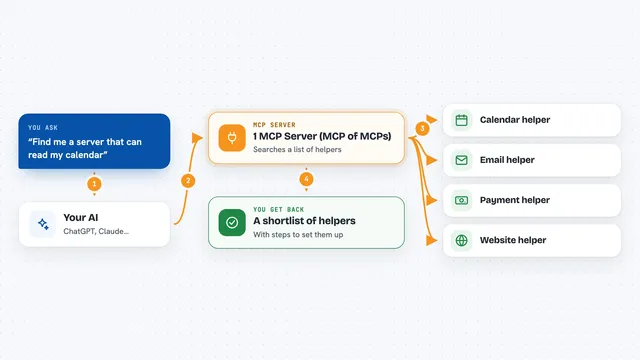
Qualien MCP is a helper that plugs your AI assistant into a whole set of testing tools at once. Instead of setting up five or ten separate connections, you add this one and it brings the others along. It is made for people who test software: QA engineers, SDETs, and anyone who checks that apps work the way they should.
What is an MCP server? The 30-second version
On its own, your AI can only chat with you. An MCP server is a small helper program that gives your AI a new skill or a connection to another app. This one is a gateway: it connects your AI to testing tools like Playwright (which drives a web browser), your project files, GitHub, Jira and databases. So when you ask your AI to check a page or look up a bug, it can actually go and do it for you.
What this MCP server does
You ask your AI something in plain words, like checking whether a web page loads correctly. Your AI sends that request to Qualien MCP. Qualien MCP then passes it to the right tool behind the scenes, for example the browser tool or the file tool. The tool does the work and sends the result back through Qualien MCP to your AI. Your AI shows you the answer in the chat, like a screenshot, a list of files, or a short summary.
What you can do with it
- Open a web page in a real browser and take a screenshot
- Read and edit files in your project folder, like test files and page objects
- Look up pull requests, issues and code on GitHub
- Read and update Jira tickets
- Run read-only SQL queries against a Postgres or MySQL database
- Check network requests and console errors in Chrome
- Compare what an API returns with what is stored in the database
Try asking your AI
- “Open our login page, fill in the test account and tell me if the dashboard loads”
- “Find all the test files in this project that mention checkout”
- “Show me the open pull requests on our repo and summarise what they change”
- “Run a query on the users table and check the name matches what the API returns for user 1”
What it gives back to you
You get answers in your chat, in plain words. That can be a screenshot of a page, a list of files or issues, a short summary, or a table of numbers from a database. When it changes something, like editing a file or updating a Jira ticket, it tells you what it did. If two things do not match, like an API and a database, it shows you exactly where they differ.
Before you start
What you need
- Node.js installed on your computer (the free program that runs this helper)
- The Claude desktop app, Claude Code, Cursor or VS Code
- For GitHub: a one-time sign-in with your own GitHub account
- For databases, Jira, Slack and similar: the login details or token for that service
Good to know
Some tools can change things, like editing files, updating Jira tickets or running commands, so check what your AI is about to do before you let it; the built-in safety rules stop accidents, not bad intentions.
Install it with your AI
Add Qualien MCP server to your AI, no technical skills needed
You don't install anything by hand. You copy one prompt, paste it into an AI that can work on your computer, and it checks, installs and connects the server for you, asking you when it needs something.
Sign in to get the install prompt
Members get a ready-made prompt that lets the Claude desktop app check Qualien MCP server, install it and connect it for them, step by step. You don't need any technical skills: you copy, paste and answer a few questions. Your connected AI can also find and install any of the 4,609 MCP servers here for you.
Who it's for
QA engineers, SDETs and anyone who tests software and wants their AI to help with browsers, test files, tickets and databases.