MCP server · API · official
One MCP server
by withoneai · official
Let your AI work with Gmail, Slack, Stripe, Notion, GitHub and hundreds more apps through one connection.
One MCP server is made by a company called One. It connects your AI assistant to over 700 apps like Gmail, Slack, Notion, Stripe and GitHub, so you can ask your AI to do things there for you. It is handy if you use several work apps and want one place where your AI can reach all of them.
What is an MCP server? The 30-second version
On its own, your AI can only chat with you. An MCP server is a small helper that gives your AI a new skill or a connection to an app. This one connects your AI to many work apps through One, so the AI can look things up or take actions there when you ask. You do not need to set up each app one by one; One handles the sign-ins for you.
What this MCP server does
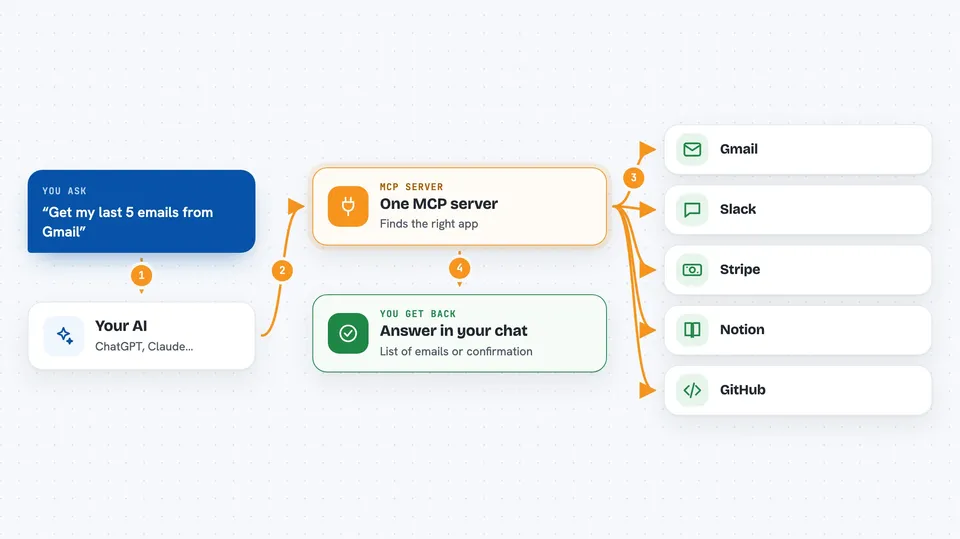
You ask your AI something like "get my last 5 emails from Gmail". The AI uses this helper to find the right action in One and runs it. One talks to Gmail on your behalf and sends the result back. Your AI then shows you the answer in the chat, for example a list of emails or a confirmation that a message was sent.
 Click to zoom
What you can do with it
- Read your recent emails from Gmail
- Send a message to a Slack channel
- List products from your Shopify store
- Fetch invoices from QuickBooks
- Create a form or dashboard that uses Gmail or Linear
- Look up actions across many apps in one request
- Run an action on a connected app
Try asking your AI
- “Get my last 5 emails from Gmail”
- “Send a Slack message to #general: Meeting in 10 minutes”
- “Get all products from my Shopify store”
- “Build a dashboard that displays Linear users and their assigned projects”
What it gives back to you
You get answers in the chat, like a list of emails, a confirmation that a message was sent, or a summary of data from an app. If you ask for code, it can write a small piece of code for you. It can also show you which apps are connected and what your AI is allowed to do there.
Before you start
What you need
- A One account (you get an API key from the One dashboard)
- An AI assistant that supports MCP, like Claude Desktop, Cursor or Windsurf
- For the remote version: just the URL and a browser to sign in
Good to know
This helper can read and change things in your connected apps, like sending emails or messages, so make sure you trust the AI and check what it is about to do.
Install it with your AI
Add One MCP server to your AI, no technical skills needed
You don't install anything by hand. You copy one prompt, paste it into an AI that can work on your computer, and it checks, installs and connects the server for you, asking you when it needs something.
Sign in to get the install prompt
Members get a ready-made prompt that lets the Claude desktop app check One MCP server, install it and connect it for them, step by step. You don't need any technical skills: you copy, paste and answer a few questions. Your connected AI can also find and install any of the 4,361 MCP servers here for you.
Who it's for
Office workers who use several apps like Gmail, Slack, Notion or Stripe and want their AI to help across all of them without setting up each one.