MCP server · Security
Radare2 MCP server
by radareorg
Lets your AI open a program file and look inside it with the Radare2 tool.

This is a helper that connects your AI assistant to Radare2, a well known tool for looking inside program files. It is handy for anyone curious about what a program actually does, or for people who check software for safety. You do not need to be a programmer to try it, but it helps if you are comfortable with technical topics.
What is an MCP server? The 30-second version
On its own, your AI can only chat with you. An MCP server is a small helper program that gives your AI a new skill or a connection to another tool. This one connects your AI to Radare2, a program that opens up software files and shows what is inside them. Once it is set up, you can ask your AI questions about a file and it will use Radare2 to find the answers for you.
What this MCP server does
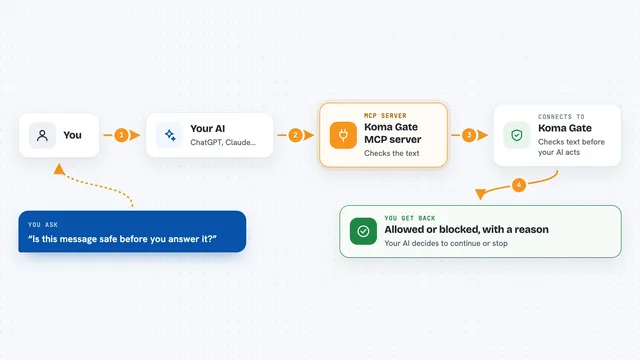
You ask your AI something about a program file, like what functions it contains or how big they are. Your AI passes that request to this helper, which talks to Radare2 on your computer. Radare2 opens the file, looks at its structure, and sends the details back. Your AI then turns those details into a normal answer in the chat. You can also ask it to run specific Radare2 commands if you know what you want.
 Click to zoom
What you can do with it
- Open a program file and list the functions inside it
- Show how large each function is and where it sits in the file
- Run Radare2 commands directly through your AI
- Search through a file for specific patterns or text
- Look at the raw bytes and structure of a program
- Work with a file already open in a Radare2 session
- Query analysis results with SQL if the r2xsql plugin is installed
Try asking your AI
- “Open /bin/ls and list its functions”
- “Which functions in this file are larger than 100 bytes?”
- “Show me the strings inside this program”
- “Run the Radare2 command to list all imports in this file”
What it gives back to you
You get back plain answers in the chat, like a list of function names with their sizes, or a summary of what Radare2 found. If you ask for raw command output, you see that text too. Changes only happen if you ask for something that writes, such as running a SQL statement that modifies data.
Before you start
What you need
- Radare2 installed on your computer
- The r2mcp package installed through r2pm, or built from source
- An AI client that supports MCP, like Claude Desktop, VS Code, or Zed
Good to know
This tool can run Radare2 commands that change or delete data, and the SQL tool can write to the analysis database, so be careful with what you ask it to do.
Install it with your AI
Add Radare2 MCP server to your AI, no technical skills needed
You don't install anything by hand. You copy one prompt, paste it into an AI that can work on your computer, and it checks, installs and connects the server for you, asking you when it needs something.
Sign in to get the install prompt
Members get a ready-made prompt that lets the Claude desktop app check Radare2 MCP server, install it and connect it for them, step by step. You don't need any technical skills: you copy, paste and answer a few questions. Your connected AI can also find and install any of the 4,066 MCP servers here for you.
Who it's for
People who inspect or reverse engineer software, such as security researchers, malware analysts, and curious developers.