MCP server · Security
Runtime Guard MCP server
by runtimeguard
Lets your AI act on your computer only inside the rules you set, with backups before file changes.
Runtime Guard is a safety layer that sits between your AI assistant and your computer. When your AI wants to run a command or change a file, Runtime Guard checks your rules first and decides to allow it, block it, or ask you to approve it. It is handy for anyone letting an AI work with real files and terminal commands, especially if you worry about an accidental delete or a command you did not expect.
What is an MCP server? The 30-second version
On its own, your AI can only chat with you. An MCP server is a small helper program that gives your AI a new skill or a connection to something, and here it connects your AI to a guard that watches what it does on your machine. When your AI tries to run a command or write a file, it goes through this helper, which checks your rules before anything happens. So instead of your AI doing whatever it wants, it can only do what you have allowed.
What this MCP server does
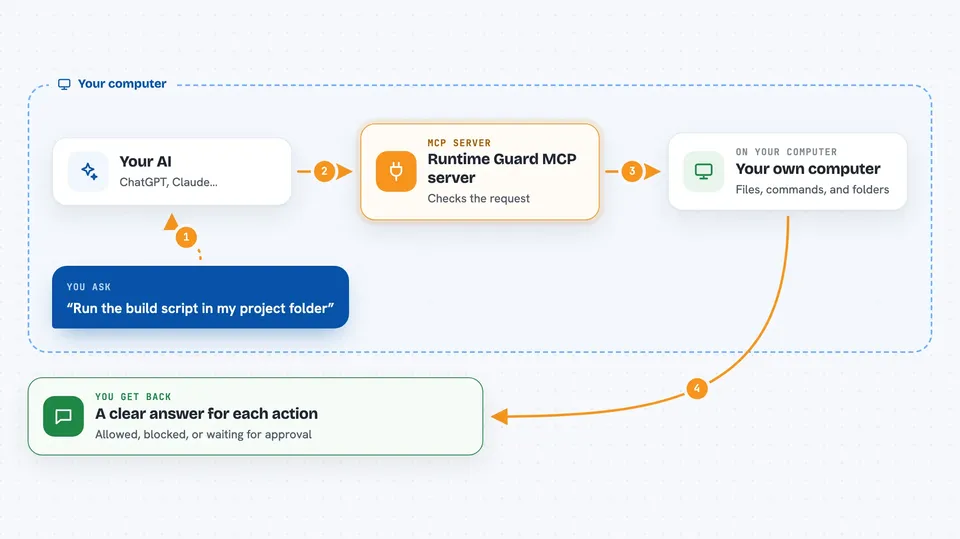
You ask your AI to do something, like run a command or edit a file. Your AI sends that request to Runtime Guard instead of doing it directly. Runtime Guard compares the request against the rules you set up and decides to allow it, block it, or hold it for your approval. If it is a file change, Runtime Guard makes a backup first. Then it tells you what happened, and you can see the decision in your chat or in the local web page.
 Click to zoom
What you can do with it
- Block dangerous commands like rm -rf before they run
- Make a backup of a file before it gets overwritten
- Hold risky commands and wait for your approval
- Keep your AI inside a workspace folder you choose
- Log every allowed, blocked, and pending action
- Show a dashboard of what your AI has been doing
- Spot attempts to sneak blocked commands through scripts
Try asking your AI
- “Run the build script in my project folder”
- “Delete the old log files in this workspace”
- “Update the README with the new install steps”
- “Push my changes to the main branch”
What it gives back to you
You get a clear answer for each action: allowed, blocked, or waiting for approval. For blocked commands, it tells you which rule stopped it. For file changes, it tells you where the backup was saved. You can also open the local web page to see a list of everything your AI has tried to do.
Before you start
What you need
- A Mac or Linux computer
- Python installed (the setup uses pipx, a tool for installing Python programs)
- An AI client that supports MCP, like Claude Code, Claude Desktop, Cursor, or Codex
Good to know
Runtime Guard only checks actions that go through it, so if your AI client uses its own built-in file and shell tools, those can slip past unless you turn on the extra restrictions in the settings page.
Install it with your AI
Add Runtime Guard MCP server to your AI, no technical skills needed
You don't install anything by hand. You copy one prompt, paste it into an AI that can work on your computer, and it checks, installs and connects the server for you, asking you when it needs something.
Sign in to get the install prompt
Members get a ready-made prompt that lets the Claude desktop app check Runtime Guard MCP server, install it and connect it for them, step by step. You don't need any technical skills: you copy, paste and answer a few questions. Your connected AI can also find and install any of the 4,609 MCP servers here for you.
Who it's for
Developers and technical operators who let AI agents work with their files and terminal and want clear limits on what those agents can do.