
MCP server · Browser automation
Screenshot Scout MCP server
Let your AI turn any web page into a picture or a PDF, just by asking.
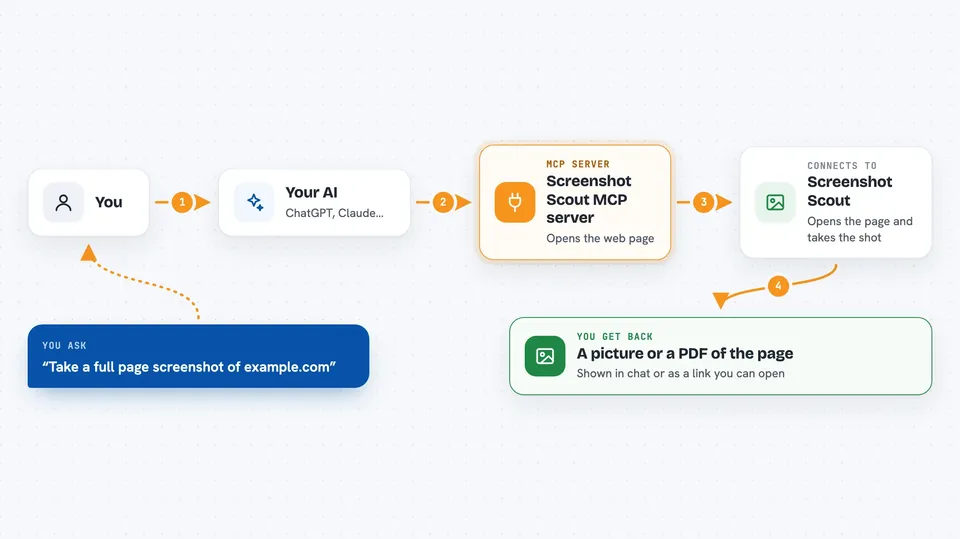
Screenshot Scout is a service that takes pictures of web pages for you. This MCP server connects that service to your AI assistant, so you can ask for a screenshot or a PDF in plain words and get it back. It is handy for anyone who needs a quick image of a page without opening a browser and fiddling with settings.
What is an MCP server? The 30-second version
On its own, your AI can only chat. It cannot reach out to websites or take pictures of them. An MCP server is a small helper program that gives your AI a new skill, and here that skill is talking to Screenshot Scout. Once it is connected, you ask your AI for a capture, the AI passes the request to Screenshot Scout, and the result comes back to your chat.
What this MCP server does
You tell your AI which web page you want a picture of, and you can add details like the size, the format, or whether you want the whole page or just one part. The AI sends that request through this helper to Screenshot Scout. Screenshot Scout opens the page in a browser behind the scenes and takes the shot. Then it sends the image or a temporary link back, and your AI shows it to you or gives you the link.
 Click to zoom
What you can do with it
- Capture a full web page as a PNG or JPEG image
- Save a page as a PDF with your chosen paper size and margins
- Take a picture of just one part of a page using a selector
- Block cookie banners, ads, and chat widgets before the shot
- Pick a device size, like a phone or desktop viewport
- Choose a country so the page loads as if you were there
- Click buttons or hide elements before capturing
Try asking your AI
- “Take a full-page screenshot of https://example.com and give me the link”
- “Capture https://example.com/pricing as a JPEG, block cookie banners and ads, quality 80”
- “Make an A4 PDF of https://example.com/report with backgrounds and 10 mm margins”
- “Screenshot just the main heading on https://example.com in dark mode”
What it gives back to you
You get back an image shown right in the chat when it is small enough, or a temporary link you can open. For PDFs, you get a link plus some details like the file type and size. The reply also tells you if the image was too big to show and why, so you still have the link to use.
Before you start
What you need
- A Screenshot Scout account
- An access key from your Screenshot Scout API keys page
- Node.js 22 or newer if you install it with npm
- The Claude desktop app if you use the extension version
Good to know
Every capture uses your Screenshot Scout account and counts against your plan, and the result links are temporary, so save anything you need to keep.
Install it with your AI
Add Screenshot Scout MCP server to your AI, no technical skills needed
You don't install anything by hand. You copy one prompt, paste it into an AI that can work on your computer, and it checks, installs and connects the server for you, asking you when it needs something.
Sign in to get the install prompt
Members get a ready-made prompt that lets the Claude desktop app check Screenshot Scout MCP server, install it and connect it for them, step by step. You don't need any technical skills: you copy, paste and answer a few questions. Your connected AI can also find and install any of the 4,609 MCP servers here for you.
Who it's for
Anyone who needs quick pictures or PDFs of web pages, like marketers, support teams, testers, and writers.


