MCP server · Customer communication
Setell MCP server
by Setell-AI
Ask your AI about your Setell jobs, quotes, and customers, and let it draft quotes and follow-ups for you.
Setell is a tool for small service businesses like machine shops, contractors, and HVAC companies. It helps you handle quotes, invoices, and customer follow-ups. This MCP server connects your AI assistant to your Setell account, so you can ask about your jobs and quotes right from your chat.
What is an MCP server? The 30-second version
On its own, your AI can only chat with you. An MCP server is a small helper program that gives your AI a new skill, in this case a connection to Setell. Once it is connected, your AI can look up your jobs, quotes, and customers, and even draft things for you when you ask. You do not need to know how it works under the hood.
What this MCP server does
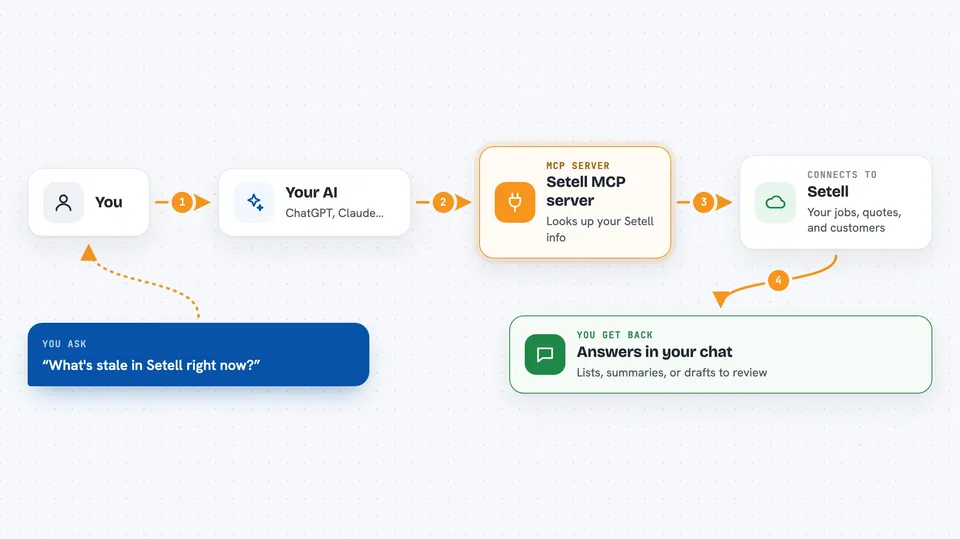
You ask your AI a question, like what is stale or show me the Cooper job. Your AI uses this helper to talk to your Setell account. Setell sends back the details, like job status, quote totals, or customer history. Your AI then explains it to you in plain words in the chat. For some tasks, like drafting a quote or scheduling a follow-up, your AI can also make changes in Setell after you confirm.
 Click to zoom
What you can do with it
- Find jobs by status, customer, or how recent they are
- Look up a quote and see its line items and total
- Search for a customer and see their job count and lifetime value
- Get a morning brief of new jobs, quotes to review, and stale quotes
- Check a pricing signal before you send a quote
- Draft a quote or a follow-up for a job
- Schedule or cancel a scheduled send
Try asking your AI
- “What's stale in Setell right now?”
- “Show me the Cooper job and its latest quote.”
- “Draft a follow-up for the Johnson quote that was sent three days ago.”
- “What's my margin summary for recent won jobs?”
What it gives back to you
You get answers in the chat, like a list of jobs, a quote breakdown, or a customer summary. For the morning brief, you get a snapshot of new jobs, quotes to review, and hot prospects. If you ask it to draft something, you get the draft text to review before sending. If it makes a change, like scheduling a send, it tells you what it did.
Before you start
What you need
- A Setell account (the Free tier works for read-only, but Pro is needed to use the agent channel fully)
- A Setell extension key from your account settings
- Node.js 18 or newer if you run it locally
- An MCP-aware client like Claude Code, Claude desktop, or ChatGPT desktop
Good to know
Some actions can send emails or save customer notes, so always review what your AI is about to do before you confirm.
Install it with your AI
Add Setell MCP server to your AI, no technical skills needed
You don't install anything by hand. You copy one prompt, paste it into an AI that can work on your computer, and it checks, installs and connects the server for you, asking you when it needs something.
Sign in to get the install prompt
Members get a ready-made prompt that lets the Claude desktop app check Setell MCP server, install it and connect it for them, step by step. You don't need any technical skills: you copy, paste and answer a few questions. Your connected AI can also find and install any of the 4,361 MCP servers here for you.
Who it's for
Small service business owners, operators, bookkeepers, and fractional CFOs who use Setell and want to manage their quote-to-cash workflow from their AI chat.