MCP server · Developer tools
Local Model Manager MCP server
by setheerwagen
Let your AI check, pull, switch and train models on your own local model machine.
This is a helper that lets your AI assistant manage a model machine you own, the computer where your local AI models live. You can ask it what is running, what models you have, and even start or stop training jobs. It is handy for people who run their own models at home or at work and want to control that machine from a chat instead of typing commands.
What is an MCP server? The 30-second version
On its own, your AI can only chat with you. An MCP server is a small helper program that gives your AI a new skill or a connection to something outside the chat. This one connects your AI to your own model machine, so it can look up the machine's state or make changes there when you ask. Think of it as a remote control for your model machine that your AI is allowed to press the buttons on.
What this MCP server does
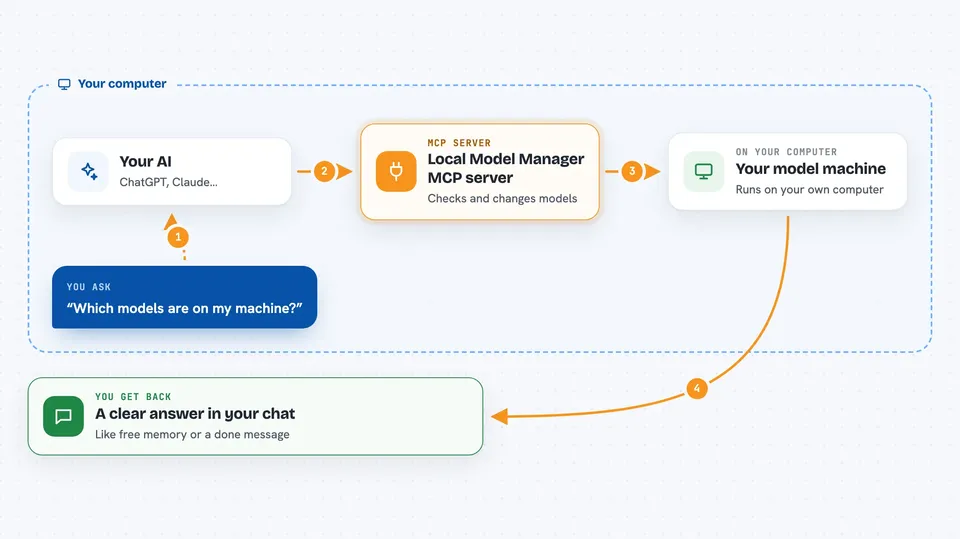
You ask your AI something like what models are on my machine, or switch the service to a different model. The AI passes that request to this helper program. The helper then talks to your model machine, either over a normal network connection for simple lookups or over a secure connection for changes. It reads the answer or makes the change, then hands the result back to your AI, which explains it to you in the chat.
 Click to zoom
What you can do with it
- Check GPU memory, disk space and which service is running
- List the models that are already on the machine
- Pull a new model from a model library
- Remove a model you no longer need
- Switch the inference service to a different model
- Create custom model variants with your own settings
- Start, track or cancel a training job
Try asking your AI
- “What is the status of my model machine right now?”
- “Which models do I have installed?”
- “Switch the service to the model called llama3”
- “Pull the model named mistral from the library”
- “Start a training job for my adapter and tell me when it is done”
What it gives back to you
For simple questions, you get a short summary in the chat, like how much GPU memory is free or which models are installed. For actions, you get a confirmation that the change was made, or a clear message if it was refused. Training jobs give you a status you can ask about again later. Everything appears as normal chat text, no files or downloads land on your computer.
Before you start
What you need
- A model machine with Ollama or vLLM installed and reachable
- Python 3.11 or newer on the computer running this helper
- SSH access to the model machine for management actions
- Three settings filled in: the machine address, the SSH user name and the model data folder
Good to know
Some actions can remove models or cancel training, so only turn on the higher permission levels if you are sure, and remember that downloading a model makes your machine reach out to a public model library.
Install it with your AI
Add Local Model Manager MCP server to your AI, no technical skills needed
You don't install anything by hand. You copy one prompt, paste it into an AI that can work on your computer, and it checks, installs and connects the server for you, asking you when it needs something.
Sign in to get the install prompt
Members get a ready-made prompt that lets the Claude desktop app check Local Model Manager MCP server, install it and connect it for them, step by step. You don't need any technical skills: you copy, paste and answer a few questions. Your connected AI can also find and install any of the 4,361 MCP servers here for you.
Who it's for
People who run their own local AI models and want to manage that machine from a chat, such as hobbyists, researchers and small teams with their own GPU box.