
MCP server · API
MCPProxy server
Route all your AI tool connections through one local helper, with search, safety checks and a log of what happened.
MCPProxy is a small program you run on your own computer. It sits between your AI assistant and all the other helper tools you have connected, so your AI only needs one connection instead of many. It is handy if you have several tools hooked up and things are getting slow, messy or hard to keep track of.
What is an MCP server? The 30-second version
On its own, your AI can only chat with you. An MCP server is a small helper program that gives your AI a new skill or a connection to an app or service. This one is a helper that gathers other helpers: instead of your AI talking to ten different tools directly, it talks to MCPProxy, and MCPProxy passes the request on to the right one. It also keeps a record of what was asked and blocks anything new until you say it is okay.
What this MCP server does
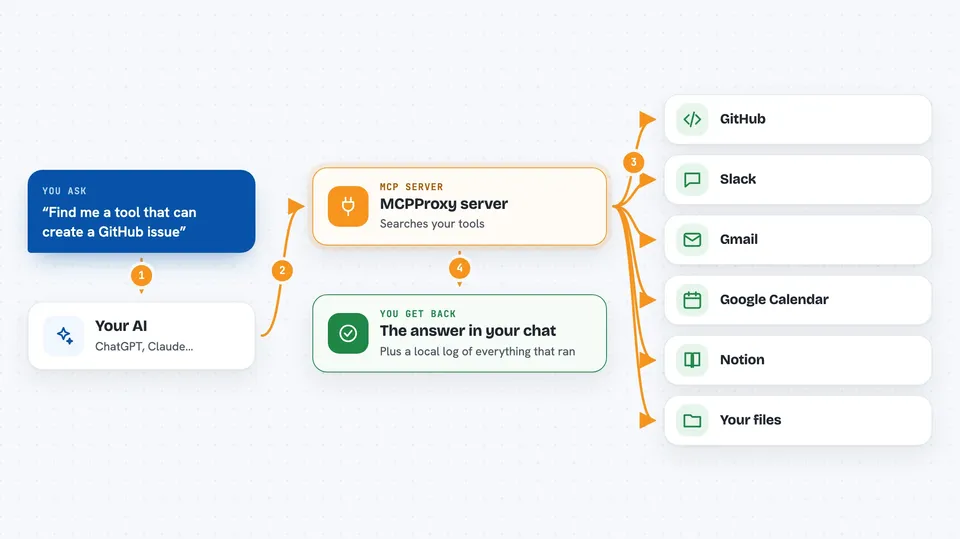
You ask your AI for something, like creating an issue or posting a message. Your AI asks MCPProxy to find the right tool by searching with plain keywords. MCPProxy looks across every tool you have connected and hands back only the few best matches. Your AI then asks MCPProxy to run the one it picked, and MCPProxy checks it is allowed, passes it to the real tool, and writes the whole thing down in a local log. You get the result in your chat, and you can look up later exactly what happened.
 Click to zoom
What you can do with it
- Connect many AI tools through one address instead of many
- Search across all your connected tools with plain keywords
- Keep new tools paused until you personally approve them
- See a local log of every action your AI took
- Check ahead of time that the tools a scheduled job needs are ready
- Run optional security scanners on a new tool before you allow it
- Use a built-in web page to see and manage everything
Try asking your AI
- “Find me a tool that can create a GitHub issue”
- “Show me everything my AI did today”
- “Is the Slack tool ready to use right now”
- “List all the tools currently connected”
What it gives back to you
You get answers in your chat, usually a short list of matching tools or the result of the action you asked for. Behind the scenes it also keeps a local activity log with an ID for each request, so you can ask for a list of past actions and see what ran, when, and through which tool. If you use the web page, you see the same information as a table you can click through.
Before you start
What you need
- A computer running macOS, Windows or Linux
- The MCPProxy program installed (installer, Homebrew, apt, dnf or a downloaded file)
- Your AI app pointed at the local address http://localhost:8080/mcp/
- Node.js if you connect through Claude Desktop using the mcp-remote helper
Good to know
It can pass on actions that change or delete things in your connected apps, so check what your AI is about to do before approving, and review the activity log if something looks wrong.
Install it with your AI
Add MCPProxy server to your AI, no technical skills needed
You don't install anything by hand. You copy one prompt, paste it into an AI that can work on your computer, and it checks, installs and connects the server for you, asking you when it needs something.
Sign in to get the install prompt
Members get a ready-made prompt that lets the Claude desktop app check MCPProxy server, install it and connect it for them, step by step. You don't need any technical skills: you copy, paste and answer a few questions. Your connected AI can also find and install any of the 4,609 MCP servers here for you.
Who it's for
People who already use several AI tool connections and want one tidy, safe and logged place to manage them, especially anyone running scheduled or automated jobs.


