
MCP server · Browser automation
Snapshot Site MCP server
Let your AI take screenshots of web pages, compare before and after versions, and summarize what a page says.
This is a small helper that connects your AI assistant to Snapshot Site, a service that takes pictures of web pages. Once it is connected, you can ask your AI to capture a page, compare two versions of it, or describe what is on it. It is handy for anyone who checks websites, like marketers, support teams, or people who just want to see how a page looks right now.
What is an MCP server? The 30-second version
On its own, your AI can only chat with you. An MCP server is a small helper program that gives your AI a new skill or a connection to an app or service. This one connects your AI to Snapshot Site, so when you ask for a picture or a summary of a web page, the AI can actually go get it for you. You do not need to install anything if you use the hosted version; you just sign in.
What this MCP server does
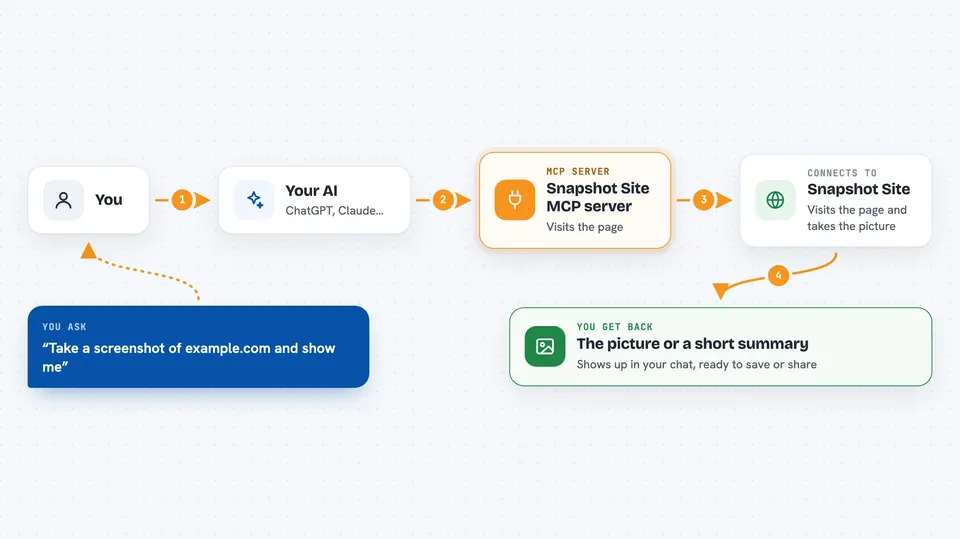
You ask your AI something like take a screenshot of this page. The AI passes your request to this helper. The helper talks to Snapshot Site, which visits the page and takes the picture or reads the content. Then the result comes back into your chat as an image, a file, or a short summary. You can also ask it to compare two versions of the same page to spot what changed.
 Click to zoom
What you can do with it
- Take a screenshot of any web page as a PNG, JPEG, WebP, PDF, or HTML file
- Compare two versions of the same page to see what looks different
- Get a short AI-written summary of what a page is about
- Capture a page and save it for later reference
- Check if a page changed after an update
- Preview how a page looks on different screen sizes (if the service supports it)
Try asking your AI
- “Take a screenshot of example.com and show it to me”
- “Compare the homepage from last week with today's version”
- “Summarize what is on this product page”
- “Capture this page as a PDF and give me the file”
What it gives back to you
You get back a picture, a PDF, or an HTML file right in the chat, or a short written summary of the page. For comparisons, you get a report or an image showing what changed between the two versions. Everything appears as a normal message from your AI, so you can save it or share it.
Before you start
What you need
- A Snapshot Site account (free to sign up)
- For the hosted version: just sign in when prompted, no key needed
- For the local version: an API key from the Snapshot Site Console
- Node.js 20.9 or later if you run it yourself
Good to know
Each time you use it, it counts against your Snapshot Site plan quota, just like a direct API call, so keep an eye on how often you ask for screenshots.
Install it with your AI
Add Snapshot Site MCP server to your AI, no technical skills needed
You don't install anything by hand. You copy one prompt, paste it into an AI that can work on your computer, and it checks, installs and connects the server for you, asking you when it needs something.
Sign in to get the install prompt
Members get a ready-made prompt that lets the Claude desktop app check Snapshot Site MCP server, install it and connect it for them, step by step. You don't need any technical skills: you copy, paste and answer a few questions. Your connected AI can also find and install any of the 4,361 MCP servers here for you.
Who it's for
Anyone who needs to check how web pages look or what they say, like marketers, support agents, QA testers, or curious office workers.


