
MCP server · API
Lunar MCPX gateway
One helper that lets your AI reach many other AI helpers through a single connection.
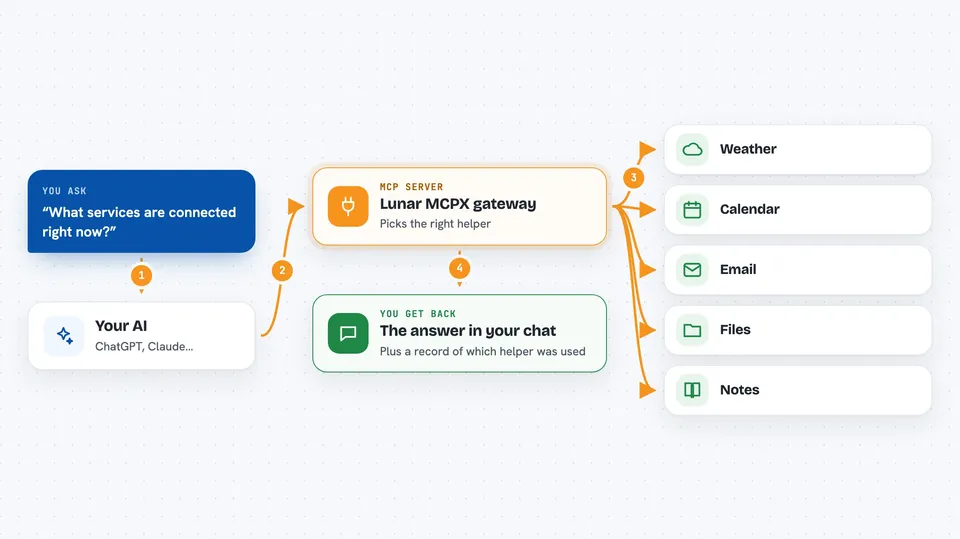
Lunar MCPX is a go-between program. Instead of connecting your AI to ten different tools one by one, you connect it to MCPX once, and MCPX passes your requests along to the others. It is handy if you or your team use several AI add-ons and want them managed in one place.
What is an MCP server? The 30-second version
On its own, your AI can only chat with you. An MCP server is a small helper program that gives your AI a new skill or a link to another app. MCPX is a special kind of helper: it is a helper that manages other helpers. You point your AI at MCPX, and MCPX decides which of the connected services should handle each request.
What this MCP server does
You ask your AI something. Your AI sends the request to MCPX instead of to each tool separately. MCPX looks at the list of connected services, picks the right one, and forwards the request. The answer comes back through MCPX to your AI, and your AI shows it to you. You set up which services are connected by editing a simple settings file, not by writing code.
 Click to zoom
What you can do with it
- Connect your AI to several MCP services through one address
- Add or remove services by editing a settings file
- See which services are available and what they can do
- Control who is allowed to use which service
- Track how often each service is used
- Decide which requests get handled first
- Run it on your own computer or on a server
Try asking your AI
- “What MCP services are connected right now?”
- “Add the weather service to my MCPX setup.”
- “Show me how many requests went to each service today.”
- “Turn off the calendar service for now.”
What it gives back to you
You get answers in your normal chat, as if the AI had done the work itself. Behind the scenes, MCPX also keeps track of which services were used and how often, so you can look at that later. If you change the settings, the new services show up the next time your AI asks. You do not see MCPX itself; you just see the results.
Before you start
What you need
- An AI app that supports MCP, such as Claude Desktop or Cursor
- Docker if you want to run MCPX that way, or a way to run it on your computer
- A settings file listing which MCP services you want to connect
Good to know
MCPX can pass your requests to many services at once, so check which services you connect and who is allowed to use them.
Install it with your AI
Add Lunar MCPX gateway to your AI, no technical skills needed
You don't install anything by hand. You copy one prompt, paste it into an AI that can work on your computer, and it checks, installs and connects the server for you, asking you when it needs something.
Sign in to get the install prompt
Members get a ready-made prompt that lets the Claude desktop app check Lunar MCPX gateway, install it and connect it for them, step by step. You don't need any technical skills: you copy, paste and answer a few questions. Your connected AI can also find and install any of the 4,361 MCP servers here for you.
Who it's for
Teams and developers who use several MCP tools and want one place to manage them, though a curious office worker can try it too.


