
MCP server · API
MCP Bundles Hub MCP server
by thinkchainai
Let your AI manage your MCP Bundles account: create bundles, add provider logins, and find tools.
MCP Bundles is a service that gathers many app connections into groups called bundles, so you do not have to set up each app one by one. The Hub MCP server is the control panel for that service: it lets your AI create bundles, connect your accounts, and look up which tools you have. It is handy if you use several apps like GitHub, Slack, or Notion and want one place to organise them.
What is an MCP server? The 30-second version
On its own, your AI can only chat with you. An MCP server is a small helper program that gives your AI a new skill or a connection to an app or service. This one connects your AI to your MCP Bundles account, so it can look things up and make changes there when you ask. Think of it as giving your assistant a login to your MCP Bundles dashboard.
What this MCP server does
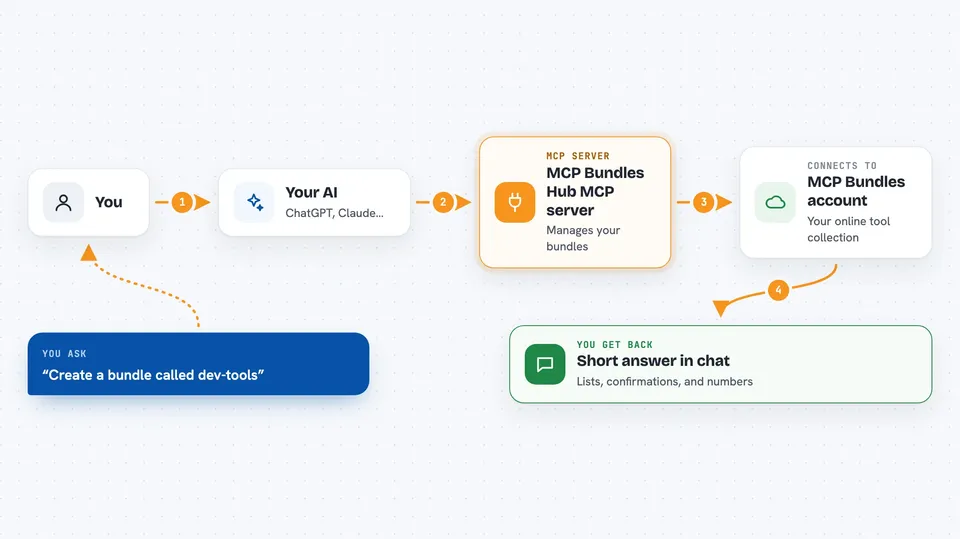
You ask your AI something like create a bundle called dev-tools or add my GitHub login. Your AI sends that request to this helper server. The helper talks to your MCP Bundles account over the internet, using your access token to prove it is you. MCP Bundles then creates the bundle, saves the credential, or returns the list of tools you asked about. You see the result as a short answer in your chat window.
 Click to zoom
What you can do with it
- Create and name new bundles of tools
- List all the bundles you already have
- Add, update, or remove provider credentials like GitHub or Slack
- Search the 1,500+ providers MCP Bundles supports
- See which tools a provider offers
- Check whether a bundle is ready to use
- View your account details and usage numbers
Try asking your AI
- “Create a bundle called marketing-tools”
- “Add my GitHub credential to the dev-tools bundle”
- “What bundles do I have enabled?”
- “Search for providers related to email”
What it gives back to you
You get short answers in the chat: lists of bundles, lists of providers, confirmation that a bundle or credential was created or removed, and details like tool names and parameters. Usage checks come back as numbers. Nothing arrives as a file; it is all text you can read right in the conversation.
Before you start
What you need
- A free MCP Bundles account at mcpbundles.com
- An MCP-compatible app such as Claude Desktop or Cursor
- An access token from your MCP Bundles dashboard (a long password-like string the site gives you)
Good to know
This server can create and delete bundles and credentials in your MCP Bundles account, so ask your AI to confirm before removing anything, and never paste your access token into a public place.
Install it with your AI
Add MCP Bundles Hub MCP server to your AI, no technical skills needed
You don't install anything by hand. You copy one prompt, paste it into an AI that can work on your computer, and it checks, installs and connects the server for you, asking you when it needs something.
Sign in to get the install prompt
Members get a ready-made prompt that lets the Claude desktop app check MCP Bundles Hub MCP server, install it and connect it for them, step by step. You don't need any technical skills: you copy, paste and answer a few questions. Your connected AI can also find and install any of the 4,609 MCP servers here for you.
Who it's for
People who use several online tools at work and want one tidy place to connect them to their AI, without setting up each app separately.


