
MCP server · Developer tools
MCP Prompt Engine
by vasayxtx
Turn your own reusable prompt templates into ready-made prompts your AI can pick up and use.
This is a small helper program that stores your own prompt templates and hands them to your AI when you need them. Instead of retyping the same instructions every time, you save them once and reuse them. It is handy for anyone who writes the same kinds of prompts over and over, like commit messages, emails, or reports.
What is an MCP server? The 30-second version
On its own, your AI can only chat with you. An MCP server is a small helper program that gives your AI a new skill or a connection to something else. This one connects your AI to a folder of prompt templates you keep on your computer. When you pick a template, the helper fills in the blanks and sends the finished prompt to your AI.
What this MCP server does
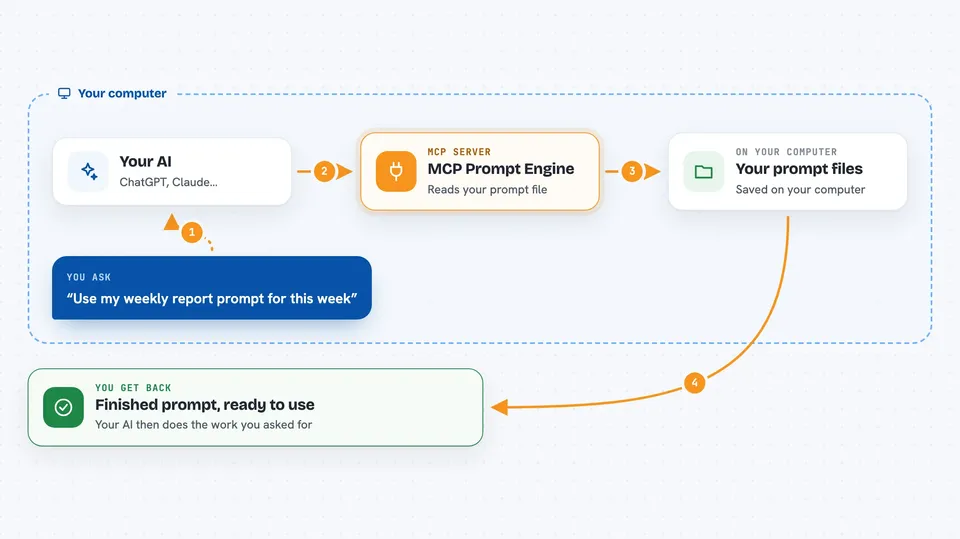
You keep a folder of prompt files, each one written with simple placeholders like a name or a type. You ask your AI to use one of those prompts, and the AI asks this helper for it. The helper reads the file, fills in the placeholders with the details you gave, and hands the finished prompt back. Your AI then follows that prompt as if you had typed it yourself. If you edit a file, the helper notices and uses the new version right away.
 Click to zoom
What you can do with it
- Save your favourite prompts once and reuse them any time
- Fill in blanks like a name, a date, or a type when you pick a prompt
- Reuse shared pieces across several prompts so you only write them once
- Add simple logic like if-this-then-that inside a prompt
- Check your prompt files for mistakes before you use them
- Preview what a finished prompt will look like in your terminal
- Edit a prompt file and see the change without restarting anything
Try asking your AI
- “Use my git_stage_commit prompt with type feat”
- “Show me the list of prompts I have saved”
- “Run my weekly report prompt for this week”
- “Use the email_reply prompt and fill in the customer name”
What it gives back to you
You get the finished prompt text, already filled in with your details, shown right in the chat. Your AI then acts on it, so you see the answer or the work it did, not just the prompt. If you ask for a list, you get the names and short descriptions of your saved prompts.
Before you start
What you need
- The MCP Prompt Engine program installed on your computer
- A folder with your prompt template files in it
- An MCP client that supports prompts, like Claude Desktop, Claude Code, or Gemini CLI
Good to know
Your prompt files can include details from your computer, so keep private information out of them if you share the folder.
Install it with your AI
Add MCP Prompt Engine to your AI, no technical skills needed
You don't install anything by hand. You copy one prompt, paste it into an AI that can work on your computer, and it checks, installs and connects the server for you, asking you when it needs something.
Sign in to get the install prompt
Members get a ready-made prompt that lets the Claude desktop app check MCP Prompt Engine, install it and connect it for them, step by step. You don't need any technical skills: you copy, paste and answer a few questions. Your connected AI can also find and install any of the 4,609 MCP servers here for you.
Who it's for
People who write the same kinds of prompts again and again and want them saved, tidy, and easy to reuse.



