
MCP server · Developer tools
ROS MCP server
by Yutarop
Let your AI control robots by talking to them in plain language through ROS 2.
This is a helper that lets your AI assistant talk to robots that run on ROS 2, the software many robots use to move and sense the world. You describe what you want in normal words, and the AI turns that into robot commands. It is handy for people who work with robots but do not want to memorize command line instructions.
What is an MCP server? The 30-second version
On its own, your AI can only chat with you. An MCP server is a small helper program that gives your AI a new skill or a connection to another piece of software. This one connects your AI to ROS 2, the system that runs on your robot. So when you ask for something, the AI can actually look at the robot and send it instructions.
What this MCP server does
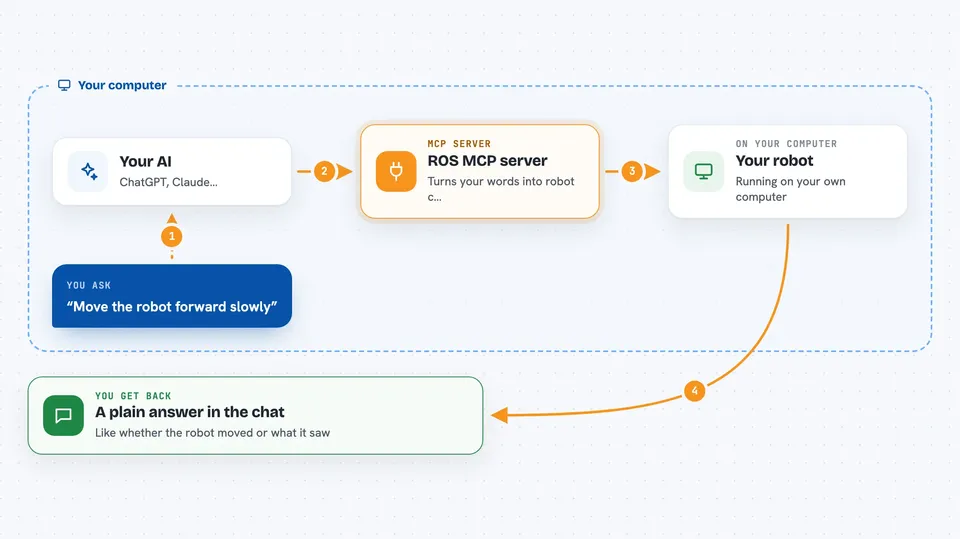
You type a request in plain language, like moving a robot forward. Your AI reads that and uses this helper to figure out which ROS 2 command fits. The helper then talks to your robot's ROS 2 system, either by publishing a message, calling a service, or sending an action goal. The robot does the thing, and the helper sends the result back so your AI can tell you what happened.
 Click to zoom
What you can do with it
- List the topics, services, and actions your robot is currently offering
- Watch a topic to see the messages flowing through it
- Publish a message to a topic to make the robot do something
- Call a service to trigger a one-time action, like resetting a simulation
- Send a goal to an action to make the robot move a certain distance
- Launch graphical tools like Gazebo or rqt_graph on your screen
- Check your ROS 2 setup and clean up leftover processes
Try asking your AI
- “Show me the list of ROS 2 topics currently available”
- “Publish a message to the cmd_vel topic to move the robot forward slowly”
- “Call the reset_world service in Gazebo”
- “Send an action goal to move TurtleBot3 forward for 1 meter”
What it gives back to you
You get back plain answers in the chat, like a list of topics or a confirmation that a command was sent. If you ask to monitor a topic, it will show you the messages it sees. When you send a movement command, it tells you whether the robot accepted it. It does not draw pictures or graphs on its own, but it can open separate tool windows for you.
Before you start
What you need
- A robot or simulation running ROS 2 Humble on the same network
- The Claude desktop app
- Python 3.10 or newer and the uv package manager
- The same ROS_DOMAIN_ID set on your computer and the robot
Good to know
This helper can send real commands to a robot, so a wrong request could make it move or change its state, and you should keep an eye on what it is doing.
Install it with your AI
Add ROS MCP server to your AI, no technical skills needed
You don't install anything by hand. You copy one prompt, paste it into an AI that can work on your computer, and it checks, installs and connects the server for you, asking you when it needs something.
Sign in to get the install prompt
Members get a ready-made prompt that lets the Claude desktop app check ROS MCP server, install it and connect it for them, step by step. You don't need any technical skills: you copy, paste and answer a few questions. Your connected AI can also find and install any of the 4,066 MCP servers here for you.
Who it's for
Robotics students, hobbyists, and engineers who already use ROS 2 and want a friendlier way to control their robots.


