MCP server · Productivity
FluxDown MCP server
by zerx-lab
Let your AI add, check, pause, resume and remove your FluxDown downloads for you.
FluxDown is a free download manager app for Windows, Mac, Linux and Android. It handles normal web links, FTP, BitTorrent, magnet links and streaming video. It also has a built-in MCP server, which means your AI assistant can manage your downloads for you.
What is an MCP server? The 30-second version
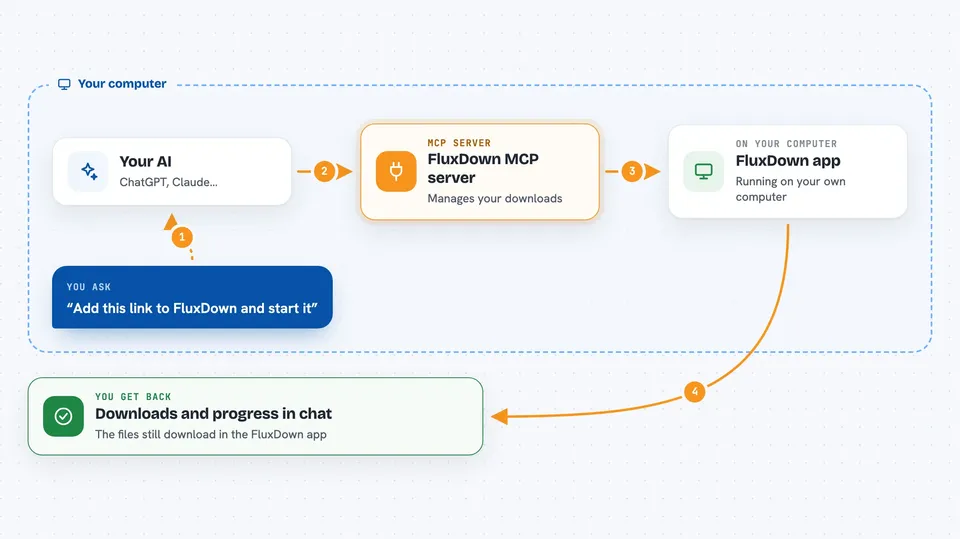
On its own, your AI can only chat. An MCP server is a small helper that gives your AI a new skill or a connection to an app. Here, that helper is built into FluxDown itself, so your AI can talk to your download list. You ask in plain words, and the AI passes the request to FluxDown on your computer.
What this MCP server does
You tell your AI something like "add this link to FluxDown". The AI sends that request to the FluxDown app running on your machine. FluxDown then creates the download, starts it, or pauses it, depending on what you asked. When you ask for a status check, FluxDown sends back the list of downloads with their progress and speed. You see the answer right in the chat, and the real download happens in the FluxDown app.
 Click to zoom
What you can do with it
- Add a new download from a web link, FTP link, magnet link or torrent
- List all your downloads with progress, speed and status
- Pause or resume one download, or all of them at once
- Remove a download, with or without deleting the files
- Check a single download by its ID
- List your named queues and how they are set up
- Subscribe to an RSS feed and let FluxDown pick up new items
Try asking your AI
- “Add this link to FluxDown: https://example.com/bigfile.zip”
- “Show me all my downloads that are still running”
- “Pause everything, I need my full internet speed for a call”
- “Remove the finished download called movie.mp4 and delete the file too”
What it gives back to you
You get back plain answers in the chat. A list of downloads comes back with names, progress, speed and status. A single download comes back with its details. When you add, pause, resume or remove something, you get a short confirmation that it worked. The actual downloading still happens inside the FluxDown app on your computer.
Before you start
What you need
- The FluxDown app installed and running on your computer
- The MCP endpoint switched on in FluxDown settings (Settings, then API Service)
- The access token FluxDown shows you when you turn the MCP endpoint on
- An AI app that supports MCP, like Claude Desktop, Cursor or Cline
Good to know
The AI can remove downloads and delete the downloaded files, so be clear about what you want removed before you say yes.
Install it with your AI
Add FluxDown MCP server to your AI, no technical skills needed
You don't install anything by hand. You copy one prompt, paste it into an AI that can work on your computer, and it checks, installs and connects the server for you, asking you when it needs something.
Sign in to get the install prompt
Members get a ready-made prompt that lets the Claude desktop app check FluxDown MCP server, install it and connect it for them, step by step. You don't need any technical skills: you copy, paste and answer a few questions. Your connected AI can also find and install any of the 4,609 MCP servers here for you.
Who it's for
Anyone who downloads a lot of large files and already uses an AI assistant, especially people who want to manage downloads by just typing what they want.