MCP server · Productivity
MCP Manager for Claude Desktop
by zueai
A web page that helps you set up MCP servers for the Claude Desktop app without touching config files by hand.
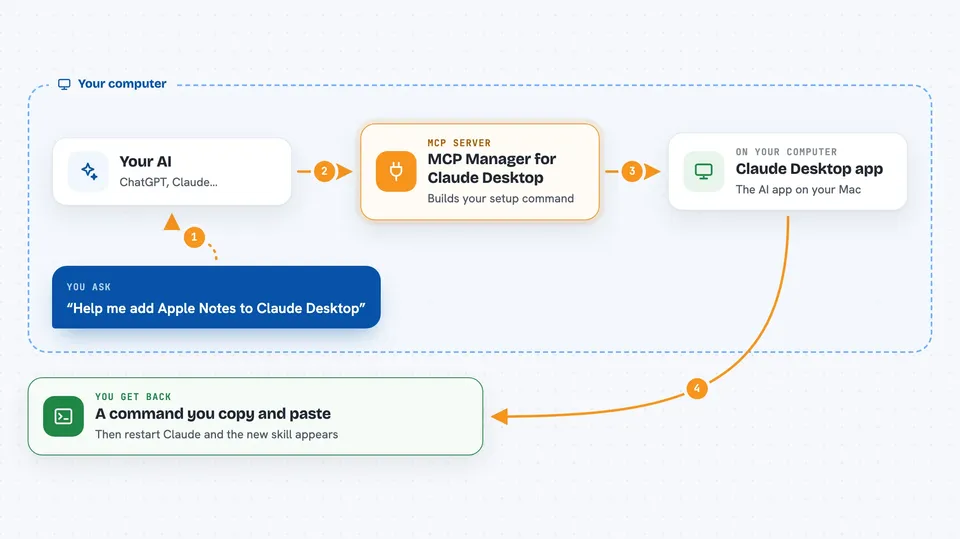
MCP Manager is a simple web page that helps you add new skills to the Claude Desktop app on a Mac. Instead of editing a hidden settings file yourself, you pick a server from a list, fill in a couple of boxes, and copy a ready-made command. It is handy if you keep hearing about MCP servers but do not want to learn terminal commands or file paths.
What is an MCP server? The 30-second version
On its own, your AI can only chat with you. An MCP server is a small helper program that gives your AI one extra skill, like reading your notes or searching the web. This tool is a manager for those helpers: it shows you a list of popular MCP servers and walks you through connecting them to the Claude Desktop app. You still need to paste a command or two, but the page tells you exactly which ones.
What this MCP server does
You open the MCP Manager web page and see a list of ready-made MCP servers, such as Apple Notes, GitHub, Google Drive, Slack or Brave Search. You pick the one you want and the page shows you the few settings it needs, like an API key or a folder path. It then gives you a terminal command you can copy with one click. You paste that command into your Mac terminal, restart Claude Desktop, and the new skill shows up inside Claude. The page runs entirely in your browser, so your settings stay on your computer.
 Click to zoom
What you can do with it
- Browse a list of popular MCP servers you can add to Claude Desktop
- See which settings each server needs before you install it
- Copy the exact terminal command for a server with one click
- Fill in environment variables like API keys through a simple form
- Set up servers for Apple Notes, GitHub, Google Drive, Slack, Obsidian and more
- Follow short instructions written for people who are not developers
Try asking your AI
- “Show me how to add the Apple Notes MCP server to Claude Desktop”
- “What settings does the GitHub MCP server need?”
- “Give me the command to install the Google Drive MCP server”
- “Which MCP servers can search the web?”
What it gives back to you
The page gives you a short setup guide, a form for any keys or paths the server needs, and a terminal command you can copy with one click. It does not run the server for you and it does not change Claude on its own. After you paste the command and restart Claude Desktop, the new skill appears inside the Claude app, not on this web page.
Before you start
What you need
- A Mac computer
- The Claude Desktop app installed
- Access to the Terminal app on your Mac
- Any API key or account the specific server you pick requires
Good to know
The page itself is safe to browse, but the MCP servers it helps you install can read your files, your notes or your accounts, so only add ones you actually trust.
Install it with your AI
Add MCP Manager for Claude Desktop to your AI, no technical skills needed
You don't install anything by hand. You copy one prompt, paste it into an AI that can work on your computer, and it checks, installs and connects the server for you, asking you when it needs something.
Sign in to get the install prompt
Members get a ready-made prompt that lets the Claude desktop app check MCP Manager for Claude Desktop, install it and connect it for them, step by step. You don't need any technical skills: you copy, paste and answer a few questions. Your connected AI can also find and install any of the 4,609 MCP servers here for you.
Who it's for
Mac users who use Claude Desktop and want to add new skills to it without learning how config files work.