MCP server · Analytics
VMware Monitor MCP server
by zw008
Ask your AI to check your VMware hosts, VMs, and alerts without changing anything.

VMware Monitor is a helper that lets your AI look at your VMware setup and tell you what is going on. It only reads information, so it never turns things off, deletes them, or changes settings. It is handy if you run VMware and want quick answers without clicking through the vCenter website.
What is an MCP server? The 30-second version
On its own, your AI can only chat with you. An MCP server is a small helper program that gives your AI a new skill or a connection to another system. This one connects your AI to VMware vCenter or ESXi, the software that runs your virtual machines. Once connected, you can ask questions in plain words and the AI will look up the answers in VMware for you.
What this MCP server does
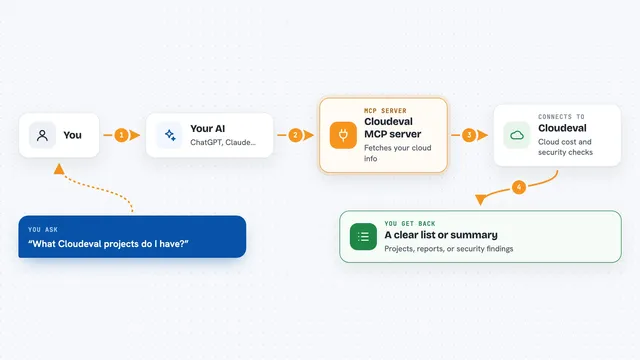
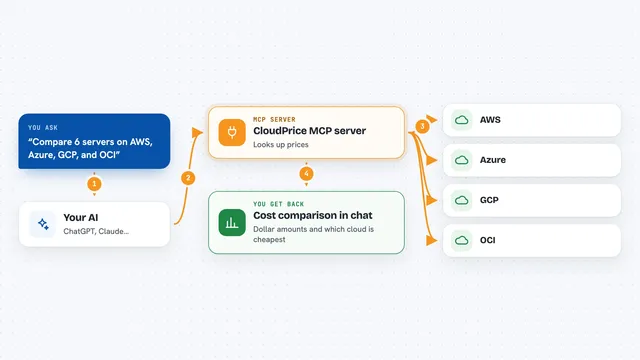
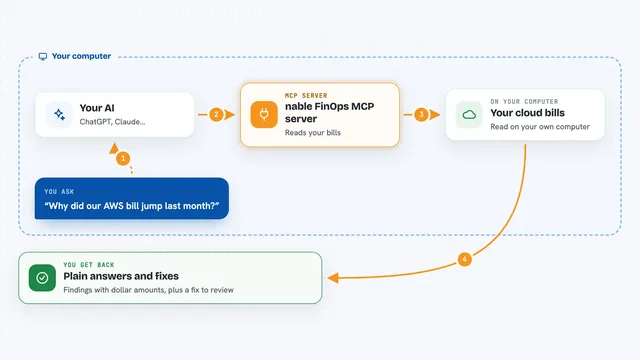
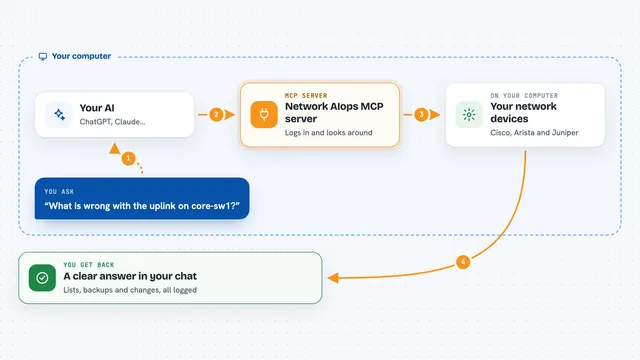
You ask your AI a question about your VMware setup, like which hosts are having problems. The AI uses this helper to send a read-only request to vCenter or ESXi. The helper gathers the information, such as alarms, host health, or VM details. Then the AI explains what it found in normal language. It never makes changes, so nothing gets turned off or deleted.
 Click to zoom
What you can do with it
- List all virtual machines and see their power state, CPU, memory, and IP address
- Check active alarms and recent events across your clusters
- See host health, including hardware sensors and running services
- Look at datastore capacity and how much space is free
- List snapshots on a VM and see how long backups held them open
- Investigate a specific VM, host, or datastore and get a full picture around it
- Get a summary of what needs attention across all your vCenters
Try asking your AI
- “Is anything on fire in my VMware environment right now?”
- “Show me all VMs on host esxi-01 and their power states.”
- “What alarms are active in the Production cluster?”
- “Investigate VM web-01 and tell me what is happening around it.”
What it gives back to you
You get back clear answers in the chat, like a list of VMs, a summary of alarms, or a health report for a host. For deeper checks, it can also create an offline HTML snapshot you can open in your browser. The AI explains the results in everyday words, not technical jargon. Everything is read-only, so you only see information, never changes.
Before you start
What you need
- A VMware vCenter or ESXi server you can reach
- A username and password for that server (a read-only account is safest)
- Python 3.10 or newer and the uv tool (or pip) to install the helper
- An AI tool that supports MCP, like Claude Desktop or Cursor
Good to know
This tool only reads information and never changes anything in VMware, but it does need your vCenter password, so keep that safe.
Install it with your AI
Add VMware Monitor MCP server to your AI, no technical skills needed
You don't install anything by hand. You copy one prompt, paste it into an AI that can work on your computer, and it checks, installs and connects the server for you, asking you when it needs something.
Sign in to get the install prompt
Members get a ready-made prompt that lets the Claude desktop app check VMware Monitor MCP server, install it and connect it for them, step by step. You don't need any technical skills: you copy, paste and answer a few questions. Your connected AI can also find and install any of the 4,361 MCP servers here for you.
Who it's for
IT administrators and support teams who manage VMware and want quick answers without logging into vCenter.