MCP server · Developer tools
VMware NSX MCP server
by zw008
Lets your AI look up and manage NSX network segments, gateways, NAT rules, routes and IP pools for you.
This is a helper that connects your AI assistant to VMware NSX, the tool network teams use to build and run virtual networks. Once it is set up, you can ask your AI in plain words to list your network pieces, check what is broken, or create a new segment, and it will do the clicking and typing for you. It is most useful if you already work with NSX at your job and want to save time on the boring lookups.
What is an MCP server? The 30-second version
On its own, your AI can only chat. An MCP server is a small helper program that gives your AI a new skill or a connection to another system. This one connects your AI to your VMware NSX environment, so when you ask a question about your network, the AI can actually go and look things up or make changes there. You stay in charge: you ask, the helper does the work, and you see the result in the chat.
What this MCP server does
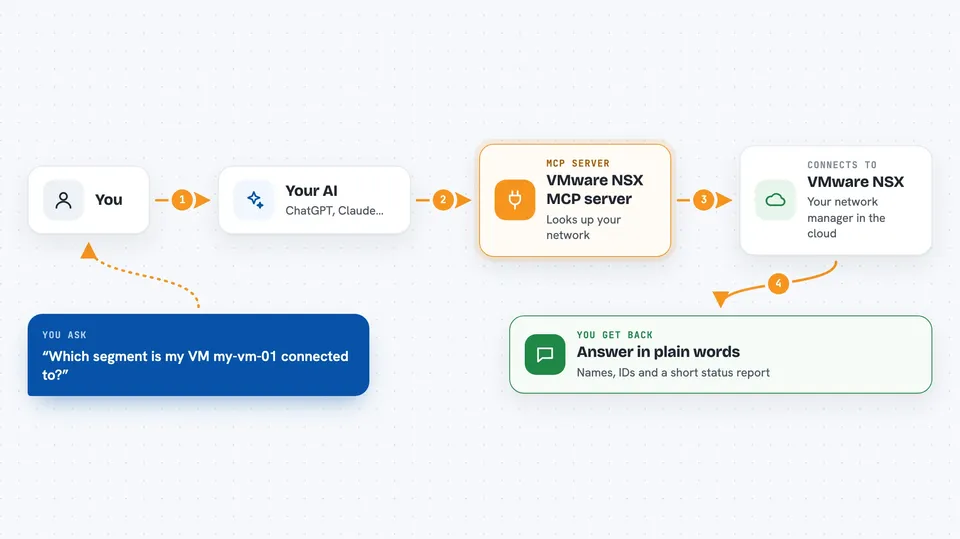
You type a request in plain words, like asking what segments exist or why a machine cannot reach the network. Your AI passes that request to this helper. The helper talks to your NSX Manager using your saved login and asks it for the information or makes the change. Then it hands the answer back to your AI, which explains it to you in the chat. For anything that changes or deletes something, it shows you a preview first and waits for your yes.
 Click to zoom
What you can do with it
- List all your network segments and see their details
- Create a new segment with a name and subnet
- Create a Tier-1 gateway and connect it to a Tier-0 gateway
- Add a NAT rule so internal addresses can reach the outside
- Check the health of your NSX manager, transport nodes and edge clusters
- Find which segment a virtual machine is attached to
- Preview a delete before anything is actually removed
Try asking your AI
- “List all the segments in my NSX environment”
- “Create a new segment called app-web-seg with subnet 10.10.1.1/24”
- “Which segment is my VM called my-vm-01 connected to?”
- “Show me the high severity alarms in NSX”
What it gives back to you
You get answers in the chat: lists of segments, gateways, NAT rules or IP pools, often with their names and IDs. Health checks come back as short status reports, like whether the manager is up or a transport node is degraded. For changes, you first see a preview of what would happen, and after you confirm, a short note that it was done. Everything is written in normal sentences, not raw technical output.
Before you start
What you need
- A VMware NSX environment you can reach (NSX-T 3.0 or newer, or NSX 4.x)
- The login details for your NSX Manager, saved in a small config file
- Python installed on your computer, plus the uv or pip tool to install this helper
- Your AI app set up to use MCP servers, like the Claude desktop app
Good to know
Some tools can create, change or delete real network pieces, so always read the preview carefully before you confirm, and remember that a delete can take down connectivity for the machines using that segment or gateway.
Install it with your AI
Add VMware NSX MCP server to your AI, no technical skills needed
You don't install anything by hand. You copy one prompt, paste it into an AI that can work on your computer, and it checks, installs and connects the server for you, asking you when it needs something.
Sign in to get the install prompt
Members get a ready-made prompt that lets the Claude desktop app check VMware NSX MCP server, install it and connect it for them, step by step. You don't need any technical skills: you copy, paste and answer a few questions. Your connected AI can also find and install any of the 4,609 MCP servers here for you.
Who it's for
Network engineers and IT staff who already work with VMware NSX and want to save time on everyday lookups, checks and small changes.