AI agent for service managers
Outage Surge Communication Agent
Give agents and customers one accurate message during an outage and keep it up to date.
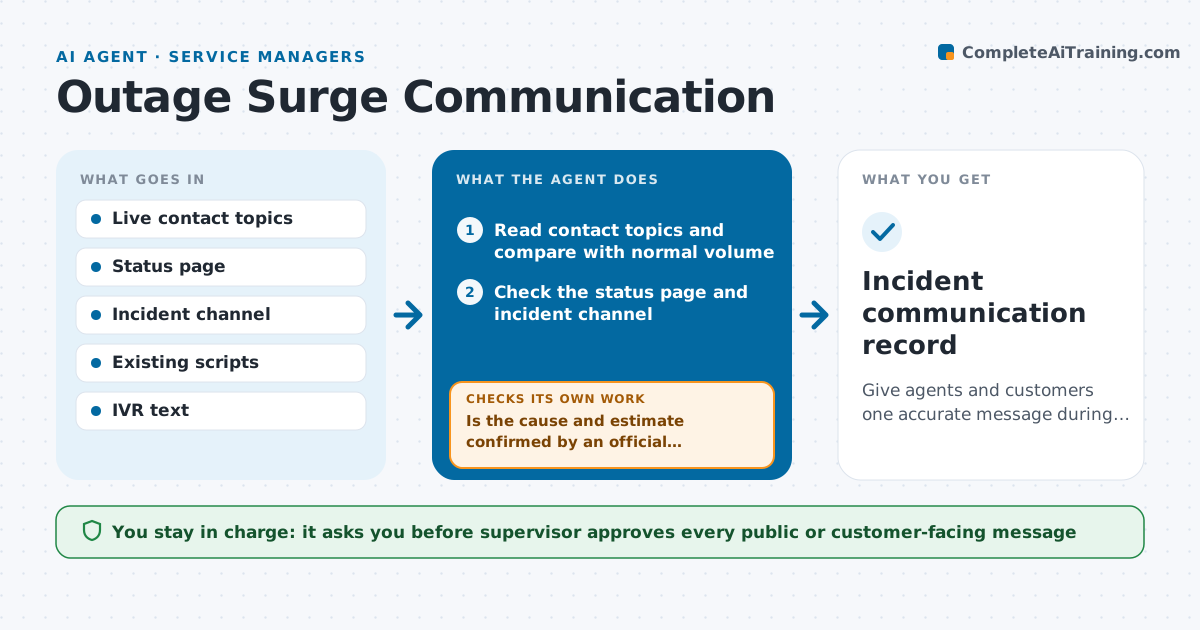
What it does
A service goes down, the phones light up, and half the agents tell callers it will be fixed in an hour while others say there is no problem. This agent watches call and chat topics for a sudden spike on one subject. When it sees one, it checks the status page and internal incident channel to confirm the cause and the current estimate. It drafts one answer for agents, a short hold message and updated IVR text, all using the same confirmed facts. After the supervisor approves and the messages are live, it keeps watching the topics and the wait times. If calls on that topic keep rising or the wording confuses callers, it revises the message. When the incident closes, it drafts the all-clear. The supervisor approves every public or customer-facing message. Edge case: the status page and the engineers disagree on the time, so the agent shows no time.
How it works
Follow the arrows from top to bottom. The orange dashed arrow is the loop: when a check fails, the agent goes back and tries again.
Read the steps as a list
- Topic spike detected
- Read contact topics and compare with normal volume
- Check the status page and incident channel
- Is the cause and estimate confirmed by an official source?If not: ask the incident owner and write the message without a time estimate. Back to step 3.
- Draft the agent answer, hold message and IVR text
- Supervisor approves every customer-facing messageThe agent waits here for your OK.
- Publish approved text to the agent guide and queue
- Watch call topics, wait times and agent questions
- Is volume on the topic falling and are agents consistent?If not: revise the message and ask the supervisor to approve again. Back to step 5.
- Draft the all-clear when the incident closes
- Incident communication record
How it decides
A spike is real when a topic exceeds three times its normal rate for 10 minutes. Messages use only facts confirmed by the status page or incident owner.
- Treat a topic as a surge at three times normal volume for 10 minutes
- Give no time estimate unless the incident owner has confirmed it
- Use the same wording across voice, chat and email
- Revise the message if agents ask the same clarifying question more than 5 times
Make it yours
Every agent is a starting point. You choose these settings for your own situation.
- Surge threshold (default three times normal)
- Official sources to trust
- Message tone and length
- Channels covered (voice, chat, email)
- Who approves messages
What keeps you in control
It always asks you first
- Supervisor approves every public or customer-facing message
- Supervisor approves the all-clear
Hard limits
- Never publish or change a customer message without approval
- Never promise a time or compensation
It stops when
- Done: incident closed and the all-clear is sent
- Stop: no official source confirms the incident
Set it up
We guide you through the set-up, step by step
Members get the full set-up guide for this agent. No technical skills needed: you copy, paste and upload.
- One set of instructions to paste into your AI, with the clicks for ChatGPT, Claude, Microsoft 365 Copilot, Gemini and Grok
- The agent then walks you through connecting your own data, one source at a time
- A downloadable copy with the flow chart, the rules and the full guide