MCP server · Developer tools
Bitbucket MCP server
by aashari
Lets your AI look at your Bitbucket repositories, branches and pull requests, and make changes there for you.
This is a small helper that connects your AI assistant to Bitbucket Cloud, the place where your team keeps its code. Once it is set up, you can just ask your AI questions about your repositories and pull requests in normal words, instead of clicking around the website. It is handy for developers, team leads, and anyone who works with code every day.
What is an MCP server? The 30-second version
On its own, your AI can only chat. It cannot see your code or your pull requests. An MCP server is a small helper program that gives your AI a new skill or a connection to another service. This one connects your AI to Bitbucket, so it can look things up there and do things for you when you ask.
What this MCP server does
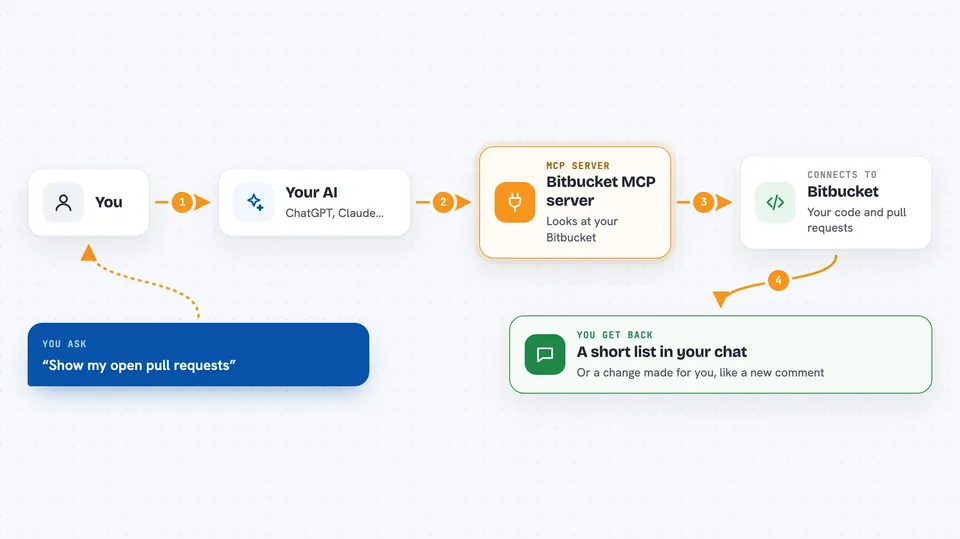
You ask your AI something about your Bitbucket work, like which pull requests are still open. Your AI sends that request to this helper program running on your computer. The helper then talks to Bitbucket over the internet using your account. Bitbucket sends back the answer, and the helper passes it to your AI, which explains it to you in the chat. If you ask it to change something, like adding a comment to a pull request, the helper makes that change in Bitbucket for you.
 Click to zoom
What you can do with it
- List the repositories in your workspace
- Show open pull requests that still need review
- Compare your feature branch with the main branch
- Read a file from a branch, like src/config.js
- Create a pull request from one branch to another
- Add a comment to a pull request
- Approve or merge a pull request
- Download a copy of a repository to your computer
Try asking your AI
- “List all repositories in my main workspace”
- “Show me all open pull requests that need review”
- “Compare my feature branch with the main branch”
- “Add a comment to PR #15 saying the tests passed”
What it gives back to you
You get answers in the chat, usually as short lists or summaries. For example, a list of repository names, or the titles and authors of open pull requests. If you ask it to change something, it tells you what it did, like confirming that a comment was added. It can also save a copy of a repository onto your computer when you ask it to.
Before you start
What you need
- A Bitbucket Cloud account (not Bitbucket Server or Data Center)
- An Atlassian API token with the right permissions, or an older Bitbucket app password
- Node.js version 18 or newer installed on your computer
- An AI assistant that supports MCP, like Claude Desktop or Cursor
Good to know
It can change things in your Bitbucket account, like creating pull requests, adding comments, merging or deleting branches, so check with your AI before letting it make changes.
Install it with your AI
Add Bitbucket MCP server to your AI, no technical skills needed
You don't install anything by hand. You copy one prompt, paste it into an AI that can work on your computer, and it checks, installs and connects the server for you, asking you when it needs something.
Sign in to get the install prompt
Members get a ready-made prompt that lets the Claude desktop app check Bitbucket MCP server, install it and connect it for them, step by step. You don't need any technical skills: you copy, paste and answer a few questions. Your connected AI can also find and install any of the 4,361 MCP servers here for you.
Who it's for
Developers, team leads, and DevOps engineers who work with Bitbucket and want to ask their AI about code and pull requests instead of clicking through the website.