MCP server · Browser automation
Safari MCP server
Let your AI drive the Safari browser you are already logged into, without opening Chrome.
This is a small helper that connects your AI assistant to Safari on your Mac. Once it is set up, your AI can open pages, click buttons, fill in forms and take screenshots inside the real Safari you already use, with all your logins still in place. It is handy for people who want their AI to do everyday web tasks for them without switching browsers.
What is an MCP server? The 30-second version
On its own, your AI can only chat. An MCP server is a small helper program that gives your AI a new skill or a connection to an app or service. This one connects your AI to Safari, the browser already on your Mac. So when you ask your AI to look something up or fill in a form on a page, it can actually do it in Safari for you.
What this MCP server does
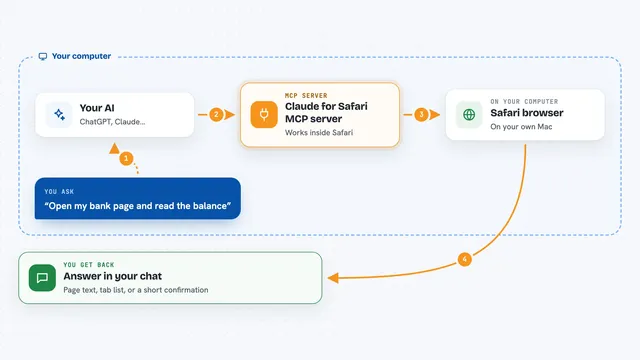
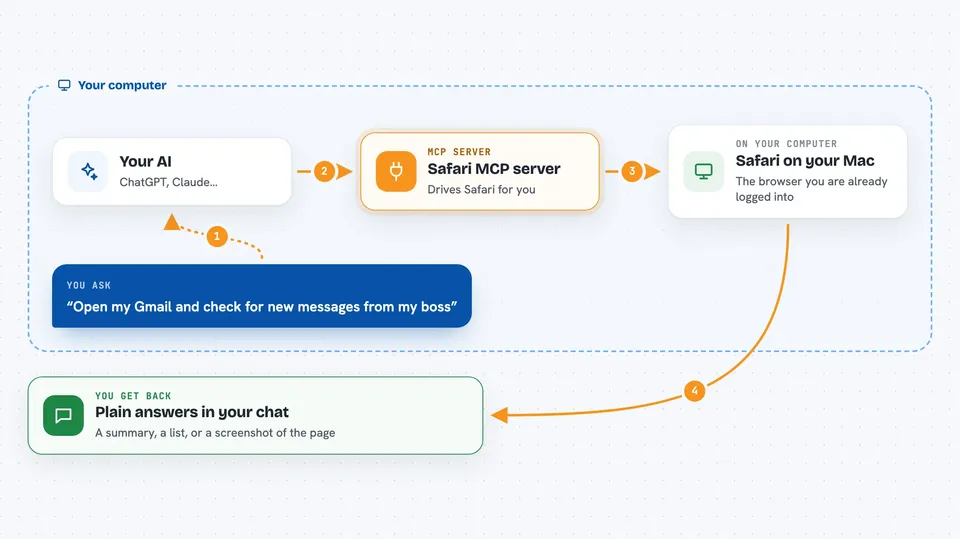
You ask your AI something that involves a web page. The AI sends the request to this helper. The helper talks to Safari on your Mac and does the step, like opening a page, clicking a link or typing into a field. Then it sends the result back, so your AI can tell you what it found or confirm what it changed. Safari stays in the background, so it does not jump in front of whatever you are doing.
 Click to zoom
What you can do with it
- Open a web page in Safari and read what is on it
- Click buttons and links on a page
- Fill in forms, including on sites built with React or similar tools
- Take screenshots of pages
- Check the network activity of a page
- Look at cookies and stored data on a site
- Run several browser tasks at once without them fighting over tabs
Try asking your AI
- “Open my Gmail and tell me if I have any new messages from my boss”
- “Go to the company dashboard and screenshot the sales numbers for this week”
- “Fill in the contact form on this page with my name and email”
- “Check what cookies this site is setting and list them for me”
What it gives back to you
You get back plain answers in the chat, like a summary of what is on a page, a list of links or form fields, or a screenshot. If your AI clicked or filled something in, it tells you what it did. It can also show you small details like network requests or stored data when you ask.
Before you start
What you need
- A Mac with Safari
- Node.js version 20 or newer
- Turn on Show features for web developers in Safari settings
- Turn on Allow JavaScript from Apple Events in Safari developer settings
Good to know
This helper can click and type in your real Safari, so anything you are logged into could be changed, and it can read pages that contain private information.
Install it with your AI
Add Safari MCP server to your AI, no technical skills needed
You don't install anything by hand. You copy one prompt, paste it into an AI that can work on your computer, and it checks, installs and connects the server for you, asking you when it needs something.
Sign in to get the install prompt
Members get a ready-made prompt that lets the Claude desktop app check Safari MCP server, install it and connect it for them, step by step. You don't need any technical skills: you copy, paste and answer a few questions. Your connected AI can also find and install any of the 4,361 MCP servers here for you.
Who it's for
Mac users who want their AI assistant to handle everyday web tasks in the Safari browser they already use.