MCP server · Health and learning
Canvas MCP server
by admin978
Ask your AI about your Canvas courses, assignments, deadlines, modules and grades in one chat.
This is a small helper that connects your AI assistant to Canvas, the school system many colleges use. Once it is set up, you can ask plain questions about your courses instead of clicking around Canvas. It is made for students and teachers who want one simple view across all their classes.
What is an MCP server? The 30-second version
On its own, your AI can only chat with you. An MCP server is a little helper program that gives your AI a new skill or a connection to an app. This one connects your AI to Canvas, so when you ask about your courses or deadlines, the AI can actually go look them up for you. It runs on your own computer, and it uses a personal access token you create in Canvas to read your data.
What this MCP server does
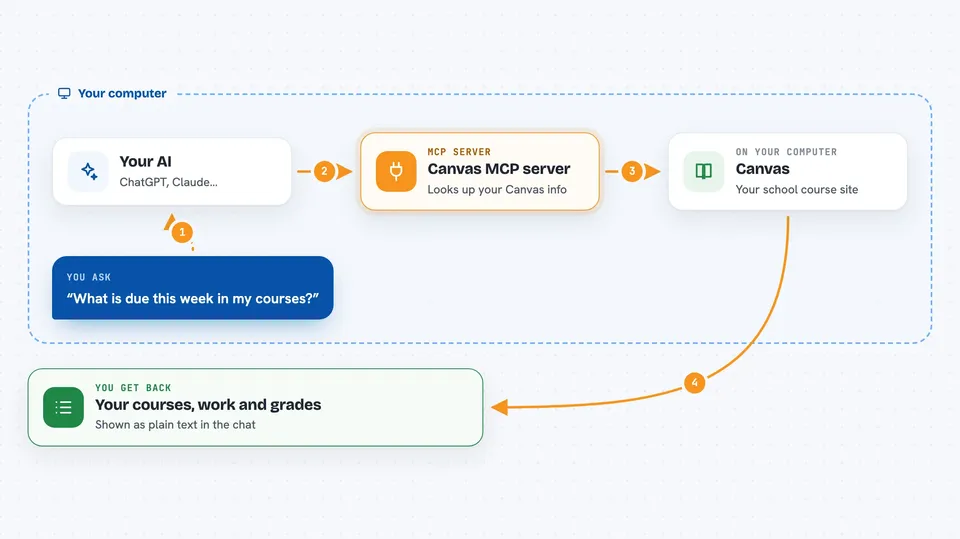
You ask your AI something in normal words, like what is due this week. The AI passes that request to this helper program running quietly on your computer. The helper then talks to Canvas using your personal access token and fetches the answer. The AI reads what came back and explains it to you in the chat. You never have to open Canvas yourself for these questions.
 Click to zoom
What you can do with it
- List all your active Canvas courses
- Show assignments due this week across every course
- List your current grades by course
- Show modules and their items for a course
- Show announcements for a course
- Show upcoming events and planner items
- Fetch a specific page like the syllabus
- Download course files for offline use
Try asking your AI
- “List my active Canvas courses.”
- “What assignments are due this week across all my active courses?”
- “Show upcoming events and planner items for next week.”
- “List my current grades by course.”
- “Show announcements for course 12345.”
What it gives back to you
You get answers written out in the chat: lists of courses, assignments with due dates, grades by course, modules, announcements, and upcoming events. It can also download course files to a folder on your computer for offline use. Everything shows up as normal text you can read and copy. Nothing is changed inside Canvas itself.
Before you start
What you need
- Python 3.10 or newer on your computer
- A Canvas account at your school
- A Canvas personal access token (Canvas gives you one under Account, Settings, Approved Integrations)
- The Claude desktop app or Claude Code
Good to know
It reads your Canvas data using your personal token, so keep that token private and revoke it in Canvas if you ever think it leaked.
Install it with your AI
Add Canvas MCP server to your AI, no technical skills needed
You don't install anything by hand. You copy one prompt, paste it into an AI that can work on your computer, and it checks, installs and connects the server for you, asking you when it needs something.
Sign in to get the install prompt
Members get a ready-made prompt that lets the Claude desktop app check Canvas MCP server, install it and connect it for them, step by step. You don't need any technical skills: you copy, paste and answer a few questions. Your connected AI can also find and install any of the 4,361 MCP servers here for you.
Who it's for
Students juggling several Canvas courses, and teachers who want quick access to assignments, modules and announcements.