MCP server · Analytics
Google Search Console MCP server
by AKzar1el
Ask your AI about your site's Google search traffic, top queries, index status, and sitemaps.

This is a small helper that connects your AI assistant to your own Google Search Console account. Once it is set up, you can just ask your AI things like which pages got the most clicks last week, and it will look it up for you. It is handy for anyone who runs a website and wants quick answers without clicking around Search Console.
What is an MCP server? The 30-second version
On its own, your AI can only chat with you using what it already knows. An MCP server is a small helper program that gives your AI a new skill or a connection to an app or service. This one connects your AI to Google Search Console, so it can look up your search data and, if you allow it, make changes there. You stay in control: the helper only does what you ask, and you sign in with your own Google account.
What this MCP server does
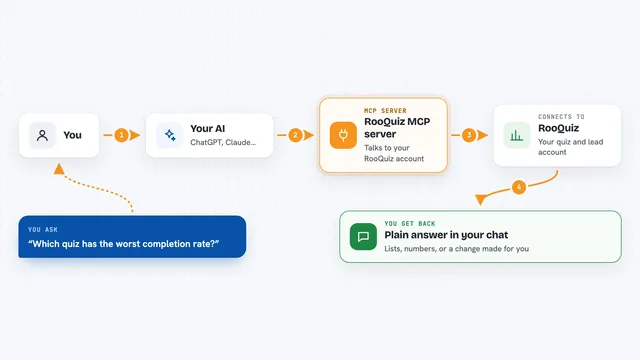
You ask your AI a question about your website's search performance. Your AI sends that request to this helper program, which talks to Google Search Console using your Google sign-in. Google sends back the numbers, and the helper passes them to your AI. Your AI then explains the results to you in plain words, right in the chat.
 Click to zoom
What you can do with it
- See impressions, clicks, click-through rate, and average position for any date range
- Find your top queries and the pages Google showed for them
- Check whether a specific page is in Google's index
- List your submitted sitemaps and their details
- Spot quick-win queries, overlapping pages, and pages losing clicks
- Get a plain-language weekly report with one suggested action
- Add or remove properties and submit or delete sitemaps if you allow write access
Try asking your AI
- “How many clicks and impressions did my site get in the last 28 days?”
- “What are my top 10 queries on mobile in the UK this month?”
- “Is this page indexed by Google, and what queries does it show up for?”
- “Give me a weekly digest of my search performance with one thing to fix”
What it gives back to you
You get answers in the chat: numbers, lists of queries or pages, and short summaries your AI writes from the data. For example, it might show a table of your top pages with clicks and impressions, or a short paragraph about what changed this week. If you allow write access and ask for a change, it will confirm what it did, like adding a property or submitting a sitemap.
Before you start
What you need
- A Google account with access to at least one Search Console property
- Google OAuth credentials (a client ID and secret from Google Cloud; the setup guide walks you through it)
- A token encryption key (a random password used to protect your saved Google session)
- Node.js installed on your computer to run the launcher
Good to know
If you leave it in readwrite mode, it can change things in your Search Console account, like adding or removing properties and sitemaps, so set it to readonly if you only want to look at data.
Install it with your AI
Add Google Search Console MCP server to your AI, no technical skills needed
You don't install anything by hand. You copy one prompt, paste it into an AI that can work on your computer, and it checks, installs and connects the server for you, asking you when it needs something.
Sign in to get the install prompt
Members get a ready-made prompt that lets the Claude desktop app check Google Search Console MCP server, install it and connect it for them, step by step. You don't need any technical skills: you copy, paste and answer a few questions. Your connected AI can also find and install any of the 4,361 MCP servers here for you.
Who it's for
Website owners, marketers, and SEO folks who want quick answers about their Google search traffic without digging through Search Console by hand.