MCP server · Video editing
GIF Creator MCP server
by ananddtyagi
Turn a video file on your computer into a GIF, with control over size, speed and length.
This is a small helper that lets your AI turn a video file into a GIF for you. You tell it which video you want and how you want the GIF to look, and it does the converting. It is handy if you make short clips for chat, slides or social posts and do not want to fiddle with video editing software.
What is an MCP server? The 30-second version
On its own, your AI can only chat with you. An MCP server is a small helper program that gives your AI a new skill or a connection to something else. This one gives your AI the skill of making GIFs from videos on your computer. So when you ask for a GIF, the AI hands the job to this helper, and the helper does the actual work.
What this MCP server does
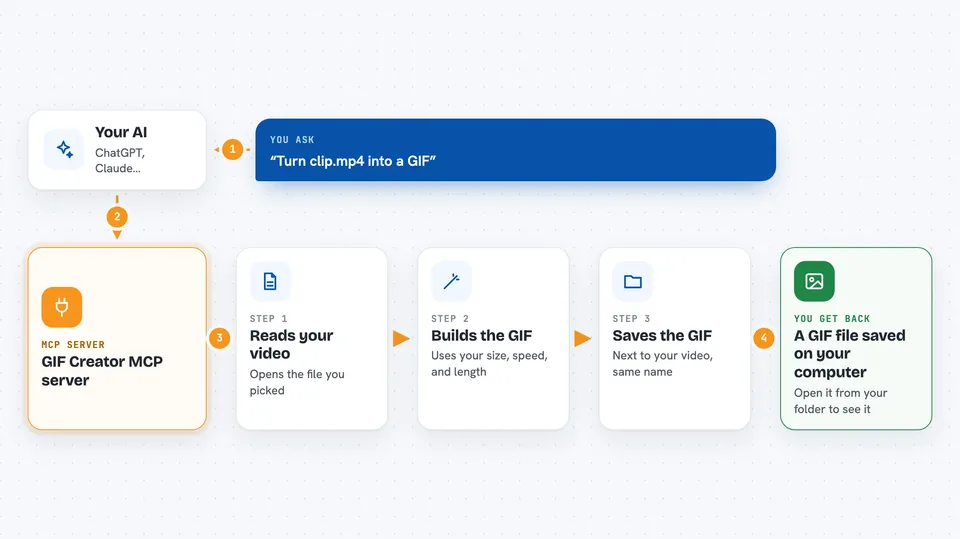
You tell your AI which video file you want to turn into a GIF, and you can add details like how fast it should play, how wide it should be, or which part of the video to use. The AI passes those details to this helper program. The helper reads the video file on your computer and builds a GIF from it. When it is done, the GIF is saved next to the original video, with the same name but ending in .gif. Then the AI tells you it is finished and where the file is.
 Click to zoom
What you can do with it
- Convert a video file on your computer into a GIF
- Pick a specific part of a long video to turn into a GIF
- Set how fast the GIF plays, from 1 to 30 frames per second
- Set the width or height of the GIF, keeping the shape of the original
- Limit the GIF to a certain number of seconds
- Make a smaller, lighter GIF for sharing in chat
Try asking your AI
- “Turn the video at /Users/me/Videos/clip.mp4 into a GIF”
- “Make a GIF from the first 10 seconds of my holiday video, 480 pixels wide”
- “Take seconds 30 to 35 of long-video.mov and make a GIF at 20 frames per second”
- “Create a small GIF from demo.mp4, about 5 seconds long”
What it gives back to you
You get a short message in the chat telling you the GIF was created and where it was saved. The GIF file itself lands in the same folder as your original video, with the same name but a .gif ending. It does not show the GIF inside the chat, so you open the file from your folder to see it. If something goes wrong, like the file not being found, the AI tells you that instead.
Before you start
What you need
- Node.js installed on your computer
- FFmpeg, which comes bundled automatically when you install this helper
- An MCP client that can run it, such as Goose (Claude Desktop does not support video input for this)
Good to know
It reads video files from your computer and writes a new GIF file next to them, so point it at a video you are happy to have a copy of.
Install it with your AI
Add GIF Creator MCP server to your AI, no technical skills needed
You don't install anything by hand. You copy one prompt, paste it into an AI that can work on your computer, and it checks, installs and connects the server for you, asking you when it needs something.
Sign in to get the install prompt
Members get a ready-made prompt that lets the Claude desktop app check GIF Creator MCP server, install it and connect it for them, step by step. You don't need any technical skills: you copy, paste and answer a few questions. Your connected AI can also find and install any of the 4,609 MCP servers here for you.
Who it's for
Anyone who makes short clips for chat, slides or social media and wants GIFs without opening a video editor.