MCP server · Analytics
Argosvix MCP server
by argosvix
Ask your AI about your LLM costs, errors, latency and alerts, and let it adjust alerts for you.

Argosvix is a service that watches your AI usage: how much it costs, how fast it answers, and when things go wrong. This MCP server connects that service to your AI assistant, so you can ask questions about it in plain words instead of opening a dashboard. It is handy if you or your team run AI features and want quick answers about spend and errors.
What is an MCP server? The 30-second version
On its own, your AI can only chat with you. An MCP server is a small helper program that gives your AI a new skill or a connection to an app. This one connects your AI to Argosvix, your AI usage monitoring service. Once it is set up, your AI can look up your cost, error and speed numbers there, and change a few things like alerts, when you ask it to.
What this MCP server does
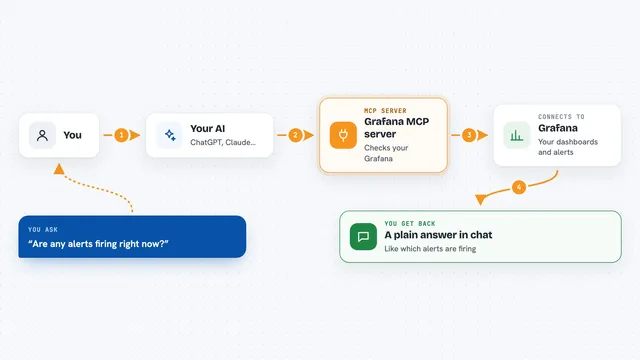
You ask your AI a question, like how much you spent on OpenAI yesterday. Your AI passes that question to this helper program. The helper talks to Argosvix using your API key, which is a kind of password for apps. Argosvix sends back the numbers, and your AI turns them into a normal answer in the chat. For some tasks, like creating or muting an alert, the helper also makes the change for you.
 Click to zoom
What you can do with it
- Check your LLM cost over the last day, week or month
- List the most expensive calls today
- See which alerts are firing right now
- Create a new alert for cost, error rate or latency
- Mute an alert for a while, then turn it back on
- Look up one call or one trace by its id
- Ask for a health summary of your account
Try asking your AI
- “What was my OpenAI cost over the past 24 hours?”
- “Which alerts are firing right now?”
- “Show me the 20 most expensive calls today.”
- “Create an alert if my error rate goes above 5 percent in an hour.”
What it gives back to you
You get normal chat answers: numbers, short lists, and summaries. For example, a cost breakdown by provider, a list of recent calls with model and price, or the alerts that are currently firing. When you ask it to change something, like creating or silencing an alert, it tells you what it did. It does not show your actual prompts or AI answers, only details like tokens, cost, speed and model name.
Before you start
What you need
- An Argosvix account and an API key from your Argosvix dashboard (a kind of password for apps)
- Node.js installed on your computer, version 18 or newer
- The Claude desktop app or another MCP-capable client like Cursor
Good to know
Some tools can change things in your Argosvix account, like creating, muting or acknowledging alerts, so check what your AI is about to do before you say yes.
Install it with your AI
Add Argosvix MCP server to your AI, no technical skills needed
You don't install anything by hand. You copy one prompt, paste it into an AI that can work on your computer, and it checks, installs and connects the server for you, asking you when it needs something.
Sign in to get the install prompt
Members get a ready-made prompt that lets the Claude desktop app check Argosvix MCP server, install it and connect it for them, step by step. You don't need any technical skills: you copy, paste and answer a few questions. Your connected AI can also find and install any of the 4,609 MCP servers here for you.
Who it's for
People and teams who run AI features and want quick, plain-language answers about their AI cost, errors and speed.