MCP server · Research
Kaggle MCP server
by arrismo
Let your AI search Kaggle for datasets, download them, and draft a starter analysis plan for you.
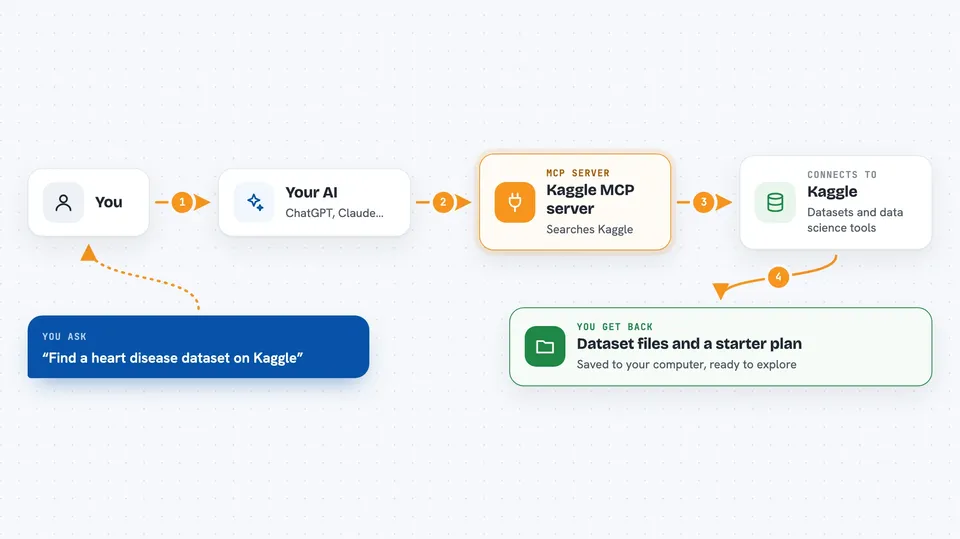
This is a small helper that connects your AI assistant to Kaggle, the website where people share data files for practice and research. Once it is set up, you can ask your AI to find a dataset, save it to your computer, and sketch out a first plan for looking at the numbers. It is handy for anyone learning data analysis or starting a small project with real data.
What is an MCP server? The 30-second version
On its own, your AI can only chat with you. An MCP server is a small helper program that gives your AI a new skill or a connection to an app or service. This one connects your AI to Kaggle, so it can look up datasets and pull them down for you when you ask. You stay in the chat, and the helper does the running around.
What this MCP server does
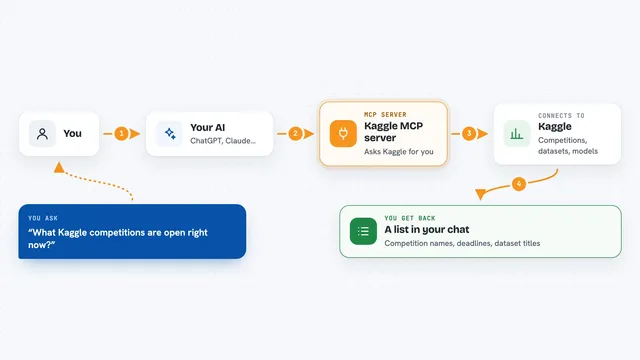
You ask your AI something like find me a dataset about heart disease on Kaggle. The AI passes that request to this helper, which searches Kaggle and hands back a short list of matching datasets with names and details. You pick one, and the helper downloads the files and unzips them into a folder on your computer. You can also ask it to write a starter plan for looking at the data, like checking for missing values and making a few charts.
 Click to zoom
What you can do with it
- Search Kaggle for datasets by keyword
- See details like download counts and last updated dates
- Download a dataset and unzip it on your computer
- Choose where the files are saved
- Get a starter plan for exploring a dataset
- Keep your Kaggle login details private on your machine
Try asking your AI
- “Search Kaggle for heart disease datasets.”
- “Download the titanic dataset.”
- “Save the dataset to my Documents folder instead.”
- “Generate an EDA notebook prompt for kaggle/titanic.”
What it gives back to you
When you search, you get back a short list of up to ten datasets with their names, a short description, how many times they were downloaded, when they were last updated, and a usability rating. When you download, you get a message telling you where the files were saved on your computer. When you ask for a starter plan, you get a written prompt you can hand to your AI to begin the analysis.
Before you start
What you need
- A Kaggle account
- A Kaggle API token (a kind of password for apps; Kaggle gives you one for free in your account settings)
- Python 3.10 or newer installed on your computer
- An MCP-compatible app like Claude Desktop
Good to know
It saves files to your computer, so check the folder it uses if you want to keep things tidy.
Install it with your AI
Add Kaggle MCP server to your AI, no technical skills needed
You don't install anything by hand. You copy one prompt, paste it into an AI that can work on your computer, and it checks, installs and connects the server for you, asking you when it needs something.
Sign in to get the install prompt
Members get a ready-made prompt that lets the Claude desktop app check Kaggle MCP server, install it and connect it for them, step by step. You don't need any technical skills: you copy, paste and answer a few questions. Your connected AI can also find and install any of the 4,361 MCP servers here for you.
Who it's for
Anyone learning data analysis, students, or office workers who want to try real datasets without hunting around the Kaggle website.