MCP server · Analytics
ContextBurn MCP server
by arsentev-ai
Lets your AI check how much of your Claude Code spending turned into real work.

ContextBurn looks at the chat logs Claude Code already saves on your computer and works out how much of what you paid for became actual answers, and how much was the AI re-reading things it had already seen. It is handy if you use Claude Code a lot and want to know where your tokens and money are going. You can also let the AI itself check these numbers while it works.
What is an MCP server? The 30-second version
On its own, your AI can only chat with you. An MCP server is a small helper program that gives your AI a new skill or a connection to something else. This one connects your AI to ContextBurn, a tool that reads your local Claude Code session logs. Once connected, your AI can look up its own efficiency numbers and spending breakdown while you are working together.
What this MCP server does
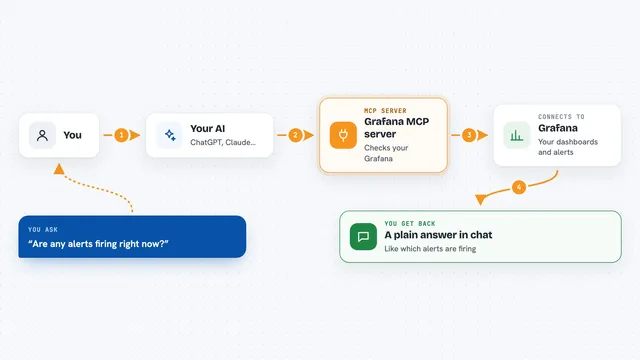
You ask your AI something like how efficient this session has been. The AI calls the ContextBurn helper, which reads the transcript files already saved on your machine. ContextBurn counts the tokens and works out the share that became output versus re-read context, both by tokens and by cost. The AI then tells you the result right in the chat, as numbers or as a short report.
 Click to zoom
What you can do with it
- Check the share of tokens that became real output in a session
- See a cost-weighted efficiency number for how you run sessions
- Get a full spending breakdown for a chosen time window
- Compare how efficient different sessions were
- See what specifically inflated the context in a run
Try asking your AI
- “How efficient has this session been so far?”
- “Show me my run efficiency for the last 24 hours”
- “Give me the full spend breakdown for today”
- “What was burning tokens in my last session?”
What it gives back to you
You get numbers back in the chat: the share of tokens that became output, and the cost-weighted share, plus a breakdown of what inflated the context. It can also return a fuller report with sessions and totals. Everything is read from your local logs and shown as text or structured data, so nothing is changed anywhere.
Before you start
What you need
- Claude Code installed and used on this machine, so there are transcripts to read
- Python 3 (the tool has no other dependencies)
- uvx if you want to add the MCP server with the one-line command
Good to know
It reads your local Claude Code transcripts, so it sees your session content, though nothing leaves your machine.
Install it with your AI
Add ContextBurn MCP server to your AI, no technical skills needed
You don't install anything by hand. You copy one prompt, paste it into an AI that can work on your computer, and it checks, installs and connects the server for you, asking you when it needs something.
Sign in to get the install prompt
Members get a ready-made prompt that lets the Claude desktop app check ContextBurn MCP server, install it and connect it for them, step by step. You don't need any technical skills: you copy, paste and answer a few questions. Your connected AI can also find and install any of the 4,609 MCP servers here for you.
Who it's for
People who use Claude Code often and want to understand their token use and spending, especially developers and anyone watching AI costs.